
Arduino - Interface SPI ILI9341 ILI9488 ST7789 Écran TFT LCD Tactile

Ce tutoriel vous explique comment utiliser un écran TFT SPI avec Arduino. En détail, nous allons apprendre :

Ce tutoriel couvre les écrans TFT LCD SPI tactiles et non tactiles. Il fonctionne avec les panneaux de 1,3, 1,54, 2,2, 2,4, 2,8, 3,2 et 3,5 pouces pilotés par les puces contrôleurs ILI9341, ILI9488 ou ST7789.

Arduino TFT SPI Display

Conseil — alternative plus simple et plus rapide : Si vous utilisez un Arduino Uno, envisagez le TFT Touch Shield à la place. Il se branche directement sur le connecteur Uno — aucun fil de liaison ni convertisseur de niveau requis. Il utilise une interface parallèle 8 bits, qui transfère les données de pixels nettement plus rapidement que SPI.

Matériel Requis

1×Arduino Uno R3
1×Câble USB 2.0 type A/B (pour PC USB-A)
1×Câble USB 2.0 type C/B (pour PC USB-C)
1×SPI TFT display module
1×5V to 3.3V Level Converter
1×Fils de connexion
1×Recommandé: Shield à bornier à vis pour Arduino Uno
1×Recommandé: Sensors/Servo Expansion Shield for Arduino Uno
1×Recommandé: Shield plaque d'essai pour Arduino Uno
1×Recommandé: Boîtier pour Arduino Uno
1×Recommandé: Kit plaque de base prototypage et plaque d'essai pour Arduino Uno

Ou vous pouvez acheter les kits suivants:

1×Kit de Démarrage DIYables STEM V3 (Arduino inclus)
1×Kit de Capteurs DIYables (18 capteurs/écrans)
Divulgation : Certains des liens fournis dans cette section sont des liens affiliés Amazon. Nous pouvons recevoir une commission pour tout achat effectué via ces liens, sans coût supplémentaire pour vous. Nous vous remercions de votre soutien.

À Propos de l'Écran TFT SPI

Un écran TFT SPI est un panneau LCD couleur contrôlé via le bus SPI (Serial Peripheral Interface). Il utilise une puce pilote dédiée — le plus souvent ILI9341, ILI9488 ou ST7789 — pour recevoir des commandes de dessin et gérer les données de pixels.

Faits clés :

  • ILI9341 — couleur RGB565 16 bits, jusqu'à 40 MHz SPI.
  • ILI9488 — couleur RGB666 18 bits sur SPI, jusqu'à 24 MHz SPI.
  • ST7789 — couleur RGB565 16 bits, jusqu'à 40 MHz SPI.

Recommandation : Si vous n'avez pas encore acheté d'écran, nous recommandons le pilote ST7789. Il est largement disponible, fonctionne à pleine vitesse SPI 40 MHz et est le choix le plus simple pour les nouveaux projets.

Brochage

La plupart des modules d'écran TFT LCD SPI ont les broches suivantes :

Broches d'affichage :

Pin Function
VCC Power supply
GND Ground
CS Chip Select — pulled low to select the display on the SPI bus
DC / RS Data / Command select — high for pixel data, low for commands
RST Hardware reset — optional; tie to 3.3V if unused
MOSI / SDI / SDA SPI data in (MCU → display)
SCK / CLK SPI clock
MISO / SDO SPI data out (display → MCU) — optional for display-only use
LED / BL / BLK Backlight power — connect to 3.3V or a PWM pin for dimming

Broches de la carte SD (si votre application a besoin d'accéder à la carte SD) :

Pin Function
SD_CS / TF_CS SD card Chip Select
MOSI / SDI MOSI — data from MCU to SD card
SCK / CLK SCK — SPI clock
MISO / SDO MISO — data from SD card to MCU

Pour les écrans TFT qui prennent en charge le tactile, il y a des broches tactiles supplémentaires (si votre application utilise la fonction tactile et si l'écran la prend en charge) :

Pin Function
T_CS Touch controller Chip Select
T_CLK SCK — SPI clock
T_DIN MOSI — data from MCU to touch controller
T_DO MISO — data from touch controller to MCU
T_IRQ Touch interrupt — optional; signals when the screen is being touched

Remarque : Certains modules d'affichage non tactiles exposent également les broches T_CS, T_CLK, T_DIN, T_DO et T_IRQ. Celles-ci sont non fonctionnelles sur ces cartes — le circuit intégré du contrôleur tactile n'est pas monté. Elles apparaissent parce que le PCB réutilise la même conception que la version tactile pour réduire les variantes de fabrication.
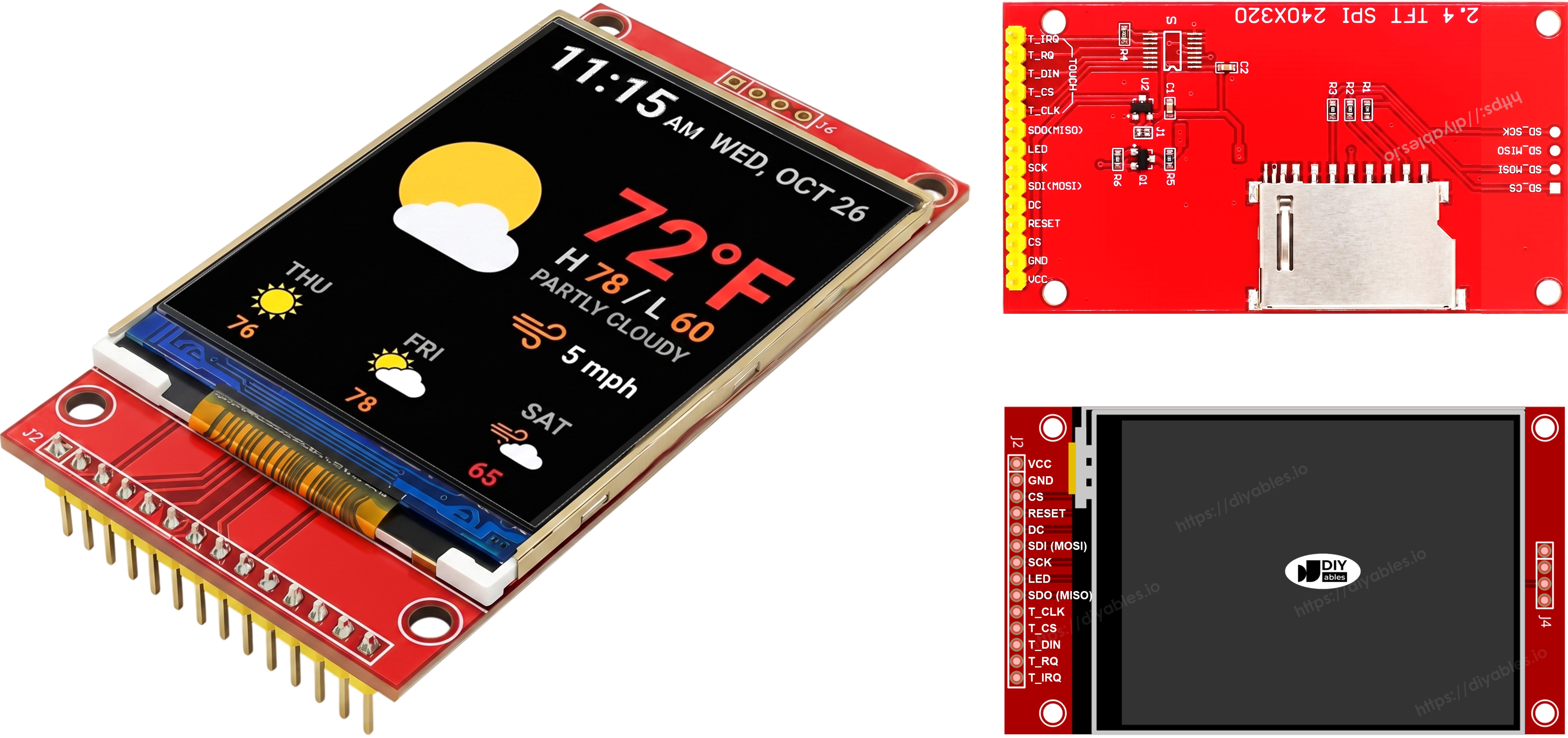
TFT SPI Display Pinout

Schéma de Câblage

⚠ Important — incompatibilité de tension : L'Arduino Uno est une carte 5V. Ses broches GPIO délivrent une logique 5V, mais les écrans TFT SPI fonctionnent à 3,3V. Connecter les lignes de signal (MOSI, SCK, CS, DC, RST et T_CS si vous utilisez le tactile) directement de l'Uno à l'écran endommagera l'écran. Vous devez utiliser un Convertisseur de Niveau 5V vers 3,3V sur chaque ligne de signal piloté par le MCU entre l'Uno et l'écran. La ligne MISO (écran → MCU) n'a pas besoin de convertisseur de niveau. Un seul module 4 canaux suffit pour le câblage sans tactile ; le câblage avec tactile nécessite 6 canaux au total (ajouter T_CS), donc utilisez deux modules 4 canaux ou un module 8 canaux. Connectez le VCC du TFT à la broche 3,3V de l'Uno.

Sans Tactile

Connectez MOSI à D11, SCK à D13, MISO à D12 sur l'Arduino Uno. CS, DC et RST peuvent être n'importe quel GPIO disponible — D10, D9, D8 sont utilisés dans les exemples.

Affichage :

TFT Pin Arduino Uno Pin Description
VCC 3.3V Power supply (3.3V only — the display runs at 3.3V)
GND GND Ground
CS D10 Chip Select
DC / RS D9 Data / Command select
RST D8 Reset (optional)
MOSI / SDI D11 Hardware SPI MOSI
SCK D13 Hardware SPI clock
MISO / SDO D12 Hardware SPI MISO (optional)
LED / BL 3.3V Backlight power

Carte SD (si votre application a besoin d'accéder à la carte SD) :

SD Pin Arduino Uno Pin Description
SD_CS / TF_CS any free GPIO SD card Chip Select
MOSI / SDI D11 Shared with display MOSI (D11)
SCK / CLK D13 Shared with display SCK (D13)
MISO / SDO D12 Shared with display MISO (D12)
Arduino TFT SPI Display wiring diagram without touch

Cette image a été créée avec Fritzing. Cliquez pour agrandir l'image.

Avec Tactile

Connectez le contrôleur tactile XPT2046 au bus SPI de l'Arduino Uno, partageant D11, D13 et D12 avec l'affichage.

Affichage :

TFT Pin Arduino Uno Pin Description
VCC 3.3V Power supply (3.3V only — the display runs at 3.3V)
GND GND Ground
CS D10 Chip Select
DC / RS D9 Data / Command select
RST D8 Reset (optional)
MOSI / SDI D11 Hardware SPI MOSI
SCK D13 Hardware SPI clock
MISO / SDO D12 Hardware SPI MISO (optional)
LED / BL 3.3V Backlight power

Contrôleur tactile (si votre application utilise la fonction tactile et si l'écran la prend en charge) :

Touch Pin Arduino Uno Pin Description
T_CS any free GPIO Touch Chip Select
T_IRQ any free GPIO Touch interrupt (optional)
T_DIN D11 Shared with display MOSI (D11)
T_CLK D13 Shared with display SCK (D13)
T_DO D12 Shared with display MISO (D12)
Arduino TFT SPI Display wiring diagram with touch

Cette image a été créée avec Fritzing. Cliquez pour agrandir l'image.

Si votre MCU dispose de deux interfaces SPI matérielles ou plus, vous pouvez assigner chaque périphérique (affichage, carte SD, contrôleur tactile) à son propre bus SPI dédié. Si votre MCU n'a qu'une seule interface SPI matérielle, les trois périphériques partagent les mêmes trois lignes de données (MOSI, SCK, MISO) — sur l'Uno ce sont D11, D13 et D12. Chaque périphérique a sa propre broche CS, donc un seul est actif à la fois. La bibliothèque DIYables_TFT_SPI gère à la fois l'affichage et le contrôleur tactile XPT2046 via une seule API — aucune bibliothèque SPI séparée n'est nécessaire pour le côté tactile.

Installation de la Bibliothèque

  • Connectez la carte Arduino à votre ordinateur avec un câble USB.
  • Ouvrez l'Arduino IDE, sélectionnez la bonne carte et le bon port.
  • Accédez à l'icône Bibliothèques dans la barre de gauche de l'Arduino IDE.
  • Recherchez "DIYables_TFT_SPI", puis trouvez la bibliothèque DIYables_TFT_SPI par DIYables.
  • Cliquez sur le bouton Installer pour installer la dernière version de la bibliothèque.
  • Lorsqu'on vous invite à installer les dépendances, cliquez sur Installer tout pour installer également la bibliothèque Adafruit GFX.
  • Search for DIYables TFT SPI created by DIYables.io and click the Install button.
Newbiely | Arduino IDE 2.3.8
──
File
Edit
Sketch
Tools
Help
Arduino Uno
Library Manager
Type:
All
Topic:
All
DIYables TFT SPI by DIYables.io
Works with both touch and non-touch versions of the same SPI TFT modules. Supports ILI9341 (240x320, 16-bit RGB565), ILI9488 (320x480, 18-bit RGB666), and ST7789 (240x320, 16-bit RGB565) displays over SPI. Includes built-in driver for XPT2046 / HR2046 / ADS7843 SPI touch controllers and 4-wire resistive touch panels - no separate touch library required. Use the display-only API for non-touch panels, or add initTouchSPI() to enable touch on modules that include a touch controller. Extends Adafruit GFX for full graphics support. Works with any Arduino-compatible board that has SPI. More info
1.0.1
INSTALL
Newbiely.ino
···
1 void setup() {
Output
Serial Monitor
Ln 1, Col 1
Arduino Uno on COM15
1

Structure de Base

Chaque sketch utilisant la bibliothèque DIYables_TFT_SPI suit cette structure de base :

#include <DIYables_TFT_SPI.h> #define TFT_CS_PIN 10 #define TFT_DC_PIN 9 #define TFT_RST_PIN 8 // Create a display object - choose the line that matches your driver chip: // DIYables_ILI9341_SPI TFT_display(240, 320, TFT_CS_PIN, TFT_DC_PIN, TFT_RST_PIN); // DIYables_ILI9488_SPI TFT_display(320, 480, TFT_CS_PIN, TFT_DC_PIN, TFT_RST_PIN); DIYables_ST7789_SPI TFT_display(240, 320, TFT_CS_PIN, TFT_DC_PIN, TFT_RST_PIN); void setup() { TFT_display.begin(); TFT_display.setRotation(1); // 0=portrait, 1=landscape, 2=portrait flipped, 3=landscape flipped } void loop() { // drawing code here }

La largeur et la hauteur passées au constructeur doivent correspondre à la résolution physique imprimée sur la fiche technique de votre module. Les modules utilisant la même puce pilote sont vendus en différentes tailles — par exemple, les modules ST7789 existent en 240x320, 240x240, 135x240 et d'autres variantes.

Code Arduino - Dessiner des Formes

L'exemple DrawShapes montre comment dessiner des cercles, des triangles, des rectangles, des rectangles arrondis et des lignes en utilisant les fonctions de dessin Adafruit GFX intégrées.

/* * Ce code Arduino a été développé par newbiely.fr * Ce code Arduino est mis à disposition du public sans aucune restriction. * Pour des instructions complètes et des schémas de câblage, veuillez visiter: * https://newbiely.fr/tutorials/arduino/arduino-tft-lcd-touch-display-spi */ /* Created by DIYables This example code is in the public domain Product page: https://diyables.io */ // ============================================= // Single include brings in the base class plus all driver classes. // ============================================= #include <DIYables_TFT_SPI.h> // ============================================= // Wiring (Arduino Uno / Nano) // --------------------------------------------- // TFT module Arduino Uno / Nano // ------------ --------------------------------- // VCC -> 5V // GND -> GND // CS -> D10 (TFT_CS_PIN) // RESET -> D8 (TFT_RST_PIN) // DC / RS -> D9 (TFT_DC_PIN) // SDI / MOSI -> D11 (hardware SPI MOSI) // SCK -> D13 (hardware SPI SCK) // LED -> 3.3V (or any GPIO via initBacklight) // SDO / MISO -> D12 (only needed when reading from display) // ============================================= // ============================================= // SPI pin definitions (adjust for your board) // ============================================= #define TFT_CS_PIN 10 #define TFT_DC_PIN 9 #define TFT_RST_PIN 8 // Panel resolution in native (portrait) orientation - change to match your module #define TFT_WIDTH 240 #define TFT_HEIGHT 320 // MOSI and SCK use default hardware SPI pins // ============================================= // Create display object (uncomment matching driver) // ============================================= // DIYables_ILI9341_SPI TFT_display(TFT_WIDTH, TFT_HEIGHT, TFT_CS_PIN, TFT_DC_PIN, TFT_RST_PIN); // DIYables_ILI9488_SPI TFT_display(TFT_WIDTH, TFT_HEIGHT, TFT_CS_PIN, TFT_DC_PIN, TFT_RST_PIN); DIYables_ST7789_SPI TFT_display(TFT_WIDTH, TFT_HEIGHT, TFT_CS_PIN, TFT_DC_PIN, TFT_RST_PIN); #define BLACK DIYables_TFT_SPI::colorRGB(0, 0, 0) #define BLUE DIYables_TFT_SPI::colorRGB(0, 0, 255) #define RED DIYables_TFT_SPI::colorRGB(255, 0, 0) #define GREEN DIYables_TFT_SPI::colorRGB(0, 255, 0) #define ORANGE DIYables_TFT_SPI::colorRGB(255, 165, 0) #define PINK DIYables_TFT_SPI::colorRGB(255, 192, 203) #define VIOLET DIYables_TFT_SPI::colorRGB(148, 0, 211) #define TURQUOISE DIYables_TFT_SPI::colorRGB(64, 224, 208) #define WHITE DIYables_TFT_SPI::colorRGB(255, 255, 255) // Helper to draw a filled diamond void fillDiamond(int cx, int cy, int h, int v, uint16_t color) { int x0 = cx, y0 = cy - v; int x1 = cx + h, y1 = cy; int x2 = cx, y2 = cy + v; int x3 = cx - h, y3 = cy; TFT_display.fillTriangle(x0, y0, x1, y1, x2, y2, color); TFT_display.fillTriangle(x0, y0, x2, y2, x3, y3, color); } void setup() { TFT_display.begin(); TFT_display.setRotation(1); // Landscape } void loop() { TFT_display.fillScreen(WHITE); uint16_t w = TFT_display.width(); uint16_t h = TFT_display.height(); // Scale positions relative to screen size with better spacing int col1 = w / 8; int col2 = w * 3 / 8; int col3 = w * 5 / 8; int col4 = w * 7 / 8; int row1 = h / 4; int row2 = h / 2; int row3 = h * 3 / 4; // Outlined circle TFT_display.drawCircle(col1, row1, 30, RED); // Filled circle TFT_display.fillCircle(col2, row1, 30, RED); // Outlined triangle TFT_display.drawTriangle(col3 - 30, row1 + 25, col3 + 30, row1 + 25, col3, row1 - 25, BLUE); // Filled triangle TFT_display.fillTriangle(col4 - 30, row1 + 25, col4 + 30, row1 + 25, col4, row1 - 25, GREEN); // Outlined rectangle TFT_display.drawRect(col1 - 35, row2 - 20, 70, 40, ORANGE); // Filled rectangle TFT_display.fillRect(col2 - 35, row2 - 20, 70, 40, TURQUOISE); // Outlined round rectangle TFT_display.drawRoundRect(col3 - 35, row2 - 20, 70, 40, 10, VIOLET); // Filled round rectangle TFT_display.fillRoundRect(col4 - 35, row2 - 20, 70, 40, 10, PINK); // Outlined diamond (centered between col1 and col2) int diamond1_x = (col1 + col2) / 2; TFT_display.drawLine(diamond1_x, row3 - 30, diamond1_x + 25, row3, GREEN); TFT_display.drawLine(diamond1_x + 25, row3, diamond1_x, row3 + 30, GREEN); TFT_display.drawLine(diamond1_x, row3 + 30, diamond1_x - 25, row3, GREEN); TFT_display.drawLine(diamond1_x - 25, row3, diamond1_x, row3 - 30, GREEN); // Filled diamond (centered between col3 and col4) int diamond2_x = (col3 + col4) / 2; fillDiamond(diamond2_x, row3, 25, 30, BLUE); delay(10000); }

Étapes Rapides

  • Câblez l'écran TFT à l'Arduino en suivant le schéma de câblage ci-dessus.
  • Connectez la carte Arduino à votre ordinateur avec un câble USB.
  • Ouvrez l'Arduino IDE, sélectionnez la bonne carte et le bon port.
  • Copiez le code ci-dessus et collez-le dans l'éditeur de l'Arduino IDE.
  • Changez la ligne du constructeur pour correspondre au pilote et à la résolution de votre écran.
  • Cliquez sur le bouton Téléverser dans l'Arduino IDE pour téléverser le code sur Arduino.
  • L'écran affiche un motif de formes colorées qui se remplit et se redessine toutes les quelques secondes.

Résumé de l'API

Method Description Example
TFT_display.begin() Initialize the display. Call once in setup(). TFT_display.begin();
TFT_display.setRotation(r) Set screen orientation. 0=portrait, 1=landscape. TFT_display.setRotation(1);
TFT_display.fillScreen(color) Fill entire screen with one color. TFT_display.fillScreen(BLACK);
DIYables_TFT_SPI::colorRGB(r,g,b) Convert RGB values to a 16-bit color. colorRGB(255, 0, 0)
TFT_display.drawCircle(x,y,r,color) Draw a circle outline. TFT_display.drawCircle(60, 60, 30, RED);
TFT_display.fillCircle(x,y,r,color) Draw a filled circle. TFT_display.fillCircle(60, 60, 30, RED);
TFT_display.drawRect(x,y,w,h,color) Draw a rectangle outline. TFT_display.drawRect(10, 10, 80, 40, BLUE);
TFT_display.fillRect(x,y,w,h,color) Draw a filled rectangle. TFT_display.fillRect(10, 10, 80, 40, BLUE);
TFT_display.drawLine(x0,y0,x1,y1,color) Draw a line. TFT_display.drawLine(0, 0, 100, 100, GREEN);

Code Arduino - Afficher du Texte et des Nombres

L'exemple ShowTextAndNumber montre comment afficher des chaînes de texte et des valeurs numériques à différentes tailles et positions.

/* * Ce code Arduino a été développé par newbiely.fr * Ce code Arduino est mis à disposition du public sans aucune restriction. * Pour des instructions complètes et des schémas de câblage, veuillez visiter: * https://newbiely.fr/tutorials/arduino/arduino-tft-lcd-touch-display-spi */ /* Created by DIYables This example code is in the public domain Product page: https://diyables.io */ // ============================================= // Single include brings in the base class plus all driver classes. // ============================================= #include <DIYables_TFT_SPI.h> // ============================================= // Wiring (Arduino Uno / Nano) // --------------------------------------------- // TFT module Arduino Uno / Nano // ------------ --------------------------------- // VCC -> 5V // GND -> GND // CS -> D10 (TFT_CS_PIN) // RESET -> D8 (TFT_RST_PIN) // DC / RS -> D9 (TFT_DC_PIN) // SDI / MOSI -> D11 (hardware SPI MOSI) // SCK -> D13 (hardware SPI SCK) // LED -> 3.3V (or any GPIO via initBacklight) // SDO / MISO -> D12 (only needed when reading from display) // ============================================= // ============================================= // SPI pin definitions (adjust for your board) // ============================================= #define TFT_CS_PIN 10 #define TFT_DC_PIN 9 #define TFT_RST_PIN 8 // Panel resolution in native (portrait) orientation - change to match your module #define TFT_WIDTH 240 #define TFT_HEIGHT 320 // ============================================= // Create display object (uncomment matching driver) // ============================================= // DIYables_ILI9341_SPI TFT_display(TFT_WIDTH, TFT_HEIGHT, TFT_CS_PIN, TFT_DC_PIN, TFT_RST_PIN); // DIYables_ILI9488_SPI TFT_display(TFT_WIDTH, TFT_HEIGHT, TFT_CS_PIN, TFT_DC_PIN, TFT_RST_PIN); DIYables_ST7789_SPI TFT_display(TFT_WIDTH, TFT_HEIGHT, TFT_CS_PIN, TFT_DC_PIN, TFT_RST_PIN); #define MAGENTA DIYables_TFT_SPI::colorRGB(255, 0, 255) #define WHITE DIYables_TFT_SPI::colorRGB(255, 255, 255) void setup() { Serial.begin(9600); Serial.println(F("TFT SPI Display - Show text and numbers")); TFT_display.begin(); TFT_display.setRotation(1); // Landscape TFT_display.fillScreen(WHITE); // Set text color and size TFT_display.setTextColor(MAGENTA); TFT_display.setTextSize(3); // Sample values float temperature = 23.5; float humidity = 78.6; // Display temperature TFT_display.setCursor(20, 20); TFT_display.print("Temperature: "); TFT_display.print(temperature, 1); TFT_display.print(char(247)); TFT_display.println("C"); // Display humidity TFT_display.setCursor(20, 60); TFT_display.print("Humidity: "); TFT_display.print(humidity, 1); TFT_display.print("%"); } void loop() { }

Étapes Rapides

  • Câblez l'écran et téléversez le code comme décrit ci-dessus.
  • L'écran affiche plusieurs lignes de texte avec différentes couleurs et tailles.

Résumé de l'API

Method Description Example
TFT_display.setTextColor(color) Set the text foreground color. TFT_display.setTextColor(WHITE);
TFT_display.setTextSize(size) Set text scale (1=6x8 px, 2=12x16 px, ...). TFT_display.setTextSize(2);
TFT_display.setCursor(x, y) Move the text cursor to a position. TFT_display.setCursor(10, 20);
TFT_display.print(value) Print a string or number at the cursor. TFT_display.print("Hello!");
TFT_display.println(value) Print and move cursor to next line. TFT_display.println(42);

Code Arduino - Afficher une Image

L'exemple DrawImage affiche un bitmap couleur RGB565 stocké en mémoire programme (PROGMEM). Les données de pixels résident dans un fichier d'en-tête bitmap.h compagnon sous forme de tableau const uint16_t et ne sont jamais copiées dans la SRAM, ce qui le rend adapté aux cartes à mémoire limitée. Ajoutez bitmap.h dans le même dossier que le sketch avant la compilation.

/* * Ce code Arduino a été développé par newbiely.fr * Ce code Arduino est mis à disposition du public sans aucune restriction. * Pour des instructions complètes et des schémas de câblage, veuillez visiter: * https://newbiely.fr/tutorials/arduino/arduino-tft-lcd-touch-display-spi */ /* Created by DIYables This example code is in the public domain Product page: https://diyables.io */ // ============================================= // Single include brings in the base class plus all driver classes. // ============================================= #include <DIYables_TFT_SPI.h> #include "bitmap.h" // ============================================= // Wiring (Arduino Uno / Nano) // --------------------------------------------- // TFT module Arduino Uno / Nano // ------------ --------------------------------- // VCC -> 5V // GND -> GND // CS -> D10 (TFT_CS_PIN) // RESET -> D8 (TFT_RST_PIN) // DC / RS -> D9 (TFT_DC_PIN) // SDI / MOSI -> D11 (hardware SPI MOSI) // SCK -> D13 (hardware SPI SCK) // LED -> 3.3V (or any GPIO via initBacklight) // SDO / MISO -> D12 (only needed when reading from display) // ============================================= // ============================================= // SPI pin definitions (adjust for your board) // ============================================= #define TFT_CS_PIN 10 #define TFT_DC_PIN 9 #define TFT_RST_PIN 8 // Panel resolution in native (portrait) orientation - change to match your module #define TFT_WIDTH 240 #define TFT_HEIGHT 320 // ============================================= // Create display object (uncomment matching driver) // ============================================= // DIYables_ILI9341_SPI TFT_display(TFT_WIDTH, TFT_HEIGHT, TFT_CS_PIN, TFT_DC_PIN, TFT_RST_PIN); // DIYables_ILI9488_SPI TFT_display(TFT_WIDTH, TFT_HEIGHT, TFT_CS_PIN, TFT_DC_PIN, TFT_RST_PIN); DIYables_ST7789_SPI TFT_display(TFT_WIDTH, TFT_HEIGHT, TFT_CS_PIN, TFT_DC_PIN, TFT_RST_PIN); #define WHITE DIYables_TFT_SPI::colorRGB(255, 255, 255) int img_width = 120; int img_height = 53; void setup() { Serial.begin(9600); Serial.println(F("TFT SPI Display - Draw Image")); TFT_display.begin(); uint16_t SCREEN_WIDTH = TFT_display.width(); uint16_t SCREEN_HEIGHT = TFT_display.height(); int x = (SCREEN_WIDTH - img_width) / 2; int y = (SCREEN_HEIGHT - img_height) / 2; TFT_display.fillScreen(WHITE); TFT_display.drawRGBBitmap(x, y, myBitmap, img_width, img_height); } void loop() { delay(2000); TFT_display.invertDisplay(true); delay(2000); TFT_display.invertDisplay(false); }

Étapes Rapides

  • Câblez l'écran TFT à l'Arduino en suivant le schéma de câblage ci-dessus.
  • Placez bitmap.h dans le même dossier que le sketch.
  • Connectez la carte Arduino à votre ordinateur avec un câble USB.
  • Ouvrez l'Arduino IDE, sélectionnez la bonne carte et le bon port, collez le code et cliquez sur Téléverser.
  • L'écran affiche l'image bitmap stockée en mémoire programme.

Résumé de l'API

Method Description Example
TFT_display.drawRGBBitmap(x,y,bitmap,w,h) Draw an RGB565 bitmap from PROGMEM at position (x, y). The array must be declared PROGMEM. TFT_display.drawRGBBitmap(0, 0, myImage, 240, 320);
TFT_display.fillScreen(color) Clear the screen to a solid color before drawing the bitmap. TFT_display.fillScreen(BLACK);

Code Arduino - Afficher une Image depuis Carte SD

L'exemple DrawImageSDcard lit un fichier d'image binaire brut RGB565 directement depuis une carte micro SD et envoie les données de pixels vers l'écran par morceaux, évitant la nécessité de charger l'image entière en RAM. Connectez un module de carte SD au même bus SPI que l'écran et définissez sa broche CS comme SD_CS_PIN dans le sketch.

/* * Ce code Arduino a été développé par newbiely.fr * Ce code Arduino est mis à disposition du public sans aucune restriction. * Pour des instructions complètes et des schémas de câblage, veuillez visiter: * https://newbiely.fr/tutorials/arduino/arduino-tft-lcd-touch-display-spi */ /* Created by DIYables This example code is in the public domain Product page: https://diyables.io */ // ============================================= // Single include brings in the base class plus all driver classes. // ============================================= #include <DIYables_TFT_SPI.h> #include <SD.h> // ============================================= // Wiring (Arduino Uno / Nano) // --------------------------------------------- // TFT + SD module Arduino Uno / Nano // ----------------------- --------------------------------- // VCC -> 5V // GND -> GND // TFT CS -> D10 (TFT_CS_PIN) // TFT RESET -> D8 (TFT_RST_PIN) // TFT DC / RS -> D9 (TFT_DC_PIN) // SD CS -> D4 (SD_CS) // SDI / MOSI (shared) -> D11 (hardware SPI MOSI) // SDO / MISO (shared) -> D12 (hardware SPI MISO) // SCK (shared) -> D13 (hardware SPI SCK) // LED -> 3.3V (or any GPIO via initBacklight) // ============================================= // ============================================= // SPI pin definitions (adjust for your board) // ============================================= #define TFT_CS_PIN 10 #define TFT_DC_PIN 9 #define TFT_RST_PIN 8 // Panel resolution in native (portrait) orientation - change to match your module #define TFT_WIDTH 240 #define TFT_HEIGHT 320 #define SD_CS 4 // SD card chip select (must differ from TFT_CS_PIN) // ============================================= // Create display object (uncomment matching driver) // ============================================= // DIYables_ILI9341_SPI TFT_display(TFT_WIDTH, TFT_HEIGHT, TFT_CS_PIN, TFT_DC_PIN, TFT_RST_PIN); // DIYables_ILI9488_SPI TFT_display(TFT_WIDTH, TFT_HEIGHT, TFT_CS_PIN, TFT_DC_PIN, TFT_RST_PIN); DIYables_ST7789_SPI TFT_display(TFT_WIDTH, TFT_HEIGHT, TFT_CS_PIN, TFT_DC_PIN, TFT_RST_PIN); #define WHITE DIYables_TFT_SPI::colorRGB(255, 255, 255) #define BUFFPIXEL 20 File bmpFile; uint16_t SCREEN_WIDTH; uint16_t SCREEN_HEIGHT; // Helper functions to read BMP file header uint16_t read16(File &f) { uint16_t result; result = f.read(); result |= (f.read() << 8); return result; } uint32_t read32(File &f) { uint32_t result; result = f.read(); result |= ((uint32_t)f.read() << 8); result |= ((uint32_t)f.read() << 16); result |= ((uint32_t)f.read() << 24); return result; } int32_t readS32(File &f) { int32_t result; result = f.read(); result |= ((uint32_t)f.read() << 8); result |= ((uint32_t)f.read() << 16); result |= ((uint32_t)f.read() << 24); return result; } bool getBMPDimensions(const char *filename, uint32_t &w, uint32_t &h) { File f = SD.open(filename); if (!f) return false; if (read16(f) != 0x4D42) { f.close(); return false; } read32(f); // file size read32(f); // reserved read32(f); // image offset read32(f); // DIB header size w = read32(f); int32_t sh = readS32(f); h = (sh < 0) ? -sh : sh; f.close(); return true; } void drawBMP(const char *filename, int x, int y) { bmpFile = SD.open(filename); if (!bmpFile) { Serial.println("File not found"); return; } if (read16(bmpFile) != 0x4D42) { Serial.println("Not a BMP file"); bmpFile.close(); return; } uint32_t fileSize = read32(bmpFile); read32(bmpFile); // Reserved uint32_t imageOffset = read32(bmpFile); uint32_t dibHeaderSize = read32(bmpFile); uint32_t bmpWidth = read32(bmpFile); int32_t bmpHeight = readS32(bmpFile); bool topDown = false; if (bmpHeight < 0) { bmpHeight = -bmpHeight; topDown = true; } if (read16(bmpFile) != 1) { Serial.println("Invalid BMP file"); bmpFile.close(); return; } uint16_t depth = read16(bmpFile); if (depth != 24) { Serial.println("Only 24-bit BMP is supported"); bmpFile.close(); return; } if (read32(bmpFile) != 0) { Serial.println("Unsupported BMP compression"); bmpFile.close(); return; } bmpFile.seek(imageOffset); uint8_t sdbuffer[3 * BUFFPIXEL]; uint16_t color; uint32_t rowSize = (bmpWidth * 3 + 3) & ~3; if (x >= SCREEN_WIDTH || y >= SCREEN_HEIGHT) return; uint32_t maxRow = min((uint32_t)bmpHeight, (uint32_t)(SCREEN_HEIGHT - y)); uint32_t maxCol = min(bmpWidth, (uint32_t)(SCREEN_WIDTH - x)); for (uint32_t row = 0; row < maxRow; row++) { int32_t rowPos = topDown ? row : bmpHeight - 1 - row; uint32_t filePosition = imageOffset + rowPos * rowSize; bmpFile.seek(filePosition); for (uint32_t col = 0; col < maxCol; col += BUFFPIXEL) { uint32_t pixelsToRead = min((uint32_t)BUFFPIXEL, maxCol - col); bmpFile.read(sdbuffer, 3 * pixelsToRead); for (uint32_t i = 0; i < pixelsToRead; i++) { uint8_t b = sdbuffer[i * 3]; uint8_t g = sdbuffer[i * 3 + 1]; uint8_t r = sdbuffer[i * 3 + 2]; color = DIYables_TFT_SPI::colorRGB(r, g, b); if ((x + col + i) < SCREEN_WIDTH && (y + row) < SCREEN_HEIGHT) { TFT_display.drawPixel(x + col + i, y + row, color); } } } } bmpFile.close(); Serial.println("BMP drawn"); } void setup() { Serial.begin(9600); if (!SD.begin(SD_CS)) { Serial.println("SD card initialization failed!"); return; } Serial.println("SD card initialized."); TFT_display.begin(); TFT_display.setRotation(1); // Landscape SCREEN_WIDTH = TFT_display.width(); SCREEN_HEIGHT = TFT_display.height(); TFT_display.fillScreen(WHITE); uint32_t imgWidth, imgHeight; if (getBMPDimensions("diyables.bmp", imgWidth, imgHeight)) { int x = (SCREEN_WIDTH - imgWidth) / 2; int y = (SCREEN_HEIGHT - imgHeight) / 2; drawBMP("diyables.bmp", x, y); } else { Serial.println("Failed to get BMP dimensions"); } } void loop() { }

Étapes Rapides

  • Câblez le module de carte SD à l'Arduino. Partagez les lignes MOSI (D11), SCK (D13) et MISO (D12) avec l'écran. Connectez le CS du module SD à la broche définie comme SD_CS_PIN.
  • Copiez une image binaire brute RGB565 à la racine de la carte SD. Les dimensions du fichier doivent correspondre à la largeur et à la hauteur du panneau.
  • Connectez la carte Arduino à votre ordinateur avec un câble USB.
  • Ouvrez l'Arduino IDE, sélectionnez la bonne carte et le bon port, collez le code et cliquez sur Téléverser.
  • L'écran affiche l'image diffusée depuis la carte SD.

Résumé de l'API

Method Description Example
TFT_display.startWrite() Begin a direct SPI transaction. Keeps CS asserted for the duration. TFT_display.startWrite();
TFT_display.setAddrWindow(x0,y0,x1,y1) Set the rectangular region of pixels to write. TFT_display.setAddrWindow(0, 0, 239, 319);
TFT_display.pushColors(buf, len) Stream a buffer of RGB565 pixel words to the display. TFT_display.pushColors(buf, 512);
TFT_display.endWrite() End the SPI transaction and release CS. TFT_display.endWrite();

Code Arduino - Utiliser une Police Externe

L'exemple UseExternalFont rend du texte en utilisant une police personnalisée compatible Adafruit GFX pour des glyphes plus nets et de meilleure qualité. La police est incluse en tant que fichier d'en-tête et activée en appelant setFont(). Passez NULL pour revenir à la police intégrée 5×7 pixels à tout moment.

/* * Ce code Arduino a été développé par newbiely.fr * Ce code Arduino est mis à disposition du public sans aucune restriction. * Pour des instructions complètes et des schémas de câblage, veuillez visiter: * https://newbiely.fr/tutorials/arduino/arduino-tft-lcd-touch-display-spi */ /* Created by DIYables This example code is in the public domain Product page: https://diyables.io */ // ============================================= // Single include brings in the base class plus all driver classes. // ============================================= #include <DIYables_TFT_SPI.h> #include <Fonts/FreeSansBold12pt7b.h> // ============================================= // Wiring (Arduino Uno / Nano) // --------------------------------------------- // TFT module Arduino Uno / Nano // ------------ --------------------------------- // VCC -> 5V // GND -> GND // CS -> D10 (TFT_CS_PIN) // RESET -> D8 (TFT_RST_PIN) // DC / RS -> D9 (TFT_DC_PIN) // SDI / MOSI -> D11 (hardware SPI MOSI) // SCK -> D13 (hardware SPI SCK) // LED -> 3.3V (or any GPIO via initBacklight) // SDO / MISO -> D12 (only needed when reading from display) // ============================================= // ============================================= // SPI pin definitions (adjust for your board) // ============================================= #define TFT_CS_PIN 10 #define TFT_DC_PIN 9 #define TFT_RST_PIN 8 // Panel resolution in native (portrait) orientation - change to match your module #define TFT_WIDTH 240 #define TFT_HEIGHT 320 // ============================================= // Create display object (uncomment matching driver) // ============================================= // DIYables_ILI9341_SPI TFT_display(TFT_WIDTH, TFT_HEIGHT, TFT_CS_PIN, TFT_DC_PIN, TFT_RST_PIN); // DIYables_ILI9488_SPI TFT_display(TFT_WIDTH, TFT_HEIGHT, TFT_CS_PIN, TFT_DC_PIN, TFT_RST_PIN); DIYables_ST7789_SPI TFT_display(TFT_WIDTH, TFT_HEIGHT, TFT_CS_PIN, TFT_DC_PIN, TFT_RST_PIN); #define MAGENTA DIYables_TFT_SPI::colorRGB(255, 0, 255) #define WHITE DIYables_TFT_SPI::colorRGB(255, 255, 255) void setup() { Serial.begin(9600); Serial.println(F("TFT SPI Display - Use external font")); TFT_display.begin(); TFT_display.setFont(&FreeSansBold12pt7b); TFT_display.setRotation(1); // Landscape TFT_display.fillScreen(WHITE); TFT_display.setTextColor(MAGENTA); TFT_display.setTextSize(1); float temperature = 23.5; float humidity = 78.6; TFT_display.setCursor(20, 30); TFT_display.print("Temperature: "); TFT_display.print(temperature, 1); TFT_display.print(char(247)); TFT_display.println("C"); TFT_display.setCursor(20, 70); TFT_display.print("Humidity: "); TFT_display.print(humidity, 1); TFT_display.print("%"); } void loop() { }

Étapes Rapides

  • Câblez l'écran TFT à l'Arduino en suivant le schéma de câblage ci-dessus.
  • Connectez la carte Arduino à votre ordinateur avec un câble USB.
  • Ouvrez l'Arduino IDE, sélectionnez la bonne carte et le bon port, collez le code et cliquez sur Téléverser.
  • L'écran rend le texte avec la police personnalisée. Comparez-le à la police intégrée pour voir l'amélioration de la netteté.

Résumé de l'API

Method Description Example
TFT_display.setFont(&FontName) Switch to a custom GFX-compatible font. Pass NULL to restore the built-in 5×7 font. TFT_display.setFont(&FreeSans12pt7b);
TFT_display.setCursor(x, y) Position the text cursor before calling print(). TFT_display.setCursor(10, 40);
TFT_display.setTextColor(color) Set the text foreground color. TFT_display.setTextColor(WHITE);
TFT_display.print(text) Print a string using the active font. TFT_display.print("Hello!");

Code Arduino - Obtenir un Point Tactile

L'exemple TouchGetPoint initialise le contrôleur tactile XPT2046 et lit les coordonnées ADC brutes chaque fois que l'écran est touché. Les valeurs brutes sont affichées dans le Moniteur Série. Exécutez cet exemple en premier pour comprendre la plage numérique de votre panneau avant d'appliquer la calibration.

Câblage : connectez T_CLK, T_DIN et T_DO aux mêmes broches SPI que l'écran (D13, D11, D12). Connectez T_CS à la broche 7 et T_IRQ à la broche 6. Le XPT2046 partage le bus SPI avec l'écran.

/* * Ce code Arduino a été développé par newbiely.fr * Ce code Arduino est mis à disposition du public sans aucune restriction. * Pour des instructions complètes et des schémas de câblage, veuillez visiter: * https://newbiely.fr/tutorials/arduino/arduino-tft-lcd-touch-display-spi */ /* Touch Get Point Example ----------------------- This example demonstrates how to read and display touch coordinates using a DIYables SPI TFT display with a 4-wire resistive touch panel. When you touch the screen, the sketch prints the mapped (screen) X and Y coordinates to the Serial Monitor and draws a red dot at the touched location. NOTE: Run the TouchCalibration example first and paste the calibration values into setTouchCalibration() below if the touch coordinates are inaccurate. Created by DIYables This example code is in the public domain Product page: https://diyables.io */ // ============================================= // Single include brings in the base class plus all driver classes. // ============================================= #include <DIYables_TFT_SPI.h> // ============================================= // Wiring (Arduino Uno / Nano) // ============================================= // TFT pins (always required) // TFT module Arduino Uno / Nano // ------------ --------------------------------- // VCC -> 5V // GND -> GND // CS -> D10 (TFT_CS_PIN) // RESET -> D8 (TFT_RST_PIN) // DC / RS -> D9 (TFT_DC_PIN) // SDI / MOSI -> D11 (hardware SPI MOSI) // SCK -> D13 (hardware SPI SCK) // SDO / MISO -> D12 (only needed when reading from display) // LED -> 3.3V (or any GPIO via initBacklight) // // XPT2046 / HR2046 / ADS7843 SPI touch controller // (modules with pins: T_CS, T_CLK, T_DIN, T_DO, T_IRQ) // Touch pin Arduino Uno / Nano // ------------ --------------------------------- // T_CS -> D7 (TOUCH_CS_PIN) // T_IRQ -> D2 (TOUCH_IRQ_PIN, optional - use -1 to skip) // T_CLK -> D13 (shared with display SCK) // T_DIN -> D11 (shared with display MOSI) // T_DO -> D12 (shared with display MISO) // ============================================= // ============================================= // SPI pin definitions (adjust for your board) // ============================================= #define TFT_CS_PIN 10 #define TFT_DC_PIN 9 #define TFT_RST_PIN 8 // Panel resolution in native (portrait) orientation - change to match your module #define TFT_WIDTH 240 #define TFT_HEIGHT 320 // MOSI and SCK use default hardware SPI pins // ============================================= // Touch pin definitions (XPT2046 / HR2046 SPI touch controller) // ============================================= #define TOUCH_CS_PIN 7 // T_CS (any GPIO) #define TOUCH_IRQ_PIN -1 // T_IRQ (any GPIO, or -1 if not connected) // ============================================= // ============================================= // Calibration values. // Run the TouchCalibration example and update these if touch is inaccurate. // Typical raw ranges: // - XPT2046 / HR2046 : ~200..3900 (default below) // - 4-wire resistive : ~100..900 // ============================================= #define TOUCH_LEFT_X 300 #define TOUCH_RIGHT_X 3700 #define TOUCH_TOP_Y 300 #define TOUCH_BOT_Y 3700 // ============================================= // Create display object (uncomment matching driver) // ============================================= // DIYables_ILI9341_SPI TFT_display(TFT_WIDTH, TFT_HEIGHT, TFT_CS_PIN, TFT_DC_PIN, TFT_RST_PIN); // DIYables_ILI9488_SPI TFT_display(TFT_WIDTH, TFT_HEIGHT, TFT_CS_PIN, TFT_DC_PIN, TFT_RST_PIN); DIYables_ST7789_SPI TFT_display(TFT_WIDTH, TFT_HEIGHT, TFT_CS_PIN, TFT_DC_PIN, TFT_RST_PIN); #define RED DIYables_TFT_SPI::colorRGB(255, 0, 0) #define WHITE DIYables_TFT_SPI::colorRGB(255, 255, 255) void setup() { Serial.begin(9600); TFT_display.begin(); TFT_display.setRotation(0); TFT_display.fillScreen(WHITE); TFT_display.initTouchSPI(TOUCH_CS_PIN, TOUCH_IRQ_PIN); // If touch X is mirrored on your board, uncomment: //TFT_display.setTouchInvertX(true); // If touch Y is mirrored on your board, uncomment: //TFT_display.setTouchInvertY(false); TFT_display.setTouchCalibration(TOUCH_LEFT_X, TOUCH_RIGHT_X, TOUCH_TOP_Y, TOUCH_BOT_Y); Serial.println("Touch the screen to see coordinates."); } void loop() { int x, y; if (TFT_display.getTouch(x, y)) { Serial.print("Touch at: "); Serial.print(x); Serial.print(", "); Serial.println(y); TFT_display.fillCircle(x, y, 4, RED); delay(200); } }

Étapes Rapides

  • Câblez le contrôleur tactile XPT2046 à l'Arduino. T_CLK→D13, T_DIN→D11, T_DO→D12 (partagé avec l'écran). T_CS→D7, T_IRQ→D6.
  • Connectez la carte Arduino à votre ordinateur avec un câble USB.
  • Ouvrez l'Arduino IDE, sélectionnez la bonne carte et le bon port, collez le code et cliquez sur Téléverser.
  • Ouvrez le Moniteur Série à 9600 bauds. Touchez l'écran pour voir les valeurs brutes X, Y et pression Z affichées.

Résumé de l'API

Method Description Example
TFT_display.initTouchSPI(cs, irq) Initialize the XPT2046 on the shared SPI bus. Pass -1 for irq if the pin is not connected. TFT_display.initTouchSPI(7, 6);
TFT_display.readTouchRaw(x, y, z) Read raw ADC values from the touch controller. Returns true when the screen is being touched. TFT_display.readTouchRaw(x, y, z);

Code Arduino - Dessin Tactile

L'exemple TouchDraw transforme l'écran en toile de dessin au doigt. Lorsque vous faites glisser un doigt sur l'écran, des points colorés sont placés à chaque coordonnée tactile en utilisant des positions calibrées, créant une ligne continue dessinée.

/* * Ce code Arduino a été développé par newbiely.fr * Ce code Arduino est mis à disposition du public sans aucune restriction. * Pour des instructions complètes et des schémas de câblage, veuillez visiter: * https://newbiely.fr/tutorials/arduino/arduino-tft-lcd-touch-display-spi */ /* Touch Draw Lines Example ------------------------- Draws lines on the screen following the pen. - Touch and drag on the screen to draw. - Lift the pen to stop drawing. - Touch again to start a new line from the last point. NOTE: Run the TouchCalibration example and update setTouchCalibration() below if the touch coordinates are inaccurate. Created by DIYables This example code is in the public domain Product page: https://diyables.io */ // ============================================= // Single include brings in the base class plus all driver classes. // ============================================= #include <DIYables_TFT_SPI.h> // ============================================= // Wiring (Arduino Uno / Nano) // ============================================= // TFT pins (always required) // TFT module Arduino Uno / Nano // ------------ --------------------------------- // VCC -> 5V // GND -> GND // CS -> D10 (TFT_CS_PIN) // RESET -> D8 (TFT_RST_PIN) // DC / RS -> D9 (TFT_DC_PIN) // SDI / MOSI -> D11 (hardware SPI MOSI) // SCK -> D13 (hardware SPI SCK) // SDO / MISO -> D12 (only needed when reading from display) // LED -> 3.3V (or any GPIO via initBacklight) // // XPT2046 / HR2046 / ADS7843 SPI touch controller // (modules with pins: T_CS, T_CLK, T_DIN, T_DO, T_IRQ) // Touch pin Arduino Uno / Nano // ------------ --------------------------------- // T_CS -> D7 (TOUCH_CS_PIN) // T_IRQ -> D2 (TOUCH_IRQ_PIN, optional - use -1 to skip) // T_CLK -> D13 (shared with display SCK) // T_DIN -> D11 (shared with display MOSI) // T_DO -> D12 (shared with display MISO) // ============================================= // ============================================= // SPI pin definitions (adjust for your board) // ============================================= #define TFT_CS_PIN 10 #define TFT_DC_PIN 9 #define TFT_RST_PIN 8 // Panel resolution in native (portrait) orientation - change to match your module #define TFT_WIDTH 240 #define TFT_HEIGHT 320 // ============================================= // Touch pin definitions (XPT2046 / HR2046 SPI touch controller) // ============================================= #define TOUCH_CS_PIN 7 // T_CS (any GPIO) #define TOUCH_IRQ_PIN -1 // T_IRQ (any GPIO, or -1 if not connected) // ============================================= // ============================================= // Calibration values. // Run the TouchCalibration example and update these if touch is inaccurate. // Typical raw ranges: // - XPT2046 / HR2046 : ~200..3900 (default below) // - 4-wire resistive : ~100..900 // ============================================= #define TOUCH_LEFT_X 300 #define TOUCH_RIGHT_X 3700 #define TOUCH_TOP_Y 300 #define TOUCH_BOT_Y 3700 // ============================================= // Create display object (uncomment matching driver) // ============================================= // DIYables_ILI9341_SPI TFT_display(TFT_WIDTH, TFT_HEIGHT, TFT_CS_PIN, TFT_DC_PIN, TFT_RST_PIN); // DIYables_ILI9488_SPI TFT_display(TFT_WIDTH, TFT_HEIGHT, TFT_CS_PIN, TFT_DC_PIN, TFT_RST_PIN); DIYables_ST7789_SPI TFT_display(TFT_WIDTH, TFT_HEIGHT, TFT_CS_PIN, TFT_DC_PIN, TFT_RST_PIN); #define RED DIYables_TFT_SPI::colorRGB(255, 0, 0) #define WHITE DIYables_TFT_SPI::colorRGB(255, 255, 255) #define PEN_RADIUS 3 void setup() { TFT_display.begin(); TFT_display.setRotation(0); TFT_display.fillScreen(WHITE); TFT_display.initTouchSPI(TOUCH_CS_PIN, TOUCH_IRQ_PIN); // If touch X is mirrored on your board, uncomment: //TFT_display.setTouchInvertX(true); // If touch Y is mirrored on your board, uncomment: //TFT_display.setTouchInvertY(false); TFT_display.setTouchCalibration(TOUCH_LEFT_X, TOUCH_RIGHT_X, TOUCH_TOP_Y, TOUCH_BOT_Y); } void loop() { int x, y; if (TFT_display.getTouch(x, y)) { TFT_display.fillCircle(x, y, PEN_RADIUS, RED); } }

Étapes Rapides

  • Câblez le contrôleur tactile XPT2046 à l'Arduino comme décrit dans la section Touch Get Point ci-dessus.
  • Connectez la carte Arduino à votre ordinateur avec un câble USB.
  • Ouvrez l'Arduino IDE, sélectionnez la bonne carte et le bon port, collez le code et cliquez sur Téléverser.
  • Faites glisser un doigt sur l'écran pour dessiner. Levez et faites glisser à nouveau pour commencer un nouveau trait.

Résumé de l'API

Method Description Example
TFT_display.initTouchSPI(cs, irq) Initialize the XPT2046 on the shared SPI bus. TFT_display.initTouchSPI(7, 6);
TFT_display.setTouchCalibration(minX,maxX,minY,maxY) Map raw ADC values to screen pixel coordinates. Obtain the four values from the TouchCalibration example. TFT_display.setTouchCalibration(200, 3800, 300, 3700);
TFT_display.setTouchInvertX(invert) / TFT_display.setTouchInvertY(invert) Flips the touch axis when X or Y is mirrored on your specific panel or batch. Call BEFORE setTouchCalibration(). TFT_display.setTouchInvertY(true);
TFT_display.getTouch(x, y) Get calibrated touch position in screen pixels. Returns true when the screen is being touched. if (TFT_display.getTouch(x, y)) { ... }
TFT_display.fillCircle(x, y, r, color) Draw a filled dot at the touch position. TFT_display.fillCircle(x, y, 3, RED);

Code Arduino - Bouton Tactile

L'exemple TouchButton dessine des boutons rectangulaires à l'écran et détecte les appuis en utilisant des coordonnées tactiles calibrées. Lorsqu'une zone de bouton est appuyée, elle change de couleur et déclenche une action. Cet exemple montre comment créer une interface utilisateur tactile simple.

T_IRQ n'a pas besoin d'être connecté pour la détection tactile basée sur l'interrogation. Passez -1 comme argument irq pour le désactiver.

/* * Ce code Arduino a été développé par newbiely.fr * Ce code Arduino est mis à disposition du public sans aucune restriction. * Pour des instructions complètes et des schémas de câblage, veuillez visiter: * https://newbiely.fr/tutorials/arduino/arduino-tft-lcd-touch-display-spi */ /* Touch Button Press/Release Example ------------------------------------ This example shows how to detect press and release events on a rectangular button using a DIYables SPI TFT display with a 4-wire resistive touch panel. When you touch inside the button, it changes colour and shows "PRESSED". When you release, it returns to its original state. NOTE: Run the TouchCalibration example and update setTouchCalibration() below if the touch coordinates are inaccurate. Created by DIYables This example code is in the public domain Product page: https://diyables.io */ // ============================================= // Single include brings in the base class plus all driver classes. // ============================================= #include <DIYables_TFT_SPI.h> // ============================================= // Wiring (Arduino Uno / Nano) // ============================================= // TFT pins (always required) // TFT module Arduino Uno / Nano // ------------ --------------------------------- // VCC -> 5V // GND -> GND // CS -> D10 (TFT_CS_PIN) // RESET -> D8 (TFT_RST_PIN) // DC / RS -> D9 (TFT_DC_PIN) // SDI / MOSI -> D11 (hardware SPI MOSI) // SCK -> D13 (hardware SPI SCK) // SDO / MISO -> D12 (only needed when reading from display) // LED -> 3.3V (or any GPIO via initBacklight) // // XPT2046 / HR2046 / ADS7843 SPI touch controller // (modules with pins: T_CS, T_CLK, T_DIN, T_DO, T_IRQ) // Touch pin Arduino Uno / Nano // ------------ --------------------------------- // T_CS -> D7 (TOUCH_CS_PIN) // T_IRQ -> D2 (TOUCH_IRQ_PIN, optional - use -1 to skip) // T_CLK -> D13 (shared with display SCK) // T_DIN -> D11 (shared with display MOSI) // T_DO -> D12 (shared with display MISO) // ============================================= // ============================================= // SPI pin definitions (adjust for your board) // ============================================= #define TFT_CS_PIN 10 #define TFT_DC_PIN 9 #define TFT_RST_PIN 8 // Panel resolution in native (portrait) orientation - change to match your module #define TFT_WIDTH 240 #define TFT_HEIGHT 320 // ============================================= // Touch pin definitions (XPT2046 / HR2046 SPI touch controller) // ============================================= #define TOUCH_CS_PIN 7 // T_CS (any GPIO) #define TOUCH_IRQ_PIN -1 // T_IRQ (any GPIO, or -1 if not connected) // ============================================= // ============================================= // Calibration values. // Run the TouchCalibration example and update these if touch is inaccurate. // Typical raw ranges: // - XPT2046 / HR2046 : ~200..3900 (default below) // - 4-wire resistive : ~100..900 // ============================================= #define TOUCH_LEFT_X 300 #define TOUCH_RIGHT_X 3700 #define TOUCH_TOP_Y 300 #define TOUCH_BOT_Y 3700 // ============================================= // Create display object (uncomment matching driver) // ============================================= // DIYables_ILI9341_SPI TFT_display(TFT_WIDTH, TFT_HEIGHT, TFT_CS_PIN, TFT_DC_PIN, TFT_RST_PIN); // DIYables_ILI9488_SPI TFT_display(TFT_WIDTH, TFT_HEIGHT, TFT_CS_PIN, TFT_DC_PIN, TFT_RST_PIN); DIYables_ST7789_SPI TFT_display(TFT_WIDTH, TFT_HEIGHT, TFT_CS_PIN, TFT_DC_PIN, TFT_RST_PIN); #define BLACK DIYables_TFT_SPI::colorRGB( 0, 0, 0) #define WHITE DIYables_TFT_SPI::colorRGB(255, 255, 255) #define GRAY DIYables_TFT_SPI::colorRGB(128, 128, 128) #define RED DIYables_TFT_SPI::colorRGB(255, 0, 0) #define BUTTON_X 30 #define BUTTON_Y 100 #define BUTTON_W 180 #define BUTTON_H 60 #define DEBOUNCE_DELAY 50 bool lastPressed = false; bool stablePressed = false; unsigned long lastDebounceTime = 0; void drawButton(bool pressed) { uint16_t bg = pressed ? GRAY : RED; TFT_display.fillRect(BUTTON_X, BUTTON_Y, BUTTON_W, BUTTON_H, bg); TFT_display.drawRect(BUTTON_X, BUTTON_Y, BUTTON_W, BUTTON_H, BLACK); TFT_display.setTextColor(WHITE, bg); TFT_display.setTextSize(3); TFT_display.setCursor(BUTTON_X + 10, BUTTON_Y + 16); TFT_display.print(pressed ? "PRESSED" : " PRESS "); } void setup() { Serial.begin(9600); TFT_display.begin(); TFT_display.setRotation(0); TFT_display.fillScreen(WHITE); TFT_display.initTouchSPI(TOUCH_CS_PIN, TOUCH_IRQ_PIN); // If touch X is mirrored on your board, uncomment: //TFT_display.setTouchInvertX(true); // If touch Y is mirrored on your board, uncomment: //TFT_display.setTouchInvertY(false); TFT_display.setTouchCalibration(TOUCH_LEFT_X, TOUCH_RIGHT_X, TOUCH_TOP_Y, TOUCH_BOT_Y); drawButton(false); } void loop() { int x, y; bool pressed = false; if (TFT_display.getTouch(x, y)) { if (x >= BUTTON_X && x < (BUTTON_X + BUTTON_W) && y >= BUTTON_Y && y < (BUTTON_Y + BUTTON_H)) { pressed = true; } } if (pressed != lastPressed) { lastDebounceTime = millis(); } lastPressed = pressed; if ((millis() - lastDebounceTime) > DEBOUNCE_DELAY) { if (pressed != stablePressed) { stablePressed = pressed; drawButton(stablePressed); Serial.println(stablePressed ? "Button PRESSED" : "Button RELEASED"); } } }

Étapes Rapides

  • Câblez T_CS à la broche 7. T_IRQ peut être laissé non connecté (passez -1 dans le code).
  • Connectez la carte Arduino à votre ordinateur avec un câble USB.
  • Ouvrez l'Arduino IDE, sélectionnez la bonne carte et le bon port, collez le code et cliquez sur Téléverser.
  • Appuyez sur les boutons affichés à l'écran. Chaque bouton change de couleur lorsqu'il est appuyé.

Résumé de l'API

Method Description Example
TFT_display.initTouchSPI(cs, irq) Initialize the XPT2046. Pass -1 for irq to use polling mode without the interrupt pin. TFT_display.initTouchSPI(7, -1);
TFT_display.setTouchCalibration(minX,maxX,minY,maxY) Apply calibration constants so getTouch() returns accurate pixel coordinates. TFT_display.setTouchCalibration(200, 3800, 300, 3700);
TFT_display.setTouchInvertX(invert) / TFT_display.setTouchInvertY(invert) Flips the touch axis when X or Y is mirrored on your specific panel or batch. Call BEFORE setTouchCalibration(). TFT_display.setTouchInvertY(true);
TFT_display.getTouch(x, y) Get calibrated touch coordinates. Returns true when the screen is pressed. if (TFT_display.getTouch(x, y)) { ... }
TFT_display.fillRect(x, y, w, h, color) Draw a button background rectangle. TFT_display.fillRect(10, 10, 120, 60, BLUE);

Code Arduino - Calibration Tactile

L'exemple TouchCalibration vous guide pour trouver les valeurs de calibration correctes pour votre panneau XPT2046 spécifique. Touchez les coins de l'écran lorsqu'on vous le demande et lisez les valeurs min/max X et Y depuis le Moniteur Série. Copiez ces quatre nombres dans setTouchCalibration() dans tous les autres exemples tactiles.

/* * Ce code Arduino a été développé par newbiely.fr * Ce code Arduino est mis à disposition du public sans aucune restriction. * Pour des instructions complètes et des schémas de câblage, veuillez visiter: * https://newbiely.fr/tutorials/arduino/arduino-tft-lcd-touch-display-spi */ /* Touch Screen Calibration Example --------------------------------- This example measures the raw touch coordinates at all four screen corners and prints ready-to-use calibration values to the Serial Monitor. It uses readTouchRaw() directly — it does NOT rely on getTouch() or any existing calibration values, so it works even when touch is completely broken. INSTRUCTIONS: 1. Upload this sketch to your board. 2. Open the Serial Monitor (Ctrl+Shift+M) and set baud rate to 9600. 3. The screen shows a blinking red dot in each corner, numbered 1–4: 1 = Top-left 2 = Top-right 3 = Bottom-right 4 = Bottom-left 4. Press and HOLD firmly on the blinking dot. Keep holding until the Serial Monitor prints "Captured!" for that corner. 5. Release, then wait for the next dot to appear and repeat. 6. After all 4 corners, the Serial Monitor prints the calibration values and a ready-to-use setTouchCalibration() call. Copy it into your sketch. NOTE: While waiting, the Serial Monitor continuously prints the live raw Z/X/Y readings so you can confirm that touch is being detected. Created by DIYables This example code is in the public domain Product page: https://diyables.io */ // ============================================= // Single include brings in the base class plus all driver classes. // ============================================= #include <DIYables_TFT_SPI.h> // ============================================= // Wiring (Arduino Uno / Nano) // ============================================= // TFT pins (always required) // TFT module Arduino Uno / Nano // ------------ --------------------------------- // VCC -> 5V // GND -> GND // CS -> D10 (TFT_CS_PIN) // RESET -> D8 (TFT_RST_PIN) // DC / RS -> D9 (TFT_DC_PIN) // SDI / MOSI -> D11 (hardware SPI MOSI) // SCK -> D13 (hardware SPI SCK) // SDO / MISO -> D12 (only needed when reading from display) // LED -> 3.3V (or any GPIO via initBacklight) // // XPT2046 / HR2046 / ADS7843 SPI touch controller // (modules with pins: T_CS, T_CLK, T_DIN, T_DO, T_IRQ) // Touch pin Arduino Uno / Nano // ------------ --------------------------------- // T_CS -> D7 (TOUCH_CS_PIN) // T_IRQ -> D2 (TOUCH_IRQ_PIN, optional - use -1 to skip) // T_CLK -> D13 (shared with display SCK) // T_DIN -> D11 (shared with display MOSI) // T_DO -> D12 (shared with display MISO) // ============================================= // ============================================= // SPI pin definitions (adjust for your board) // ============================================= #define TFT_CS_PIN 10 #define TFT_DC_PIN 9 #define TFT_RST_PIN 8 // Panel resolution in native (portrait) orientation - change to match your module #define TFT_WIDTH 240 #define TFT_HEIGHT 320 // ============================================= // Touch pin definitions (XPT2046 / HR2046 SPI touch controller) // ============================================= #define TOUCH_CS_PIN 7 // T_CS (any GPIO) #define TOUCH_IRQ_PIN -1 // T_IRQ (any GPIO, or -1 if not connected) // ============================================= // ============================================= // Create display object (uncomment matching driver) // ============================================= // DIYables_ILI9341_SPI TFT_display(TFT_WIDTH, TFT_HEIGHT, TFT_CS_PIN, TFT_DC_PIN, TFT_RST_PIN); // DIYables_ILI9488_SPI TFT_display(TFT_WIDTH, TFT_HEIGHT, TFT_CS_PIN, TFT_DC_PIN, TFT_RST_PIN); DIYables_ST7789_SPI TFT_display(TFT_WIDTH, TFT_HEIGHT, TFT_CS_PIN, TFT_DC_PIN, TFT_RST_PIN); // Minimum pressure to count as a valid touch. #define TOUCH_Z_MIN 10 // How many consecutive valid samples required before a corner is accepted. #define SAMPLES_NEEDED 10 // Delay between samples (ms). #define SAMPLE_DELAY_MS 30 #define DOT_RADIUS 12 #define BLACK DIYables_TFT_SPI::colorRGB( 0, 0, 0) #define WHITE DIYables_TFT_SPI::colorRGB(255, 255, 255) #define RED DIYables_TFT_SPI::colorRGB(255, 0, 0) // Corner pixel positions — filled in setup() once display size is known. // Order: 0=top-left, 1=top-right, 2=bottom-right, 3=bottom-left int cx[4], cy[4]; // Captured averaged raw values per corner. int cap_x[4], cap_y[4]; // ----------------------------------------------------------------------- void drawDot(int corner, bool on) { uint16_t color = on ? RED : WHITE; TFT_display.fillCircle(cx[corner], cy[corner], DOT_RADIUS, color); TFT_display.setTextSize(2); TFT_display.setTextColor(BLACK, color); TFT_display.setCursor(cx[corner] - 6, cy[corner] - 8); TFT_display.print(corner + 1); } void captureCorner(int corner) { const char* names[] = { "Top-left", "Top-right", "Bottom-right", "Bottom-left" }; Serial.println(); Serial.print("Corner "); Serial.print(corner + 1); Serial.print(" ("); Serial.print(names[corner]); Serial.println(")"); Serial.println(" Press and HOLD firmly on the blinking dot."); Serial.println(" Keep holding until you see 'Captured!'"); unsigned long lastBlink = 0; unsigned long lastPrint = 0; bool dotOn = false; int goodSamples = 0; long sumX = 0, sumY = 0; while (true) { // Blink the dot if (millis() - lastBlink > 400) { lastBlink = millis(); dotOn = !dotOn; drawDot(corner, dotOn); } int raw_x, raw_y, z; TFT_display.readTouchRaw(raw_x, raw_y, z); // Print live readings every 500 ms if (millis() - lastPrint > 500) { lastPrint = millis(); Serial.print(" Z="); Serial.print(z); Serial.print(" X="); Serial.print(raw_x); Serial.print(" Y="); Serial.println(raw_y); } if (z >= TOUCH_Z_MIN) { sumX += raw_x; sumY += raw_y; goodSamples++; if (goodSamples >= SAMPLES_NEEDED) { cap_x[corner] = sumX / goodSamples; cap_y[corner] = sumY / goodSamples; Serial.print(" Captured! raw_x="); Serial.print(cap_x[corner]); Serial.print(" raw_y="); Serial.println(cap_y[corner]); drawDot(corner, false); delay(500); return; } } else { goodSamples = 0; sumX = 0; sumY = 0; } delay(SAMPLE_DELAY_MS); } } // ----------------------------------------------------------------------- void setup() { Serial.begin(9600); TFT_display.begin(); TFT_display.setRotation(0); // Always calibrate in rotation 0 TFT_display.fillScreen(WHITE); TFT_display.initTouchSPI(TOUCH_CS_PIN, TOUCH_IRQ_PIN); // If touch X is mirrored on your board, uncomment the line below // BEFORE calibrating (so the printed values match your panel): //TFT_display.setTouchInvertX(true); // If touch Y is mirrored on your board, uncomment: //TFT_display.setTouchInvertY(false); int w = TFT_display.width(); int h = TFT_display.height(); int m = DOT_RADIUS + 4; cx[0] = m; cy[0] = m; cx[1] = w - m; cy[1] = m; cx[2] = w - m; cy[2] = h - m; cx[3] = m; cy[3] = h - m; Serial.println("=== Touch Calibration ==="); for (int i = 0; i < 4; i++) { captureCorner(i); } // Derive calibration values from the four corners int min_x = (cap_x[0] + cap_x[3]) / 2; // left edge int max_x = (cap_x[1] + cap_x[2]) / 2; // right edge int min_y = (cap_y[0] + cap_y[1]) / 2; // top edge int max_y = (cap_y[2] + cap_y[3]) / 2; // bottom edge Serial.println(); Serial.println("=== Calibration Results ==="); Serial.print(" Left X (min_x): "); Serial.println(min_x); Serial.print(" Right X (max_x): "); Serial.println(max_x); Serial.print(" Top Y (min_y): "); Serial.println(min_y); Serial.print(" Bot Y (max_y): "); Serial.println(max_y); Serial.println(); Serial.println("Copy this line into your sketch:"); Serial.print(" TFT_display.setTouchCalibration("); Serial.print(min_x); Serial.print(", "); Serial.print(max_x); Serial.print(", "); Serial.print(min_y); Serial.print(", "); Serial.print(max_y); Serial.println(");"); TFT_display.fillScreen(WHITE); TFT_display.setTextColor(BLACK); TFT_display.setTextSize(2); TFT_display.setCursor(10, 10); TFT_display.println("Done! Check"); TFT_display.setCursor(10, 35); TFT_display.println("Serial Monitor"); } void loop() {}

Étapes Rapides

  • Câblez le contrôleur tactile XPT2046 à l'Arduino comme décrit dans la section Touch Get Point.
  • Connectez la carte Arduino à votre ordinateur avec un câble USB.
  • Ouvrez l'Arduino IDE, sélectionnez la bonne carte et le bon port, collez le code et cliquez sur Téléverser.
  • Ouvrez le Moniteur Série à 9600 bauds. Touchez chaque coin de l'écran comme indiqué.
  • Notez les quatre valeurs affichées (minX, maxX, minY, maxY) et collez-les dans setTouchCalibration() dans vos autres sketches tactiles.

Résumé de l'API

Method Description Example
TFT_display.initTouchSPI(cs, irq) Initialize the XPT2046 touch controller. TFT_display.initTouchSPI(7, 6);
TFT_display.readTouchRaw(x, y, z) Read raw ADC values used to determine the calibration range. TFT_display.readTouchRaw(x, y, z);
TFT_display.setTouchCalibration(minX,maxX,minY,maxY) Store calibration constants so getTouch() maps raw values to pixel coordinates. TFT_display.setTouchCalibration(200, 3800, 300, 3700);
TFT_display.setTouchInvertX(invert) / TFT_display.setTouchInvertY(invert) Flips the touch axis when X or Y is mirrored on your specific panel or batch. Call BEFORE running calibration so the stored values match your panel. TFT_display.setTouchInvertY(true);

Code Arduino - SPI Personnalisé

L'exemple CustomSPI montre comment passer un pointeur SPIClass explicite au constructeur de l'écran. Ceci importe lorsqu'un autre périphérique occupe déjà le bus SPI par défaut ou lorsque vous devez limiter la vitesse d'horloge SPI pour des câbles longs ou bruités.

L'Arduino Uno dispose d'un seul bus SPI matériel sur D11 (MOSI), D13 (SCK) et D12 (MISO). L'exemple montre comment passer &SPI explicitement et comment configurer une vitesse SPI maximale plus basse.

/* * Ce code Arduino a été développé par newbiely.fr * Ce code Arduino est mis à disposition du public sans aucune restriction. * Pour des instructions complètes et des schémas de câblage, veuillez visiter: * https://newbiely.fr/tutorials/arduino/arduino-tft-lcd-touch-display-spi */ /* Created by DIYables This example code is in the public domain Product page: https://diyables.io This example demonstrates how to use a custom (non-default) SPI bus with the DIYables TFT SPI library. This is useful on boards that have multiple SPI interfaces, such as: - ESP32: HSPI / VSPI - Arduino Giga / Portenta: SPI1 - Raspberry Pi Pico: SPI1 */ // ============================================= // Single include brings in the base class plus all driver classes. // ============================================= #include <DIYables_TFT_SPI.h> // ============================================= // Wiring (Arduino Uno / Nano - default SPI bus) // --------------------------------------------- // NOTE: Uno / Nano have only ONE hardware SPI bus, so this example is // most useful on boards with multiple buses (ESP32, Giga, RP2040...). // On Uno / Nano, MY_SPI must remain &SPI and the wiring is the standard // hardware SPI mapping below. // // TFT module Arduino Uno / Nano // ------------ --------------------------------- // VCC -> 5V // GND -> GND // CS -> D10 (TFT_CS_PIN) // RESET -> D8 (TFT_RST_PIN) // DC / RS -> D9 (TFT_DC_PIN) // SDI / MOSI -> D11 (hardware SPI MOSI) // SCK -> D13 (hardware SPI SCK) // LED -> 3.3V (or any GPIO via initBacklight) // SDO / MISO -> D12 (only needed when reading from display) // ============================================= // ============================================= // SPI pin definitions (adjust for your board) // ============================================= #define TFT_CS_PIN 10 #define TFT_DC_PIN 9 #define TFT_RST_PIN 8 // Panel resolution in native (portrait) orientation - change to match your module #define TFT_WIDTH 240 #define TFT_HEIGHT 320 // ============================================= // Select alternate SPI bus (uncomment for your board) // ============================================= // --- ESP32: use HSPI --- // SPIClass hspi(HSPI); // #define MY_SPI &hspi // --- Arduino Giga / Portenta / RP2040: use SPI1 --- // #define MY_SPI &SPI1 // --- Default SPI (fallback) --- #define MY_SPI &SPI // ============================================= // Create display object with custom SPI bus // (uncomment matching driver) // ============================================= // DIYables_ILI9341_SPI TFT_display(TFT_WIDTH, TFT_HEIGHT, TFT_CS_PIN, TFT_DC_PIN, TFT_RST_PIN, MY_SPI); // DIYables_ILI9488_SPI TFT_display(TFT_WIDTH, TFT_HEIGHT, TFT_CS_PIN, TFT_DC_PIN, TFT_RST_PIN, MY_SPI); DIYables_ST7789_SPI TFT_display(TFT_WIDTH, TFT_HEIGHT, TFT_CS_PIN, TFT_DC_PIN, TFT_RST_PIN, MY_SPI); #define BLACK DIYables_TFT_SPI::colorRGB(0, 0, 0) #define WHITE DIYables_TFT_SPI::colorRGB(255, 255, 255) #define RED DIYables_TFT_SPI::colorRGB(255, 0, 0) #define GREEN DIYables_TFT_SPI::colorRGB(0, 255, 0) #define BLUE DIYables_TFT_SPI::colorRGB(0, 0, 255) void setup() { Serial.begin(9600); // For ESP32 HSPI: optionally remap pins before begin() // hspi.begin(14, 12, 13, -1); // SCK, MISO, MOSI, SS TFT_display.begin(); TFT_display.setRotation(1); // Landscape TFT_display.fillScreen(BLACK); uint16_t w = TFT_display.width(); uint16_t h = TFT_display.height(); // Draw a simple test pattern TFT_display.fillRect(0, 0, w / 3, h, RED); TFT_display.fillRect(w / 3, 0, w / 3, h, GREEN); TFT_display.fillRect(w * 2 / 3, 0, w / 3, h, BLUE); TFT_display.setTextColor(WHITE); TFT_display.setTextSize(2); TFT_display.setCursor(10, h / 2 - 10); TFT_display.print("Custom SPI bus OK"); } void loop() { // Nothing to do }

Étapes Rapides

  • Câblez l'écran TFT à l'Arduino comme indiqué dans le schéma de câblage.
  • Connectez la carte Arduino à votre ordinateur avec un câble USB.
  • Ouvrez l'Arduino IDE, sélectionnez la bonne carte et le bon port, collez le code et cliquez sur Téléverser.
  • L'écran s'initialise sur le bus SPI explicite et affiche un motif de barres de couleur.

Résumé de l'API

Method Description Example
DIYables_ILI9341_SPI(w,h,cs,dc,rst,spi) Constructor accepting an explicit SPIClass pointer as the last argument. Omit it to default to &SPI. DIYables_ILI9341_SPI tft(240, 320, 10, 9, 8, &SPI);
TFT_display.begin() Initialize the display on the configured SPI bus. TFT_display.begin();

Dépannage

Si le code ne fonctionne pas, voici quelques problèmes courants que vous pouvez résoudre :

  • Écran noir : Vérifiez que VCC, GND, CS, DC, MOSI et SCK sont tous correctement câblés. Un fil CS ou DC manquant est la cause la plus courante.
  • Mauvais pilote : Assurez-vous d'avoir décommenté la ligne de constructeur qui correspond à la puce pilote de votre module (ILI9341, ILI9488 ou ST7789). Un pilote incorrect affichera un écran vide ou tout blanc.
  • Mauvaise résolution : La largeur et la hauteur passées au constructeur doivent correspondre à votre panneau. Une taille incorrecte entraîne un décalage ou une coupure de l'image.
  • Parasites à l'écran : Vérifiez que MOSI et SCK sont sur les broches SPI matérielles (D11 et D13 sur Uno). Les échanger est une erreur courante.
  • Le tactile ne répond pas : Exécutez l'exemple TouchCalibration pour trouver les valeurs de calibration correctes pour votre panneau.

Compatibilité des Plateformes

La bibliothèque DIYables_TFT_SPI utilise des API SPI Arduino standard et prend en charge toutes les plateformes compatibles Arduino (architectures=*). La dépendance Adafruit GFX Library est également multiplateforme.

※ NOS MESSAGES

  • N'hésitez pas à partager le lien de ce tutoriel. Cependant, veuillez ne pas utiliser notre contenu sur d'autres sites web. Nous avons investi beaucoup d'efforts et de temps pour créer ce contenu, veuillez respecter notre travail !