Arduino UNO R4 WiFi Bluetooth Exemple Digital Pins - Tutoriel Contrôle des Broches GPIO via BLE
Vue d'ensemble
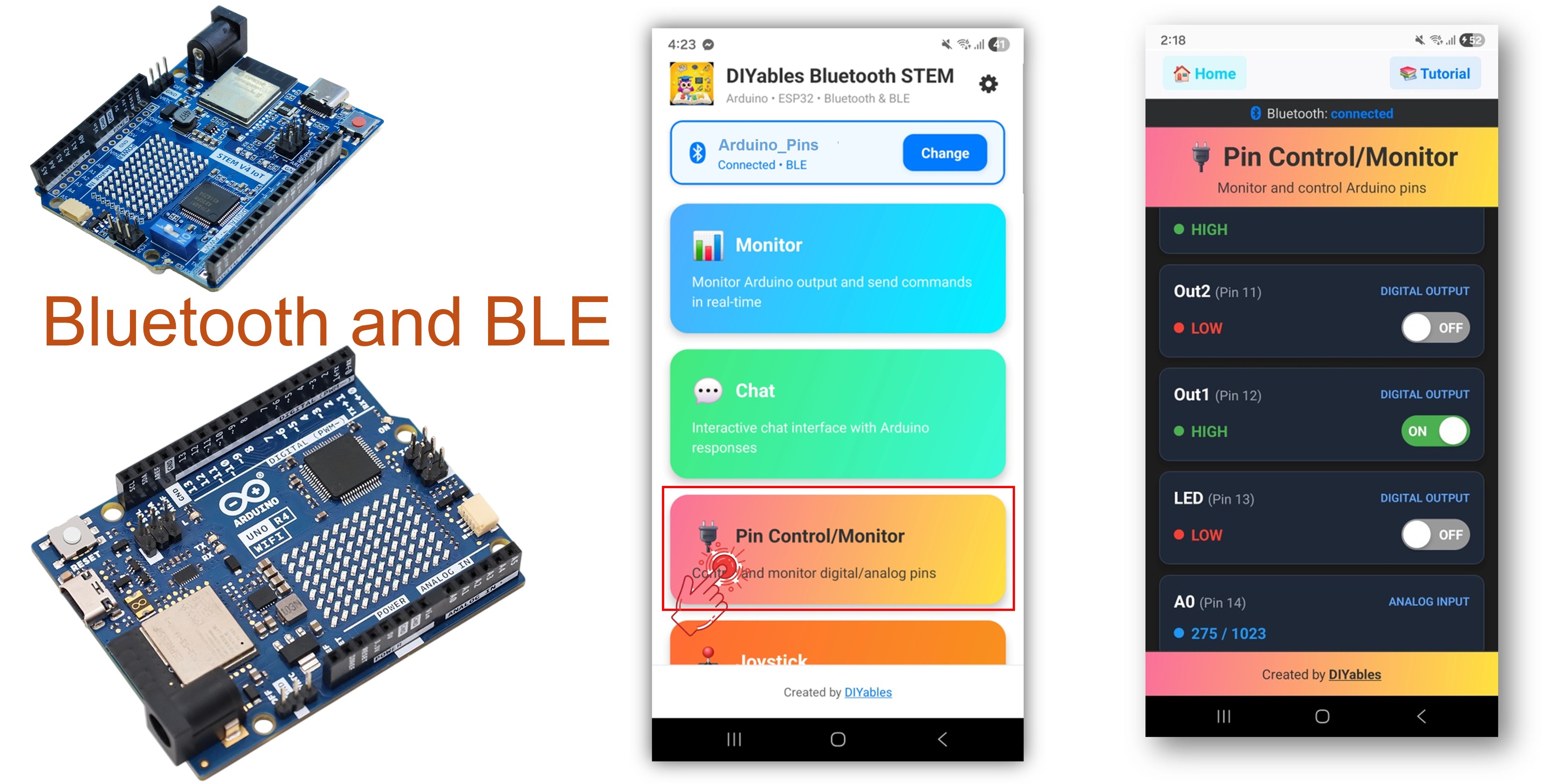
L'exemple Bluetooth Digital Pins offre un contrôle et une surveillance des broches GPIO à distance, accessibles via l'application DIYables Bluetooth STEM. Conçu pour Arduino UNO R4 WiFi utilisant BLE (Bluetooth Low Energy) pour contrôler les broches de sortie et surveiller les broches d'entrée sans fil depuis votre smartphone. Parfait pour le contrôle de relais, la surveillance de boutons, la commutation de LED et toute application nécessitant un accès distant aux broches.
Note : L'Arduino UNO R4 WiFi ne supporte que BLE (Bluetooth Low Energy). Il ne supporte pas le Bluetooth Classic. L'application DIYables Bluetooth supporte à la fois BLE et Bluetooth Classic sur Android, et BLE sur iOS. Puisque cette carte utilise BLE, l'application fonctionne sur Android et iOS.
Fonctionnalités
Contrôle de Sortie : Définir les broches digitales HIGH/LOW à distance
Surveillance d'Entrée : Lire les états des broches digitales et analogiques
Broches Nommées : Assigner des noms conviviaux à chaque broche (ex. "LED", "Relais")
Mises à jour Temps Réel : Pousser les changements d'état des broches vers l'application
Jusqu'à 16 Broches : Contrôler plusieurs broches simultanément
Fonctionne sur Android et iOS : BLE est supporté sur les deux plateformes
Pas d'Appairage Requis : BLE se connecte automatiquement sans appairage manuel
Divulgation : Certains des liens fournis dans cette section sont des liens affiliés Amazon. Nous pouvons recevoir une commission pour tout achat effectué via ces liens, sans coût supplémentaire pour vous. Nous vous remercions de votre soutien.
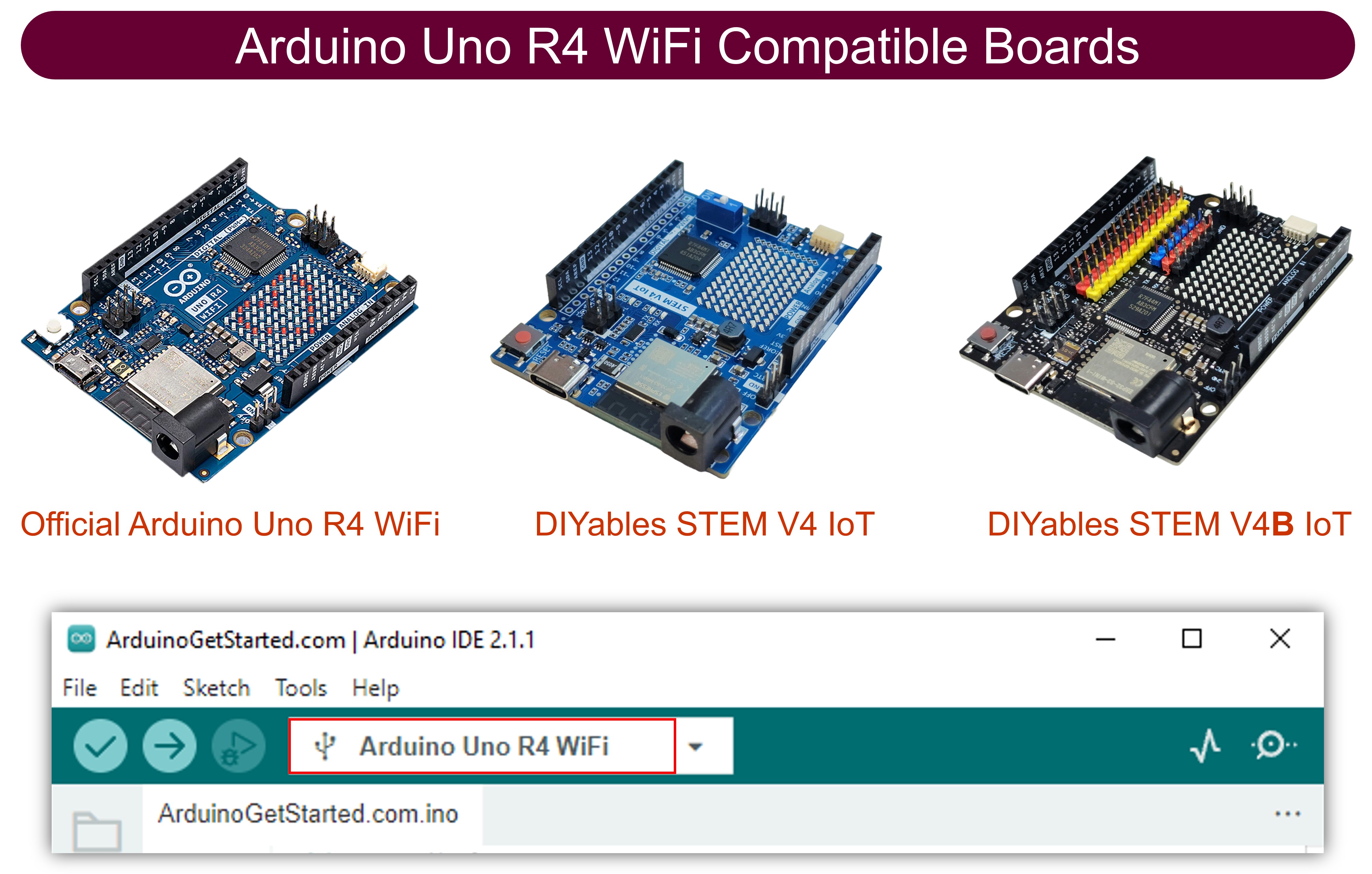
Connectez la carte Arduino UNO R4 WiFi à votre ordinateur avec un câble USB.
Lancez l'IDE Arduino sur votre ordinateur.
Sélectionnez la carte Arduino UNO R4 WiFi et le port COM approprié.
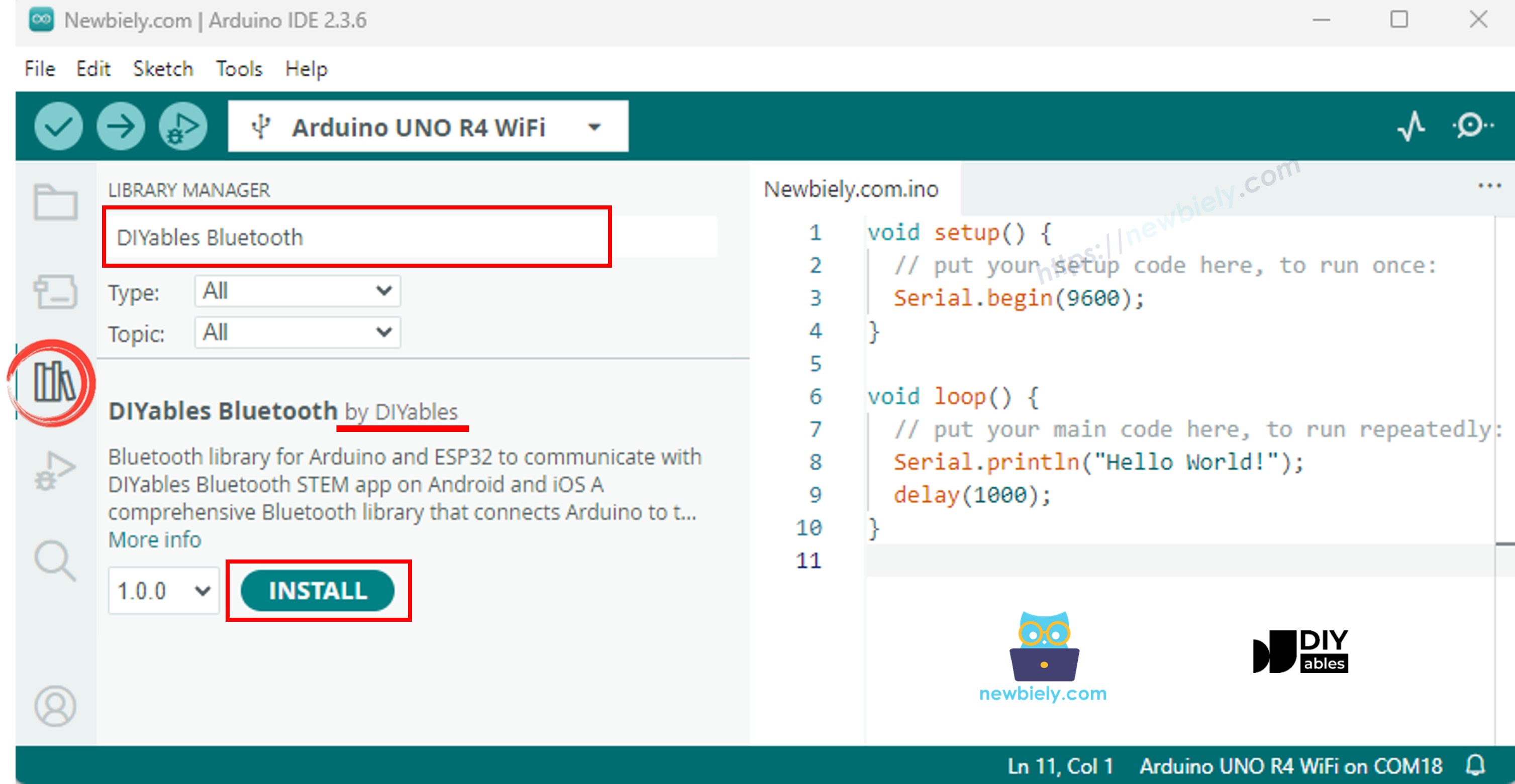
Naviguez vers l'icône Libraries dans la barre de gauche de l'IDE Arduino.
Recherchez "DIYables Bluetooth", puis trouvez la bibliothèque DIYables Bluetooth par DIYables
Cliquez sur le bouton Install pour installer la bibliothèque.
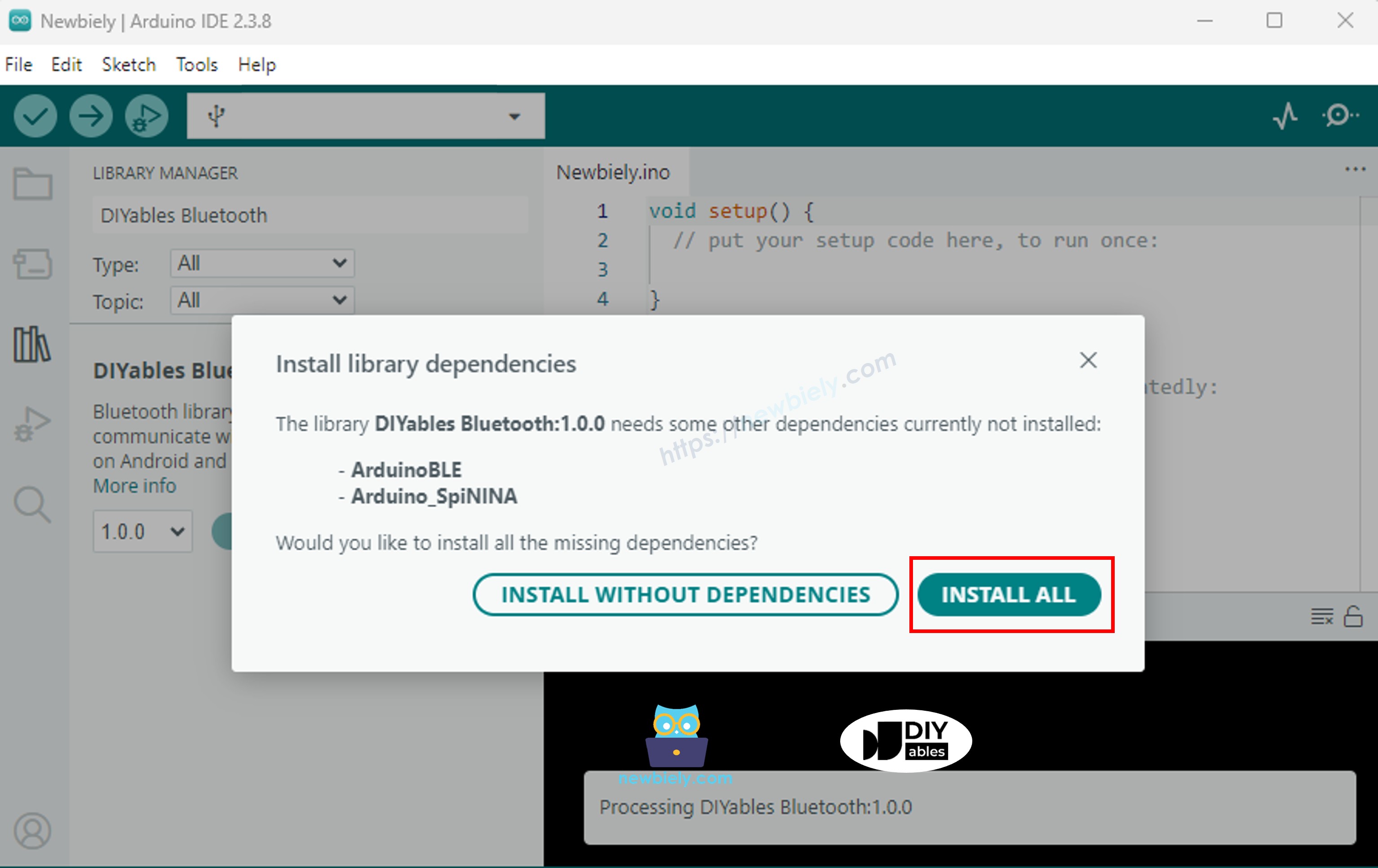
Il vous sera demandé d'installer d'autres dépendances de bibliothèque
Cliquez sur le bouton Install All pour installer toutes les dépendances de bibliothèque.
Code BLE
Dans l'IDE Arduino, allez à File Examples DIYables Bluetooth ArduinoBLE_PinControl exemple, ou copiez le code ci-dessus et collez-le dans l'éditeur de l'IDE Arduino
/* * DIYables Bluetooth Library - Bluetooth Pin Control/Monitor Example * Works with DIYables Bluetooth STEM app on Android and iOS * * This example demonstrates the Bluetooth Pin Control/Monitor feature: * - Control digital output pins via Bluetooth * - Monitor digital input pins * - Monitor analog input pins * - Configure pin modes (INPUT/OUTPUT) * * Compatible Boards: * - Arduino UNO R4 WiFi * - Arduino Nano 33 BLE / BLE Sense * - Arduino Nano 33 IoT * - Arduino MKR WiFi 1010 * - Arduino Nano RP2040 Connect * - Any board supporting the ArduinoBLE library * * Setup: * 1. Upload the sketch to your Arduino * 2. Open Serial Monitor to see connection status * 3. Use DIYables Bluetooth App to connect and control pins * * Tutorial: https://diyables.io/bluetooth-app * Author: DIYables */#include <DIYables_BluetoothServer.h>#include <DIYables_BluetoothPinControl.h>#include <platforms/DIYables_ArduinoBLE.h>// BLE Configurationconst char* DEVICE_NAME = "Arduino_Pins";const char* SERVICE_UUID = "19B10000-E8F2-537E-4F6C-D104768A1214";const char* TX_UUID = "19B10001-E8F2-537E-4F6C-D104768A1214";const char* RX_UUID = "19B10002-E8F2-537E-4F6C-D104768A1214";// Create Bluetooth instancesDIYables_ArduinoBLE bluetooth(DEVICE_NAME, SERVICE_UUID, TX_UUID, RX_UUID);DIYables_BluetoothServer bluetoothServer(bluetooth);// Create Pin Control/Monitor app instanceDIYables_BluetoothPinControl bluetoothPins;// Pin configurationconstint LED_PIN = 13;constint OUTPUT_PIN_1 = 12;constint OUTPUT_PIN_2 = 11;constint INPUT_PIN_1 = 7;constint INPUT_PIN_2 = 6;constint ANALOG_PIN_1 = A0;constint ANALOG_PIN_2 = A1;voidsetup() {Serial.begin(9600);while (!Serial);Serial.println("DIYables Bluetooth - Pin Control/Monitor Example");// Initialize pinspinMode(LED_PIN, OUTPUT);pinMode(OUTPUT_PIN_1, OUTPUT);pinMode(OUTPUT_PIN_2, OUTPUT);pinMode(INPUT_PIN_1, INPUT_PULLUP);pinMode(INPUT_PIN_2, INPUT_PULLUP);// Initialize Bluetooth server with platform-specific implementation bluetoothServer.begin();// Add digital pins app to server bluetoothServer.addApp(&bluetoothPins);// Configure which pins are accessible via Bluetooth with custom names bluetoothPins.enablePin(LED_PIN, BT_PIN_OUTPUT, "LED"); bluetoothPins.enablePin(OUTPUT_PIN_1, BT_PIN_OUTPUT, "Out1"); bluetoothPins.enablePin(OUTPUT_PIN_2, BT_PIN_OUTPUT, "Out2"); bluetoothPins.enablePin(INPUT_PIN_1, BT_PIN_INPUT, "Btn1"); bluetoothPins.enablePin(INPUT_PIN_2, BT_PIN_INPUT, "Btn2"); bluetoothPins.enablePin(ANALOG_PIN_1, BT_PIN_INPUT, "A0"); bluetoothPins.enablePin(ANALOG_PIN_2, BT_PIN_INPUT, "A1");// Set up connection event callbacks bluetoothServer.setOnConnected([]() {Serial.println("Bluetooth connected!"); }); bluetoothServer.setOnDisconnected([]() {Serial.println("Bluetooth disconnected!"); });// Set up callback for pin write commands bluetoothPins.onPinWrite([](int pin, int state) {digitalWrite(pin, state);Serial.print("Pin ");Serial.print(pin);Serial.print(" set to ");Serial.println(state ? "HIGH" : "LOW"); });// Set up callback for pin read commands bluetoothPins.onPinRead([](int pin) -> int {// Read analog pins with analogRead, digital pins with digitalReadint state;if (pin == ANALOG_PIN_1 || pin == ANALOG_PIN_2) { state = analogRead(pin);Serial.print("Analog pin ");Serial.print(pin);Serial.print(" read: ");Serial.println(state); } else { state = digitalRead(pin);Serial.print("Digital pin ");Serial.print(pin);Serial.print(" read: ");Serial.println(state ? "HIGH" : "LOW"); }return state; });// Set up callback for pin mode changes bluetoothPins.onPinModeChange([](int pin, int mode) {pinMode(pin, mode == BT_PIN_OUTPUT ? OUTPUT : INPUT_PULLUP);Serial.print("Pin ");Serial.print(pin);Serial.print(" mode changed to ");Serial.println(mode == BT_PIN_OUTPUT ? "OUTPUT" : "INPUT"); });Serial.println("Waiting for Bluetooth connection...");Serial.print("Enabled pins: ");Serial.println(bluetoothPins.getEnabledPinCount());}voidloop() {// Handle Bluetooth server communications bluetoothServer.loop();// Optional: Monitor input pins and send updatesstaticunsignedlong lastInputCheck = 0;staticint lastInputState1 = HIGH;staticint lastInputState2 = HIGH;staticint lastAnalogState1 = 0;staticint lastAnalogState2 = 0;if (millis() - lastInputCheck >= 100) { lastInputCheck = millis();// Check digital input pin 1int currentState1 = digitalRead(INPUT_PIN_1);if (currentState1 != lastInputState1) { lastInputState1 = currentState1; bluetoothPins.updatePinState(INPUT_PIN_1, currentState1);Serial.print("Input pin ");Serial.print(INPUT_PIN_1);Serial.print(" changed to ");Serial.println(currentState1 ? "HIGH" : "LOW"); }// Check digital input pin 2int currentState2 = digitalRead(INPUT_PIN_2);if (currentState2 != lastInputState2) { lastInputState2 = currentState2; bluetoothPins.updatePinState(INPUT_PIN_2, currentState2);Serial.print("Input pin ");Serial.print(INPUT_PIN_2);Serial.print(" changed to ");Serial.println(currentState2 ? "HIGH" : "LOW"); }// Check analog input 1 (send update if changed by more than 10)int currentAnalog1 = analogRead(ANALOG_PIN_1);if (abs(currentAnalog1 - lastAnalogState1) > 10) { lastAnalogState1 = currentAnalog1; bluetoothPins.updatePinState(ANALOG_PIN_1, currentAnalog1);Serial.print("Analog pin ");Serial.print(ANALOG_PIN_1);Serial.print(" changed to ");Serial.println(currentAnalog1); }// Check analog input 2 (send update if changed by more than 10)int currentAnalog2 = analogRead(ANALOG_PIN_2);if (abs(currentAnalog2 - lastAnalogState2) > 10) { lastAnalogState2 = currentAnalog2; bluetoothPins.updatePinState(ANALOG_PIN_2, currentAnalog2);Serial.print("Analog pin ");Serial.print(ANALOG_PIN_2);Serial.print(" changed to ");Serial.println(currentAnalog2); } }delay(10);}
Cliquez sur le bouton Upload dans l'IDE Arduino pour téléverser le code vers Arduino UNO R4 WiFi
Ouvrez le Serial Monitor
Vérifiez le résultat sur Serial Monitor. Il ressemble à ceci :
Newbiely | Arduino IDE 2.3.8
──
☐
✕
File
Edit
Sketch
Tools
Help
Arduino Uno R4 WiFi
Newbiely.ino
···
8Serial.println("Hello World!");
Output
Serial Monitor
Message (Enter to send message to 'Arduino Uno R4 WiFi' on 'COM15')
New Line
9600 baud
DIYables Bluetooth - Pin Control/Monitor Example
Waiting for Bluetooth connection...
Enabled pins: 7
Ln 11, Col 1
Arduino Uno R4 WiFi on COM15
2
Application Mobile
Installez l'application DIYables Bluetooth sur votre smartphone : Android | iOS
Note : L'application DIYables Bluetooth supporte à la fois BLE et Bluetooth Classic sur Android, et BLE sur iOS. Puisque l'Arduino UNO R4 WiFi utilise BLE, l'application fonctionne sur Android et iOS. Aucun appairage manuel n'est nécessaire pour BLE — il suffit de scanner et se connecter.
Ouvrez l'application DIYables Bluetooth
Lors de la première ouverture de l'application, elle demandera des permissions. Veuillez accorder les suivantes :
Permission Nearby Devices (Android 12+) / permission Bluetooth (iOS) - requise pour scanner et se connecter aux appareils Bluetooth
Permission Location (Android 11 et antérieur uniquement) - requise par les anciennes versions Android pour scanner les appareils BLE
Assurez-vous que le Bluetooth est activé sur votre téléphone
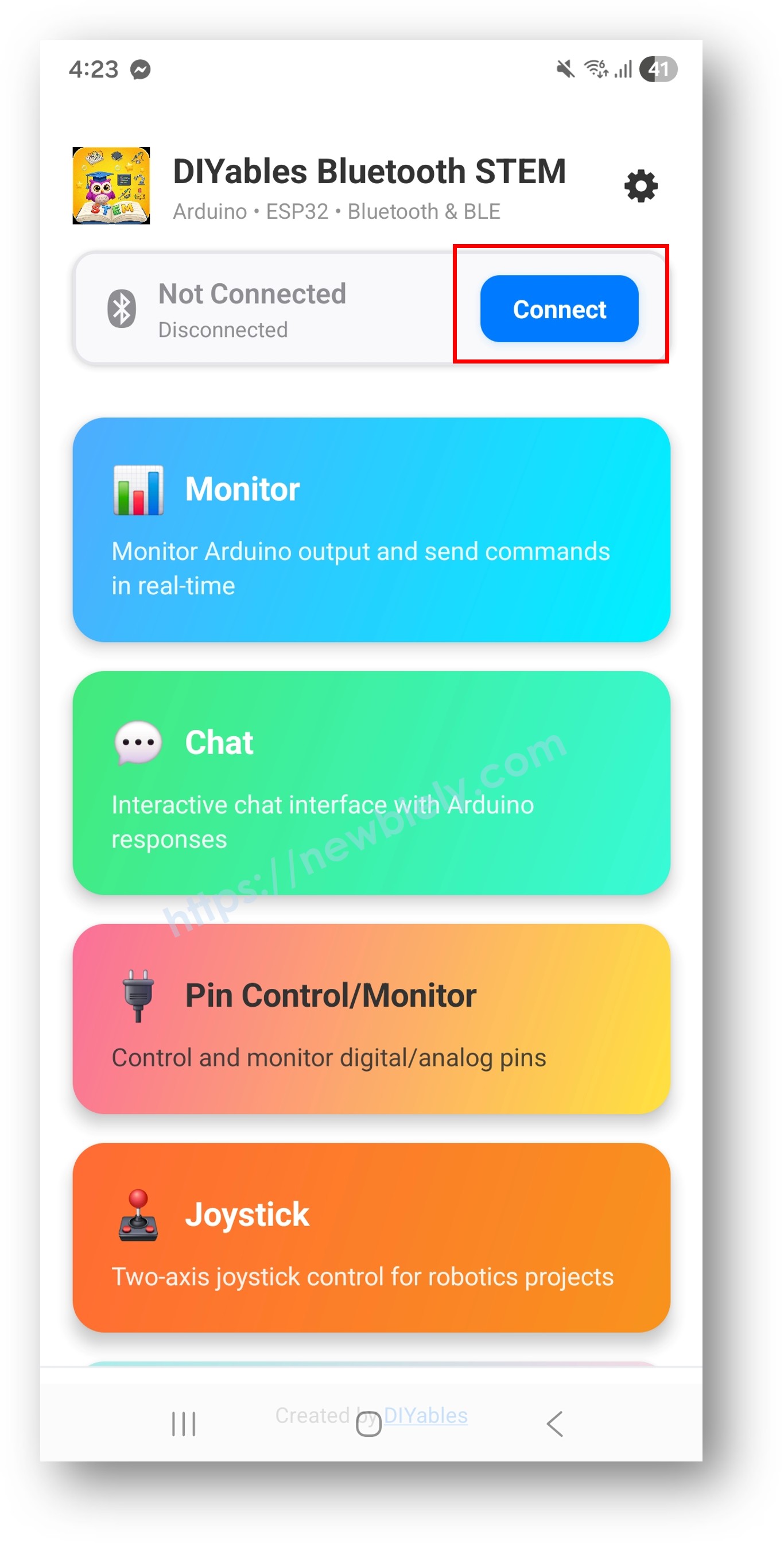
Sur l'écran d'accueil, appuyez sur le bouton Connect. L'application va scanner les appareils BLE.
Trouvez et appuyez sur "Arduino_Pins" dans les résultats de scan pour vous connecter.
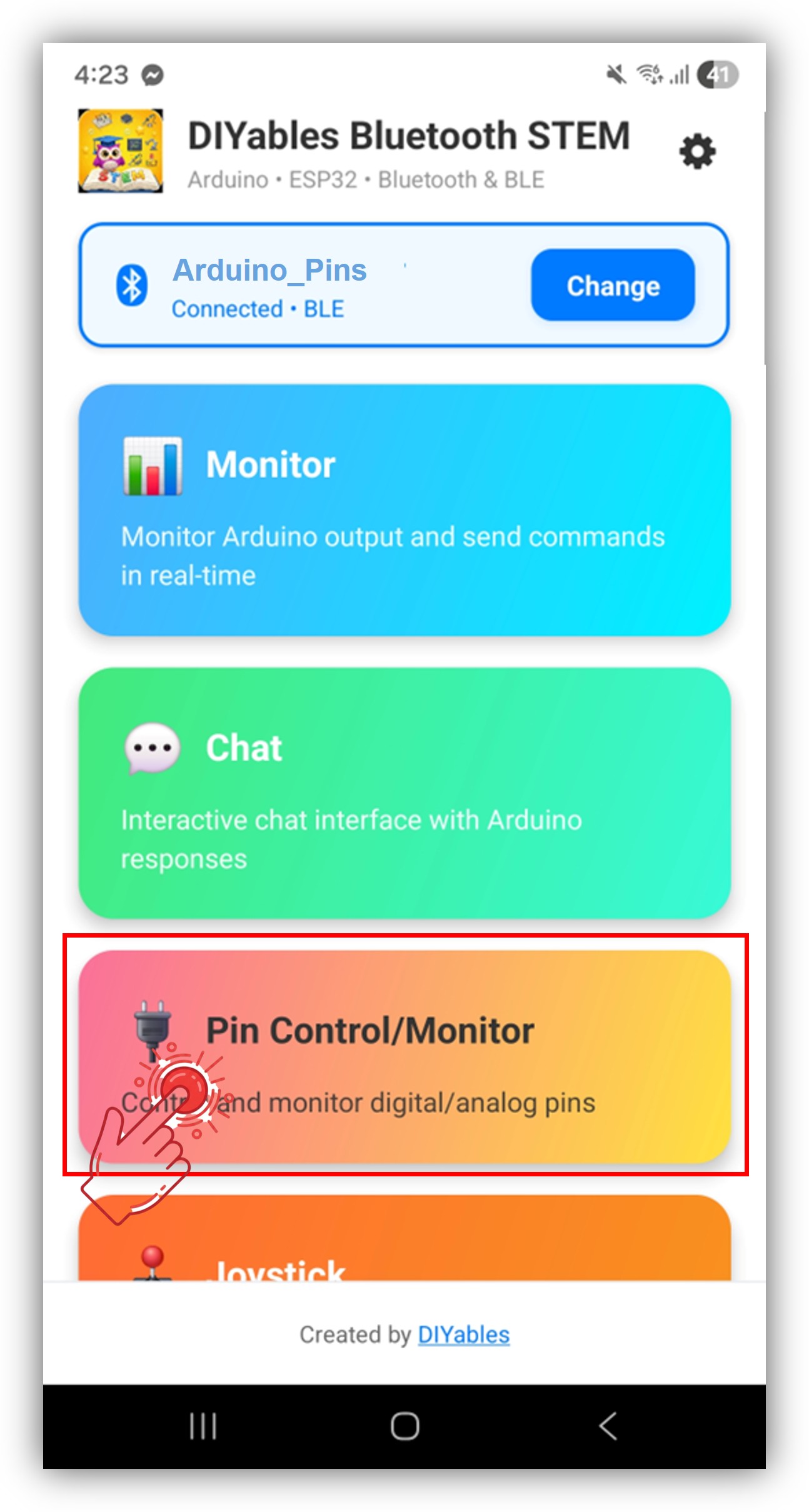
Une fois connecté, l'application revient automatiquement à l'écran d'accueil. Sélectionnez l'application Digital Pins depuis le menu des applications.
Note : Vous pouvez appuyer sur l'icône de paramètres sur l'écran d'accueil pour masquer/afficher les applications sur l'écran d'accueil. Pour plus de détails, consultez le Manuel Utilisateur de l'Application DIYables Bluetooth.
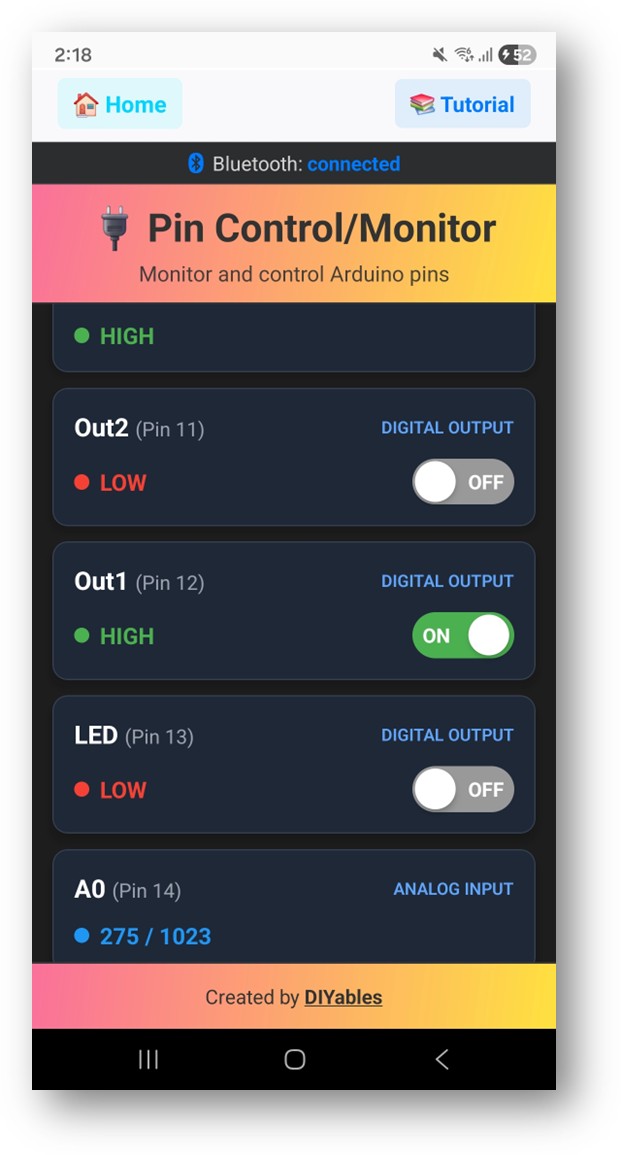
Vous verrez la liste des broches activées avec leurs noms et états actuels
Appuyez sur les broches de sortie pour basculer HIGH/LOW, et regardez les valeurs des broches d'entrée se mettre à jour
Maintenant regardez à nouveau le Serial Monitor dans l'IDE Arduino. Vous verrez :
Newbiely | Arduino IDE 2.3.8
──
☐
✕
File
Edit
Sketch
Tools
Help
Arduino Uno R4 WiFi
Newbiely.ino
···
8Serial.println("Hello World!");
Output
Serial Monitor
Message (Enter to send message to 'Arduino Uno R4 WiFi' on 'COM15')
New Line
9600 baud
Bluetooth connected!
Pin 13 set to HIGH
Pin 13 set to LOW
Digital pin 7 read: HIGH
Ln 11, Col 1
Arduino Uno R4 WiFi on COM15
2
Personnalisation Créative - Adaptez le Code à Votre Projet
N'hésitez pas à partager le lien de ce tutoriel. Cependant, veuillez ne pas utiliser notre contenu sur d'autres sites web. Nous avons investi beaucoup d'efforts et de temps pour créer ce contenu, veuillez respecter notre travail !