Arduino Nano ESP32 - Écran TFT LCD Tactile ILI9341 ILI9488 ST7789 Interface SPI

Bienvenue dans cet atelier pratique où nous connectons un écran TFT SPI à un Arduino Nano ESP32. Le Nano ESP32 est construit autour de la puce ESP32-S3, offrant un traitement double cœur, le Wi-Fi et le Bluetooth Low Energy dans le facteur de forme Nano familier avec un connecteur USB-C. Il fonctionne à 3,3V, ce qui correspond au niveau de tension de la plupart des modules TFT SPI, rendant le câblage simple.

Dans cet atelier, vous allez :

Cet atelier couvre les écrans TFT LCD SPI tactiles et non tactiles. Il fonctionne avec des panneaux de 1,3, 1,54, 2,2, 2,4, 2,8, 3,2 et 3,5 pouces pilotés par les puces contrôleur ILI9341, ILI9488 ou ST7789.
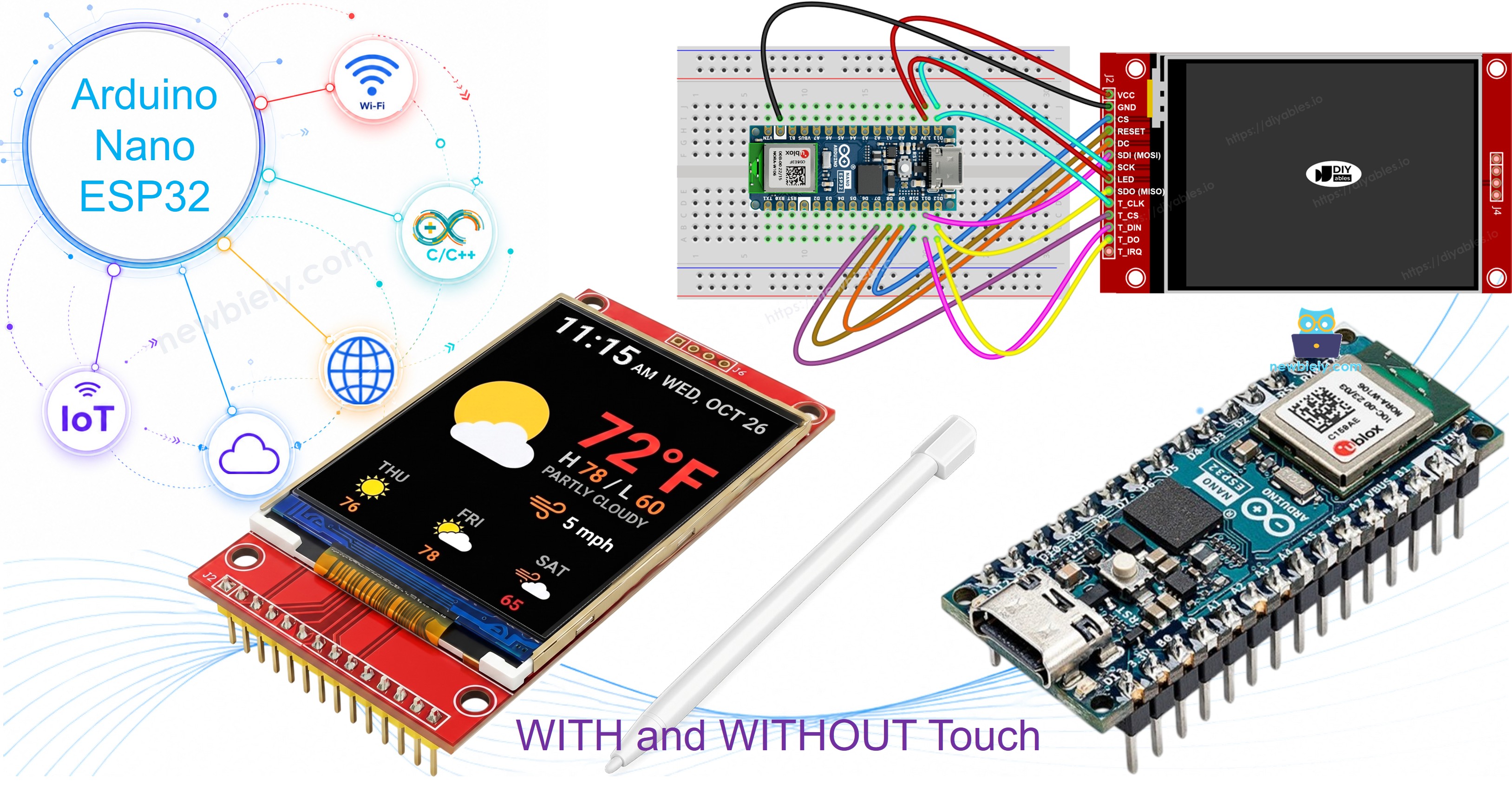
Écran TFT SPI Arduino Nano ESP32

Matériel nécessaire

1×Arduino Nano ESP32
1×Câble USB Type-A vers Type-C (pour PC USB-A)
1×Câble USB Type-C vers Type-C (pour PC USB-C)
1×SPI TFT display module
1×Fils de connexion
1×Recommandé: Carte d'extension à bornier à vis pour Arduino Nano
1×Recommandé: Carte d'extension breakout pour Arduino Nano
1×Recommandé: Répartiteur d'alimentation pour Arduino Nano ESP32

Ou vous pouvez acheter les kits suivants:

1×Kit de Capteurs DIYables (18 capteurs/écrans)
Divulgation : Certains des liens fournis dans cette section sont des liens affiliés Amazon. Nous pouvons recevoir une commission pour tout achat effectué via ces liens, sans coût supplémentaire pour vous. Nous vous remercions de votre soutien.

À propos de l'écran TFT SPI

Les modules TFT SPI utilisent un CI pilote pour gérer les données de pixel et répondre aux commandes de dessin via une liaison SPI haute vitesse. Trois pilotes sont pris en charge :

  • ILI9341 - couleur RGB565 16 bits, jusqu'à 40 MHz SPI.
  • ILI9488 - couleur RGB666 18 bits via SPI, jusqu'à 24 MHz.
  • ST7789 - couleur RGB565 16 bits, jusqu'à 40 MHz SPI.

Recommandation : Si vous n'avez pas encore acheté d'écran, nous recommandons le pilote ST7789. Il est largement disponible, fonctionne à pleine vitesse SPI de 40 MHz et est le choix le plus simple pour les nouveaux projets.

La bibliothèque s'appuie sur Adafruit GFX, donc les cercles, les rectangles, le texte, les polices personnalisées et les bitmaps sont tous prêts à l'emploi.

Remarque : L'Arduino Nano ESP32 utilise la logique 3,3V. Connectez VCC du TFT uniquement à la broche 3,3V.

Brochage

La plupart des écrans TFT LCD SPI ont les broches suivantes :

Broches d'affichage :

Broche Fonction
VCC Alimentation
GND Masse
CS Sélection de puce — mis à bas pour sélectionner l'écran sur le bus SPI
DC / RS Sélection Données / Commande — haut pour les données pixel, bas pour les commandes
RST Réinitialisation matérielle — optionnel ; relier à 3,3V si inutilisé
MOSI / SDI / SDA Données SPI entrantes (MCU → écran)
SCK / CLK Horloge SPI
MISO / SDO Données SPI sortantes (écran → MCU) — optionnel pour utilisation écran seul
LED / BL / BLK Alimentation rétroéclairage — connecter à 3,3V ou une broche PWM pour la gradation

Broches carte SD (si votre application doit accéder à la carte SD) :

Broche Fonction
SD_CS / TF_CS Sélection de puce carte SD
MOSI / SDI MOSI — données du MCU vers la carte SD
SCK / CLK SCK — horloge SPI
MISO / SDO MISO — données de la carte SD vers le MCU

Pour les écrans TFT qui prennent en charge le tactile, il y a des broches tactiles supplémentaires (si votre application utilise la fonction tactile et que l'écran la prend en charge) :

Broche Fonction
T_CS Sélection de puce du contrôleur tactile
T_CLK SCK — horloge SPI
T_DIN MOSI — données du MCU vers le contrôleur tactile
T_DO MISO — données du contrôleur tactile vers le MCU
T_IRQ Interruption tactile — optionnel ; signale quand l'écran est touché

Remarque : Certains modules d'affichage non tactiles exposent également les broches T_CS, T_CLK, T_DIN, T_DO et T_IRQ. Celles-ci ne sont pas fonctionnelles sur ces cartes — le CI du contrôleur tactile n'est pas monté. Elles apparaissent car le PCB réutilise la même disposition que la version tactile pour réduire les variantes de fabrication.
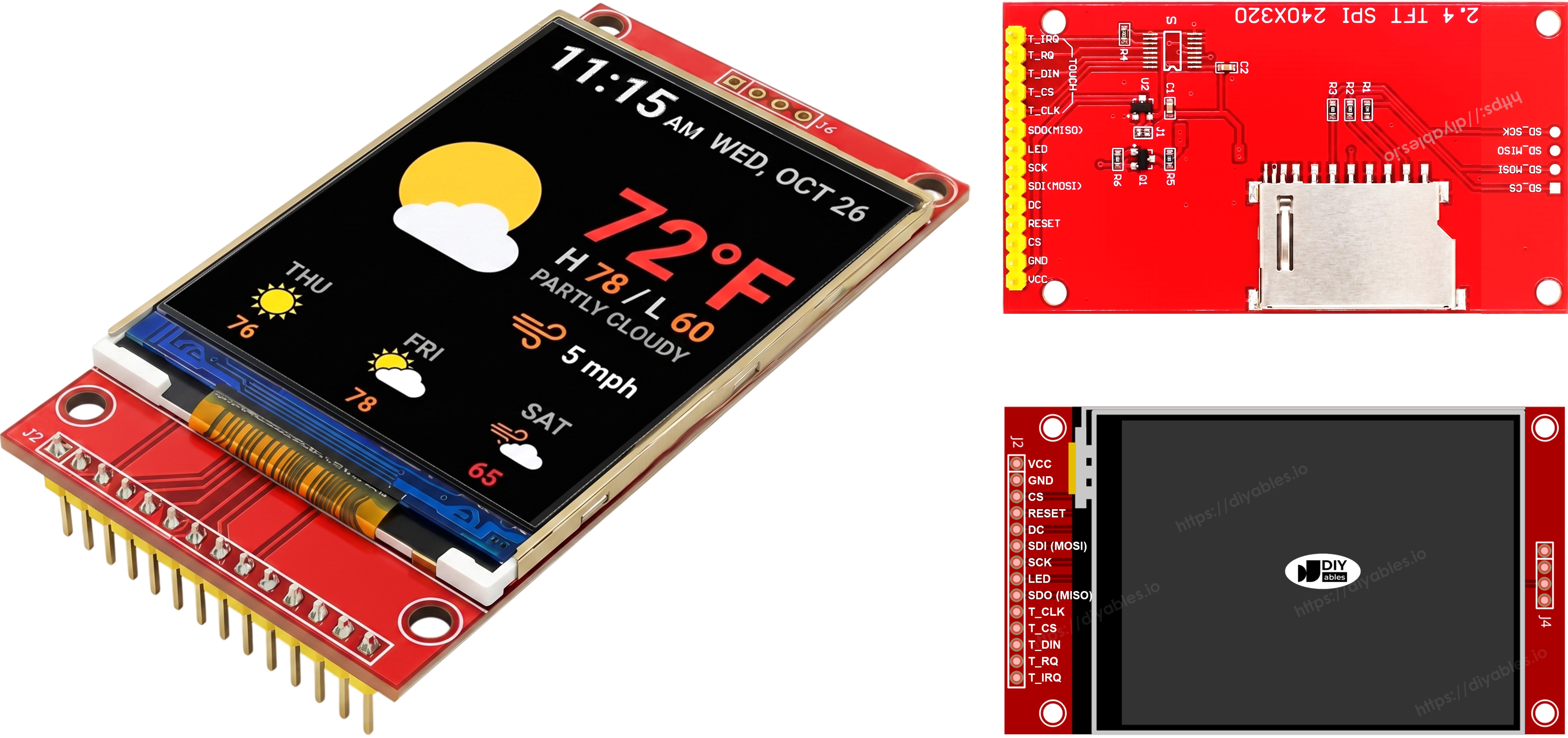
Brochage de l'écran TFT SPI

Schéma de câblage

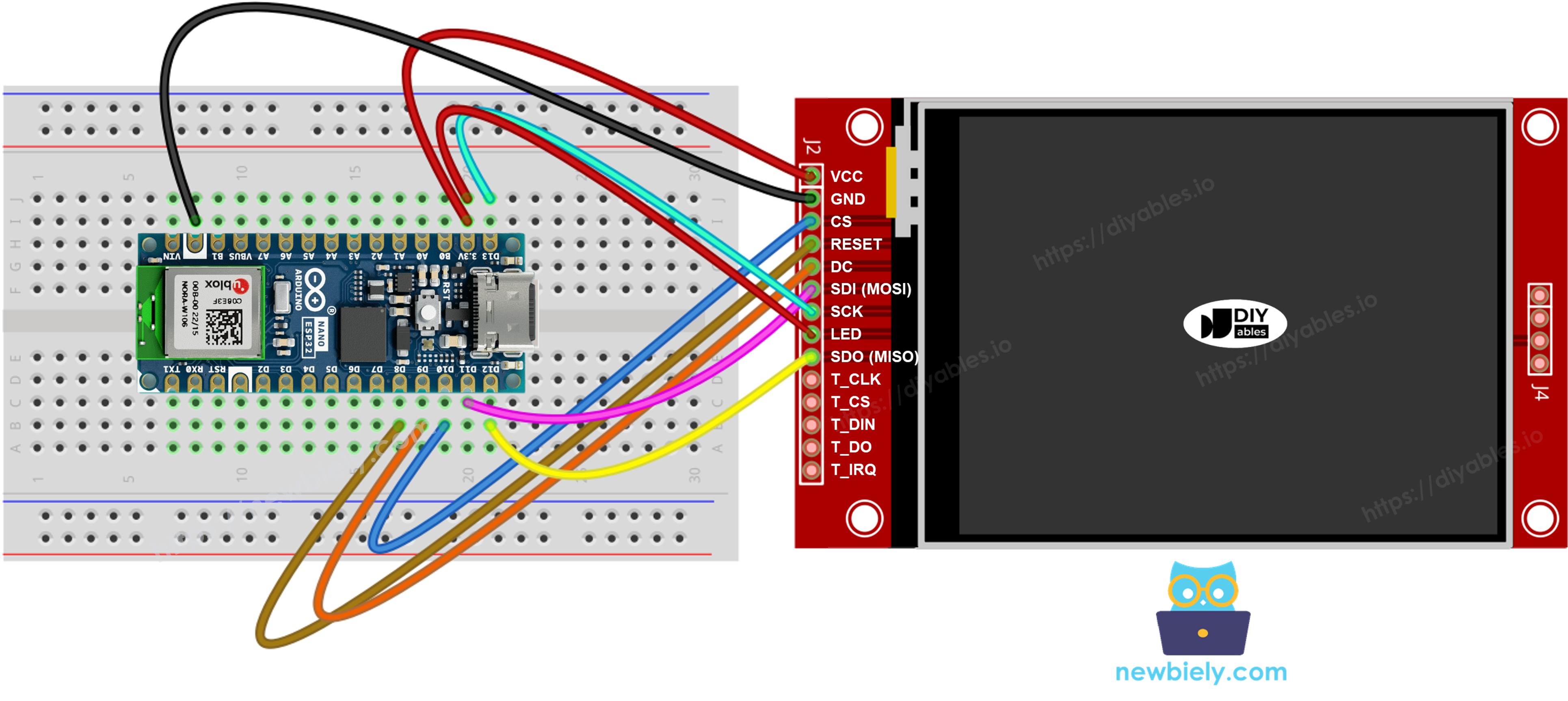
Sans tactile

Connectez MOSI à D11, SCK à D13, MISO à D12 sur le Nano ESP32. CS, DC et RST peuvent être n'importe quel GPIO disponible — D10, D9, D8 sont utilisés dans les exemples.

Écran :

Broche TFT Broche Arduino Nano ESP32 Description
VCC 3.3V Alimentation (3,3V uniquement)
GND GND Masse
CS D10 Sélection de puce
DC / RS D9 Sélection Données / Commande
RST D8 Réinitialisation (optionnel)
MOSI / SDI D11 MOSI SPI matériel
SCK D13 Horloge SPI matériel
MISO / SDO D12 MISO SPI matériel (optionnel)
LED / BL 3.3V Alimentation rétroéclairage

Carte SD (si votre application doit accéder à la carte SD) :

Broche SD Broche Arduino Nano ESP32 Description
SD_CS / TF_CS tout GPIO libre Sélection de puce carte SD
MOSI / SDI D11 Partagé avec le MOSI de l'écran (D11)
SCK / CLK D13 Partagé avec le SCK de l'écran (D13)
MISO / SDO D12 Partagé avec le MISO de l'écran (D12)
Schéma de câblage écran TFT SPI Arduino Nano ESP32 sans tactile

Cette image a été créée avec Fritzing. Cliquez pour agrandir l'image.

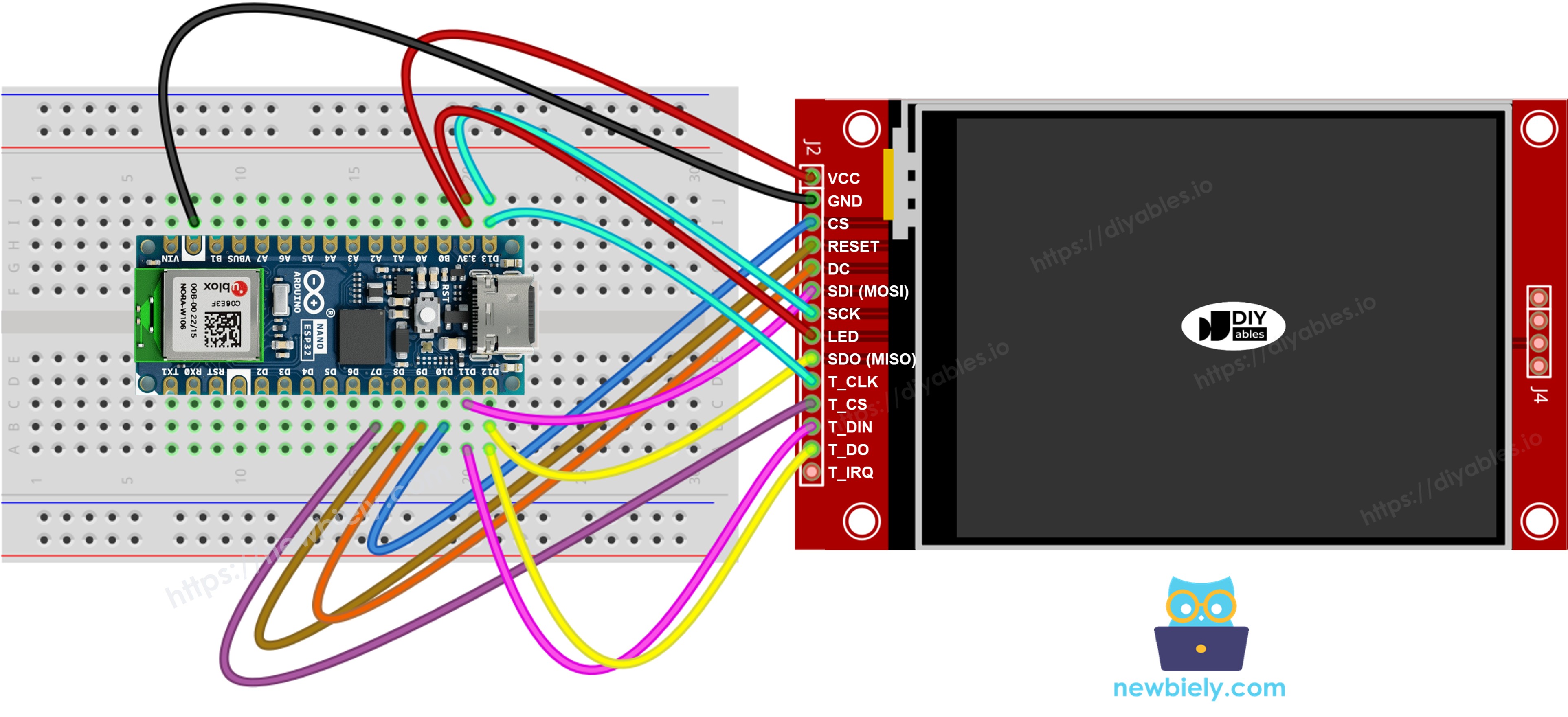
Avec tactile

Connectez le contrôleur tactile XPT2046 au bus SPI de l'Arduino Nano ESP32, en partageant D11, D13 et D12 avec l'écran.

Écran :

Broche TFT Broche Arduino Nano ESP32 Description
VCC 3.3V Alimentation (3,3V uniquement)
GND GND Masse
CS D10 Sélection de puce
DC / RS D9 Sélection Données / Commande
RST D8 Réinitialisation (optionnel)
MOSI / SDI D11 MOSI SPI matériel
SCK D13 Horloge SPI matériel
MISO / SDO D12 MISO SPI matériel (optionnel)
LED / BL 3.3V Alimentation rétroéclairage

Contrôleur tactile (si votre application utilise la fonction tactile et que l'écran la prend en charge) :

Broche tactile Broche Arduino Nano ESP32 Description
T_CS D7 Sélection de puce tactile
T_IRQ D6 Interruption tactile (optionnel)
T_DIN D11 Partagé avec le MOSI de l'écran (D11)
T_CLK D13 Partagé avec le SCK de l'écran (D13)
T_DO D12 Partagé avec le MISO de l'écran (D12)
Schéma de câblage écran TFT SPI Arduino Nano ESP32 avec tactile

Cette image a été créée avec Fritzing. Cliquez pour agrandir l'image.

Si votre MCU a deux interfaces SPI matérielles ou plus, vous pouvez attribuer chaque périphérique (écran, carte SD, contrôleur tactile) à son propre bus SPI dédié. Si votre MCU n'a qu'une seule interface SPI matérielle, les trois périphériques partagent les mêmes trois lignes de données (MOSI, SCK, MISO) — sur le Nano ESP32 ce sont D11, D13 et D12. Chaque périphérique a sa propre broche CS, donc un seul est actif à la fois. La bibliothèque DIYables_TFT_SPI gère à la fois l'écran et le contrôleur tactile XPT2046 via une API unique — aucune bibliothèque SPI séparée n'est nécessaire pour la partie tactile.

Configuration de la bibliothèque

  1. Branchez l'Arduino Nano ESP32 à votre ordinateur via son port USB-C.
  2. Ouvrez Arduino IDE. Choisissez Arduino Nano ESP32 dans la liste des cartes et sélectionnez le bon port.
  3. Cliquez sur l'icône Bibliothèques dans la barre latérale gauche.
  4. Tapez "DIYables_TFT_SPI" dans le champ de recherche. Trouvez l'entrée DIYables.
  5. Cliquez sur Installer. Installez toutes les dépendances lorsque demandé.
  • Search for DIYables TFT SPI created by DIYables.io and click the Install button.
Newbiely | Arduino IDE 2.3.8
──
File
Edit
Sketch
Tools
Help
Arduino Nano ESP32
Library Manager
Type:
All
Topic:
All
DIYables TFT SPI by DIYables.io
Works with both touch and non-touch versions of the same SPI TFT modules. Supports ILI9341 (240x320, 16-bit RGB565), ILI9488 (320x480, 18-bit RGB666), and ST7789 (240x320, 16-bit RGB565) displays over SPI. Includes built-in driver for XPT2046 / HR2046 / ADS7843 SPI touch controllers and 4-wire resistive touch panels - no separate touch library required. Use the display-only API for non-touch panels, or add initTouchSPI() to enable touch on modules that include a touch controller. Extends Adafruit GFX for full graphics support. Works with any Arduino-compatible board that has SPI. More info
1.0.1
INSTALL
Newbiely.ino
···
1 void setup() {
Output
Serial Monitor
Ln 1, Col 1
Arduino Nano ESP32 on COM15
1

Sketch de démarrage

Le code minimum nécessaire pour démarrer avec la bibliothèque DIYables_TFT_SPI :

#include <DIYables_TFT_SPI.h> #define TFT_CS_PIN D10 #define TFT_DC_PIN D9 #define TFT_RST_PIN D8 // Décommentez la ligne qui correspond à votre puce pilote : // DIYables_ILI9341_SPI TFT_display(240, 320, TFT_CS_PIN, TFT_DC_PIN, TFT_RST_PIN); // DIYables_ILI9488_SPI TFT_display(320, 480, TFT_CS_PIN, TFT_DC_PIN, TFT_RST_PIN); DIYables_ST7789_SPI TFT_display(240, 320, TFT_CS_PIN, TFT_DC_PIN, TFT_RST_PIN); void setup() { TFT_display.begin(); TFT_display.setRotation(1); } void loop() { // votre code de dessin ici }

Atelier - Dessiner des formes

L'exemple DrawShapes met en œuvre toutes les primitives de dessin Adafruit GFX : cercles, rectangles, triangles et lignes sur l'écran.

/* * Ce code Arduino Nano ESP32 a été développé par newbiely.fr * Ce code Arduino Nano ESP32 est mis à disposition du public sans aucune restriction. * Pour des instructions complètes et des schémas de câblage, veuillez visiter: * https://newbiely.fr/tutorials/arduino-nano-esp32/arduino-nano-esp32-tft-lcd-touch-display-spi */ /* Created by DIYables This example code is in the public domain Product page: https://diyables.io */ // ============================================= // Single include brings in the base class plus all driver classes. // ============================================= #include <DIYables_TFT_SPI.h> // ============================================= // Wiring (Arduino Nano ESP32) // --------------------------------------------- // TFT module Arduino Nano ESP32 // ------------ --------------------------------- // VCC -> 3.3V (NOT 5V!) // GND -> GND // CS -> D10 (TFT_CS_PIN) // RESET -> D8 (TFT_RST_PIN) // DC / RS -> D9 (TFT_DC_PIN) // SDI / MOSI -> D11 (hardware SPI MOSI) // SCK -> D13 (hardware SPI SCK) // LED -> 3.3V (or any GPIO via initBacklight) // SDO / MISO -> D12 (only needed when reading from display) // ============================================= // ============================================= // SPI pin definitions (adjust for your board) // ============================================= #define TFT_CS_PIN D10 #define TFT_DC_PIN D9 #define TFT_RST_PIN D8 // Panel resolution in native (portrait) orientation - change to match your module #define TFT_WIDTH 240 #define TFT_HEIGHT 320 // MOSI and SCK use default hardware SPI pins // ============================================= // Create display object (uncomment matching driver) // ============================================= // DIYables_ILI9341_SPI TFT_display(TFT_WIDTH, TFT_HEIGHT, TFT_CS_PIN, TFT_DC_PIN, TFT_RST_PIN); // DIYables_ILI9488_SPI TFT_display(TFT_WIDTH, TFT_HEIGHT, TFT_CS_PIN, TFT_DC_PIN, TFT_RST_PIN); DIYables_ST7789_SPI TFT_display(TFT_WIDTH, TFT_HEIGHT, TFT_CS_PIN, TFT_DC_PIN, TFT_RST_PIN); #define BLACK DIYables_TFT_SPI::colorRGB(0, 0, 0) #define BLUE DIYables_TFT_SPI::colorRGB(0, 0, 255) #define RED DIYables_TFT_SPI::colorRGB(255, 0, 0) #define GREEN DIYables_TFT_SPI::colorRGB(0, 255, 0) #define ORANGE DIYables_TFT_SPI::colorRGB(255, 165, 0) #define PINK DIYables_TFT_SPI::colorRGB(255, 192, 203) #define VIOLET DIYables_TFT_SPI::colorRGB(148, 0, 211) #define TURQUOISE DIYables_TFT_SPI::colorRGB(64, 224, 208) #define WHITE DIYables_TFT_SPI::colorRGB(255, 255, 255) // Helper to draw a filled diamond void fillDiamond(int cx, int cy, int h, int v, uint16_t color) { int x0 = cx, y0 = cy - v; int x1 = cx + h, y1 = cy; int x2 = cx, y2 = cy + v; int x3 = cx - h, y3 = cy; TFT_display.fillTriangle(x0, y0, x1, y1, x2, y2, color); TFT_display.fillTriangle(x0, y0, x2, y2, x3, y3, color); } void setup() { TFT_display.begin(); TFT_display.setRotation(1); // Landscape } void loop() { TFT_display.fillScreen(WHITE); uint16_t w = TFT_display.width(); uint16_t h = TFT_display.height(); // Scale positions relative to screen size with better spacing int col1 = w / 8; int col2 = w * 3 / 8; int col3 = w * 5 / 8; int col4 = w * 7 / 8; int row1 = h / 4; int row2 = h / 2; int row3 = h * 3 / 4; // Outlined circle TFT_display.drawCircle(col1, row1, 30, RED); // Filled circle TFT_display.fillCircle(col2, row1, 30, RED); // Outlined triangle TFT_display.drawTriangle(col3 - 30, row1 + 25, col3 + 30, row1 + 25, col3, row1 - 25, BLUE); // Filled triangle TFT_display.fillTriangle(col4 - 30, row1 + 25, col4 + 30, row1 + 25, col4, row1 - 25, GREEN); // Outlined rectangle TFT_display.drawRect(col1 - 35, row2 - 20, 70, 40, ORANGE); // Filled rectangle TFT_display.fillRect(col2 - 35, row2 - 20, 70, 40, TURQUOISE); // Outlined round rectangle TFT_display.drawRoundRect(col3 - 35, row2 - 20, 70, 40, 10, VIOLET); // Filled round rectangle TFT_display.fillRoundRect(col4 - 35, row2 - 20, 70, 40, 10, PINK); // Outlined diamond (centered between col1 and col2) int diamond1_x = (col1 + col2) / 2; TFT_display.drawLine(diamond1_x, row3 - 30, diamond1_x + 25, row3, GREEN); TFT_display.drawLine(diamond1_x + 25, row3, diamond1_x, row3 + 30, GREEN); TFT_display.drawLine(diamond1_x, row3 + 30, diamond1_x - 25, row3, GREEN); TFT_display.drawLine(diamond1_x - 25, row3, diamond1_x, row3 - 30, GREEN); // Filled diamond (centered between col3 and col4) int diamond2_x = (col3 + col4) / 2; fillDiamond(diamond2_x, row3, 25, 30, BLUE); delay(10000); }

Pratique

  • Câblez le module TFT au Nano ESP32 en utilisant le tableau ci-dessus. N'oubliez pas d'utiliser 3,3V pour VCC.
  • Connectez le Nano ESP32 à votre ordinateur via USB-C.
  • Dans Arduino IDE, choisissez la carte et le port, collez le code et cliquez sur Téléverser.
  • L'écran affiche un motif rotatif de formes colorées.

Référence des méthodes

Méthode Action Syntaxe
begin() Initialise et réinitialise l'écran. TFT_display.begin();
setRotation(r) Définit l'orientation (0=portrait, 1=paysage). TFT_display.setRotation(1);
fillScreen(color) Efface l'écran en une seule couleur. TFT_display.fillScreen(BLACK);
colorRGB(r,g,b) Crée une couleur 16 bits depuis R, G, B. colorRGB(255,128,0)
fillCircle(x,y,r,color) Cercle plein. TFT_display.fillCircle(100,100,50,RED);
fillRoundRect(x,y,w,h,r,color) Rectangle arrondi plein. TFT_display.fillRoundRect(10,10,100,50,10,BLUE);
drawTriangle(x0,y0,x1,y1,x2,y2,color) Contour de triangle. TFT_display.drawTriangle(60,10,10,110,110,110,GREEN);

Atelier - Afficher texte et nombre

L'exemple ShowTextAndNumber affiche des chaînes et des chiffres en utilisant le moteur de texte GFX intégré avec taille et couleur ajustables.

/* * Ce code Arduino Nano ESP32 a été développé par newbiely.fr * Ce code Arduino Nano ESP32 est mis à disposition du public sans aucune restriction. * Pour des instructions complètes et des schémas de câblage, veuillez visiter: * https://newbiely.fr/tutorials/arduino-nano-esp32/arduino-nano-esp32-tft-lcd-touch-display-spi */ /* Created by DIYables This example code is in the public domain Product page: https://diyables.io */ // ============================================= // Single include brings in the base class plus all driver classes. // ============================================= #include <DIYables_TFT_SPI.h> // ============================================= // Wiring (Arduino Nano ESP32) // --------------------------------------------- // TFT module Arduino Nano ESP32 // ------------ --------------------------------- // VCC -> 3.3V (NOT 5V!) // GND -> GND // CS -> D10 (TFT_CS_PIN) // RESET -> D8 (TFT_RST_PIN) // DC / RS -> D9 (TFT_DC_PIN) // SDI / MOSI -> D11 (hardware SPI MOSI) // SCK -> D13 (hardware SPI SCK) // LED -> 3.3V (or any GPIO via initBacklight) // SDO / MISO -> D12 (only needed when reading from display) // ============================================= // ============================================= // SPI pin definitions (adjust for your board) // ============================================= #define TFT_CS_PIN D10 #define TFT_DC_PIN D9 #define TFT_RST_PIN D8 // Panel resolution in native (portrait) orientation - change to match your module #define TFT_WIDTH 240 #define TFT_HEIGHT 320 // ============================================= // Create display object (uncomment matching driver) // ============================================= // DIYables_ILI9341_SPI TFT_display(TFT_WIDTH, TFT_HEIGHT, TFT_CS_PIN, TFT_DC_PIN, TFT_RST_PIN); // DIYables_ILI9488_SPI TFT_display(TFT_WIDTH, TFT_HEIGHT, TFT_CS_PIN, TFT_DC_PIN, TFT_RST_PIN); DIYables_ST7789_SPI TFT_display(TFT_WIDTH, TFT_HEIGHT, TFT_CS_PIN, TFT_DC_PIN, TFT_RST_PIN); #define MAGENTA DIYables_TFT_SPI::colorRGB(255, 0, 255) #define WHITE DIYables_TFT_SPI::colorRGB(255, 255, 255) void setup() { Serial.begin(9600); Serial.println(F("TFT SPI Display - Show text and numbers")); TFT_display.begin(); TFT_display.setRotation(1); // Landscape TFT_display.fillScreen(WHITE); // Set text color and size TFT_display.setTextColor(MAGENTA); TFT_display.setTextSize(3); // Sample values float temperature = 23.5; float humidity = 78.6; // Display temperature TFT_display.setCursor(20, 20); TFT_display.print("Temperature: "); TFT_display.print(temperature, 1); TFT_display.print(char(247)); TFT_display.println("C"); // Display humidity TFT_display.setCursor(20, 60); TFT_display.print("Humidity: "); TFT_display.print(humidity, 1); TFT_display.print("%"); } void loop() { }

Pratique

  • Câblez et téléversez comme ci-dessus.
  • L'écran affiche plusieurs lignes de texte dans différentes couleurs et tailles.

Référence des méthodes

Méthode Action Syntaxe
setTextColor(color) Définit la couleur de premier plan pour la sortie de texte. TFT_display.setTextColor(WHITE);
setTextSize(size) Met le texte à l'échelle par un facteur entier. Taille 1 = 6×8 px. TFT_display.setTextSize(2);
setCursor(x, y) Déplace le curseur de texte à la position pixel (x, y). TFT_display.setCursor(10, 20);
print(value) Affiche une chaîne ou un nombre à la position du curseur. TFT_display.print("ESP32-S3!");
println(value) Affiche et déplace le curseur à la ligne suivante. TFT_display.println(42);

Atelier - Dessiner une image

Dans cette station d'atelier, vous chargez une image bitmap RGB565 en couleur sur l'écran. Les données de pixel sont compilées dans le firmware sous forme de tableau PROGMEM à l'intérieur de bitmap.h. Sur l'ESP32-S3, les données PROGMEM sont stockées dans le flash et mappées dans l'espace d'adressage, donc aucune SRAM n'est consommée par les données d'image elles-mêmes. Ajoutez bitmap.h au dossier du sketch avant la compilation.

/* * Ce code Arduino Nano ESP32 a été développé par newbiely.fr * Ce code Arduino Nano ESP32 est mis à disposition du public sans aucune restriction. * Pour des instructions complètes et des schémas de câblage, veuillez visiter: * https://newbiely.fr/tutorials/arduino-nano-esp32/arduino-nano-esp32-tft-lcd-touch-display-spi */ /* Created by DIYables This example code is in the public domain Product page: https://diyables.io */ // ============================================= // Single include brings in the base class plus all driver classes. // ============================================= #include <DIYables_TFT_SPI.h> #include "bitmap.h" // ============================================= // Wiring (Arduino Nano ESP32) // --------------------------------------------- // TFT module Arduino Nano ESP32 // ------------ --------------------------------- // VCC -> 3.3V (NOT 5V!) // GND -> GND // CS -> D10 (TFT_CS_PIN) // RESET -> D8 (TFT_RST_PIN) // DC / RS -> D9 (TFT_DC_PIN) // SDI / MOSI -> D11 (hardware SPI MOSI) // SCK -> D13 (hardware SPI SCK) // LED -> 3.3V (or any GPIO via initBacklight) // SDO / MISO -> D12 (only needed when reading from display) // ============================================= // ============================================= // SPI pin definitions (adjust for your board) // ============================================= #define TFT_CS_PIN D10 #define TFT_DC_PIN D9 #define TFT_RST_PIN D8 // Panel resolution in native (portrait) orientation - change to match your module #define TFT_WIDTH 240 #define TFT_HEIGHT 320 // ============================================= // Create display object (uncomment matching driver) // ============================================= // DIYables_ILI9341_SPI TFT_display(TFT_WIDTH, TFT_HEIGHT, TFT_CS_PIN, TFT_DC_PIN, TFT_RST_PIN); // DIYables_ILI9488_SPI TFT_display(TFT_WIDTH, TFT_HEIGHT, TFT_CS_PIN, TFT_DC_PIN, TFT_RST_PIN); DIYables_ST7789_SPI TFT_display(TFT_WIDTH, TFT_HEIGHT, TFT_CS_PIN, TFT_DC_PIN, TFT_RST_PIN); #define WHITE DIYables_TFT_SPI::colorRGB(255, 255, 255) int img_width = 120; int img_height = 53; void setup() { Serial.begin(9600); Serial.println(F("TFT SPI Display - Draw Image")); TFT_display.begin(); uint16_t SCREEN_WIDTH = TFT_display.width(); uint16_t SCREEN_HEIGHT = TFT_display.height(); int x = (SCREEN_WIDTH - img_width) / 2; int y = (SCREEN_HEIGHT - img_height) / 2; TFT_display.fillScreen(WHITE); TFT_display.drawRGBBitmap(x, y, myBitmap, img_width, img_height); } void loop() { delay(2000); TFT_display.invertDisplay(true); delay(2000); TFT_display.invertDisplay(false); }

Pratique

  • Placez bitmap.h dans le même dossier que le sketch.
  • Câblez le module TFT au Nano ESP32. Utilisez 3,3V pour VCC.
  • Connectez le Nano ESP32 à votre ordinateur via USB-C.
  • Dans Arduino IDE, choisissez la carte et le port, collez le code et cliquez sur Téléverser.
  • L'écran affiche l'image bitmap depuis le flash programme.

Référence des méthodes

Méthode Action Syntaxe
drawRGBBitmap(x,y,bitmap,w,h) Dessine un bitmap PROGMEM RGB565 avec son coin supérieur gauche en (x, y). TFT_display.drawRGBBitmap(0, 0, myImage, 240, 320);
fillScreen(color) Efface l'écran en une seule couleur avant de dessiner le bitmap. TFT_display.fillScreen(BLACK);

Atelier - Dessiner une image depuis la carte SD

Dans cette station d'atelier, vous diffusez en continu un fichier image RGB565 brut depuis une carte micro SD directement vers l'écran. L'ESP32-S3 gère le SD et l'écran sur le même bus SPI sans problèmes grâce à son arbitrage SPI matériel. Définissez la broche CS du module SD comme SD_CS_PIN dans le sketch.

Câblez le module SD aux mêmes broches SPI que l'écran (D11/D13/D12 sur le Nano ESP32). Connectez le CS SD à votre broche choisie.

/* * Ce code Arduino Nano ESP32 a été développé par newbiely.fr * Ce code Arduino Nano ESP32 est mis à disposition du public sans aucune restriction. * Pour des instructions complètes et des schémas de câblage, veuillez visiter: * https://newbiely.fr/tutorials/arduino-nano-esp32/arduino-nano-esp32-tft-lcd-touch-display-spi */ /* Created by DIYables This example code is in the public domain Product page: https://diyables.io */ // ============================================= // Single include brings in the base class plus all driver classes. // ============================================= #include <DIYables_TFT_SPI.h> #include <SD.h> // ============================================= // Wiring (Arduino Nano ESP32) // ============================================= // TFT + SD module pins // TFT + SD module Arduino Nano ESP32 // ----------------------- --------------------------------- // VCC -> 3.3V (NOT 5V!) // GND -> GND // TFT CS -> D10 (TFT_CS_PIN) // TFT RESET -> D8 (TFT_RST_PIN) // TFT DC / RS -> D9 (TFT_DC_PIN) // SD CS -> D4 (SD_CS) // SDI / MOSI (shared) -> D11 (hardware SPI MOSI) // SDO / MISO (shared) -> D12 (hardware SPI MISO) // SCK (shared) -> D13 (hardware SPI SCK) // LED -> 3.3V (or any GPIO via initBacklight) // ============================================= // ============================================= // SPI pin definitions (adjust for your board) // ============================================= #define TFT_CS_PIN D10 #define TFT_DC_PIN D9 #define TFT_RST_PIN D8 // Panel resolution in native (portrait) orientation - change to match your module #define TFT_WIDTH 240 #define TFT_HEIGHT 320 #define SD_CS D4 // SD card chip select (must differ from TFT_CS_PIN) // ============================================= // Create display object (uncomment matching driver) // ============================================= // DIYables_ILI9341_SPI TFT_display(TFT_WIDTH, TFT_HEIGHT, TFT_CS_PIN, TFT_DC_PIN, TFT_RST_PIN); // DIYables_ILI9488_SPI TFT_display(TFT_WIDTH, TFT_HEIGHT, TFT_CS_PIN, TFT_DC_PIN, TFT_RST_PIN); DIYables_ST7789_SPI TFT_display(TFT_WIDTH, TFT_HEIGHT, TFT_CS_PIN, TFT_DC_PIN, TFT_RST_PIN); #define WHITE DIYables_TFT_SPI::colorRGB(255, 255, 255) #define BUFFPIXEL 20 File bmpFile; uint16_t SCREEN_WIDTH; uint16_t SCREEN_HEIGHT; // Helper functions to read BMP file header uint16_t read16(File &f) { uint16_t result; result = f.read(); result |= (f.read() << 8); return result; } uint32_t read32(File &f) { uint32_t result; result = f.read(); result |= ((uint32_t)f.read() << 8); result |= ((uint32_t)f.read() << 16); result |= ((uint32_t)f.read() << 24); return result; } int32_t readS32(File &f) { int32_t result; result = f.read(); result |= ((uint32_t)f.read() << 8); result |= ((uint32_t)f.read() << 16); result |= ((uint32_t)f.read() << 24); return result; } bool getBMPDimensions(const char *filename, uint32_t &w, uint32_t &h) { File f = SD.open(filename); if (!f) return false; if (read16(f) != 0x4D42) { f.close(); return false; } read32(f); // file size read32(f); // reserved read32(f); // image offset read32(f); // DIB header size w = read32(f); int32_t sh = readS32(f); h = (sh < 0) ? -sh : sh; f.close(); return true; } void drawBMP(const char *filename, int x, int y) { bmpFile = SD.open(filename); if (!bmpFile) { Serial.println("File not found"); return; } if (read16(bmpFile) != 0x4D42) { Serial.println("Not a BMP file"); bmpFile.close(); return; } uint32_t fileSize = read32(bmpFile); read32(bmpFile); // Reserved uint32_t imageOffset = read32(bmpFile); uint32_t dibHeaderSize = read32(bmpFile); uint32_t bmpWidth = read32(bmpFile); int32_t bmpHeight = readS32(bmpFile); bool topDown = false; if (bmpHeight < 0) { bmpHeight = -bmpHeight; topDown = true; } if (read16(bmpFile) != 1) { Serial.println("Invalid BMP file"); bmpFile.close(); return; } uint16_t depth = read16(bmpFile); if (depth != 24) { Serial.println("Only 24-bit BMP is supported"); bmpFile.close(); return; } if (read32(bmpFile) != 0) { Serial.println("Unsupported BMP compression"); bmpFile.close(); return; } bmpFile.seek(imageOffset); uint8_t sdbuffer[3 * BUFFPIXEL]; uint16_t color; uint32_t rowSize = (bmpWidth * 3 + 3) & ~3; if (x >= SCREEN_WIDTH || y >= SCREEN_HEIGHT) return; uint32_t maxRow = min((uint32_t)bmpHeight, (uint32_t)(SCREEN_HEIGHT - y)); uint32_t maxCol = min(bmpWidth, (uint32_t)(SCREEN_WIDTH - x)); for (uint32_t row = 0; row < maxRow; row++) { int32_t rowPos = topDown ? row : bmpHeight - 1 - row; uint32_t filePosition = imageOffset + rowPos * rowSize; bmpFile.seek(filePosition); for (uint32_t col = 0; col < maxCol; col += BUFFPIXEL) { uint32_t pixelsToRead = min((uint32_t)BUFFPIXEL, maxCol - col); bmpFile.read(sdbuffer, 3 * pixelsToRead); for (uint32_t i = 0; i < pixelsToRead; i++) { uint8_t b = sdbuffer[i * 3]; uint8_t g = sdbuffer[i * 3 + 1]; uint8_t r = sdbuffer[i * 3 + 2]; color = DIYables_TFT_SPI::colorRGB(r, g, b); if ((x + col + i) < SCREEN_WIDTH && (y + row) < SCREEN_HEIGHT) { TFT_display.drawPixel(x + col + i, y + row, color); } } } } bmpFile.close(); Serial.println("BMP drawn"); } void setup() { Serial.begin(9600); if (!SD.begin(SD_CS)) { Serial.println("SD card initialization failed!"); return; } Serial.println("SD card initialized."); TFT_display.begin(); TFT_display.setRotation(1); // Landscape SCREEN_WIDTH = TFT_display.width(); SCREEN_HEIGHT = TFT_display.height(); TFT_display.fillScreen(WHITE); uint32_t imgWidth, imgHeight; if (getBMPDimensions("diyables.bmp", imgWidth, imgHeight)) { int x = (SCREEN_WIDTH - imgWidth) / 2; int y = (SCREEN_HEIGHT - imgHeight) / 2; drawBMP("diyables.bmp", x, y); } else { Serial.println("Failed to get BMP dimensions"); } } void loop() { }

Pratique

  • Câblez le module SD au Nano ESP32. Partagez MOSI (D11), SCK (D13), MISO (D12) avec l'écran. Connectez le CS SD à la broche définie comme SD_CS_PIN.
  • Copiez une image binaire RGB565 brute à la racine de la carte SD. Les dimensions doivent correspondre au panneau.
  • Connectez le Nano ESP32 à votre ordinateur via USB-C.
  • Dans Arduino IDE, choisissez la carte et le port, collez le code et cliquez sur Téléverser.
  • L'écran affiche l'image diffusée depuis la carte SD.

Référence des méthodes

Méthode Action Syntaxe
startWrite() Ouvre une session d'écriture SPI brute, activant le CS de l'écran. TFT_display.startWrite();
setAddrWindow(x0,y0,x1,y1) Définit la région pixel rectangulaire pour recevoir les données. TFT_display.setAddrWindow(0, 0, 239, 319);
pushColors(buf, len) Écrit un tampon de valeurs pixel RGB565 directement sur le panneau. TFT_display.pushColors(buf, 512);
endWrite() Ferme la session SPI et libère le CS de l'écran. TFT_display.endWrite();

Atelier - Utiliser une police externe

Dans cette station d'atelier, vous remplacez la police raster par défaut par une police personnalisée Adafruit GFX compatible plus nette. Le descripteur de police est inclus en tant que fichier d'en-tête. Le changement de police à l'exécution ne nécessite qu'un seul appel de fonction, et vous pouvez revenir à la police intégrée tout aussi facilement.

/* * Ce code Arduino Nano ESP32 a été développé par newbiely.fr * Ce code Arduino Nano ESP32 est mis à disposition du public sans aucune restriction. * Pour des instructions complètes et des schémas de câblage, veuillez visiter: * https://newbiely.fr/tutorials/arduino-nano-esp32/arduino-nano-esp32-tft-lcd-touch-display-spi */ /* Created by DIYables This example code is in the public domain Product page: https://diyables.io */ // ============================================= // Single include brings in the base class plus all driver classes. // ============================================= #include <DIYables_TFT_SPI.h> #include <Fonts/FreeSansBold12pt7b.h> // ============================================= // Wiring (Arduino Nano ESP32) // --------------------------------------------- // TFT module Arduino Nano ESP32 // ------------ --------------------------------- // VCC -> 3.3V (NOT 5V!) // GND -> GND // CS -> D10 (TFT_CS_PIN) // RESET -> D8 (TFT_RST_PIN) // DC / RS -> D9 (TFT_DC_PIN) // SDI / MOSI -> D11 (hardware SPI MOSI) // SCK -> D13 (hardware SPI SCK) // LED -> 3.3V (or any GPIO via initBacklight) // SDO / MISO -> D12 (only needed when reading from display) // ============================================= // ============================================= // SPI pin definitions (adjust for your board) // ============================================= #define TFT_CS_PIN D10 #define TFT_DC_PIN D9 #define TFT_RST_PIN D8 // Panel resolution in native (portrait) orientation - change to match your module #define TFT_WIDTH 240 #define TFT_HEIGHT 320 // ============================================= // Create display object (uncomment matching driver) // ============================================= // DIYables_ILI9341_SPI TFT_display(TFT_WIDTH, TFT_HEIGHT, TFT_CS_PIN, TFT_DC_PIN, TFT_RST_PIN); // DIYables_ILI9488_SPI TFT_display(TFT_WIDTH, TFT_HEIGHT, TFT_CS_PIN, TFT_DC_PIN, TFT_RST_PIN); DIYables_ST7789_SPI TFT_display(TFT_WIDTH, TFT_HEIGHT, TFT_CS_PIN, TFT_DC_PIN, TFT_RST_PIN); #define MAGENTA DIYables_TFT_SPI::colorRGB(255, 0, 255) #define WHITE DIYables_TFT_SPI::colorRGB(255, 255, 255) void setup() { Serial.begin(9600); Serial.println(F("TFT SPI Display - Use external font")); TFT_display.begin(); TFT_display.setFont(&FreeSansBold12pt7b); TFT_display.setRotation(1); // Landscape TFT_display.fillScreen(WHITE); TFT_display.setTextColor(MAGENTA); TFT_display.setTextSize(1); float temperature = 23.5; float humidity = 78.6; TFT_display.setCursor(20, 30); TFT_display.print("Temperature: "); TFT_display.print(temperature, 1); TFT_display.print(char(247)); TFT_display.println("C"); TFT_display.setCursor(20, 70); TFT_display.print("Humidity: "); TFT_display.print(humidity, 1); TFT_display.print("%"); } void loop() { }

Pratique

  • Câblez le module TFT au Nano ESP32. Utilisez 3,3V pour VCC.
  • Connectez le Nano ESP32 à votre ordinateur via USB-C.
  • Dans Arduino IDE, choisissez la carte et le port, collez le code et cliquez sur Téléverser.
  • Observez le rendu de la police personnalisée à l'écran. Comparez-le à la police intégrée pour voir l'amélioration.

Référence des méthodes

Méthode Action Syntaxe
setFont(&FontName) Passe à une police personnalisée compatible GFX. Passer NULL restaure la police intégrée 5×7. TFT_display.setFont(&FreeSans12pt7b);
setCursor(x, y) Positionne le curseur de texte aux coordonnées pixel données. TFT_display.setCursor(10, 40);
setTextColor(color) Définit la couleur de premier plan pour toute la sortie de texte suivante. TFT_display.setTextColor(WHITE);
print(text) Affiche une chaîne à la position du curseur en utilisant la police active. TFT_display.print("ESP32 Workshop");

Atelier - Tactile : Obtenir un point

Dans cette station d'atelier, vous lisez la sortie ADC brute du contrôleur tactile XPT2046 connecté au Nano ESP32. Chaque point tactile est affiché dans le Moniteur Série sous forme de valeurs brutes X, Y et pression Z. Ces chiffres vous indiquent la plage ADC que votre panneau produit — information essentielle avant d'appliquer la calibration.

Câblage : partagez le bus SPI (D11/D13/D12) entre le XPT2046 et l'écran. T_CS→D7, T_IRQ→D6. Tous les signaux sont à 3,3V.

/* * Ce code Arduino Nano ESP32 a été développé par newbiely.fr * Ce code Arduino Nano ESP32 est mis à disposition du public sans aucune restriction. * Pour des instructions complètes et des schémas de câblage, veuillez visiter: * https://newbiely.fr/tutorials/arduino-nano-esp32/arduino-nano-esp32-tft-lcd-touch-display-spi */ /* Touch Get Point Example ----------------------- This example demonstrates how to read and display touch coordinates using a DIYables SPI TFT display with a 4-wire resistive touch panel. When you touch the screen, the sketch prints the mapped (screen) X and Y coordinates to the Serial Monitor and draws a red dot at the touched location. NOTE: Run the TouchCalibration example first and paste the calibration values into setTouchCalibration() below if the touch coordinates are inaccurate. Created by DIYables This example code is in the public domain Product page: https://diyables.io */ // ============================================= // Single include brings in the base class plus all driver classes. // ============================================= #include <DIYables_TFT_SPI.h> // ============================================= // Wiring (Arduino Nano ESP32) // ============================================= // TFT pins (always required) // TFT module Arduino Nano ESP32 // ------------ --------------------------------- // VCC -> 3.3V (NOT 5V!) // GND -> GND // CS -> D10 (TFT_CS_PIN) // RESET -> D8 (TFT_RST_PIN) // DC / RS -> D9 (TFT_DC_PIN) // SDI / MOSI -> D11 (hardware SPI MOSI) // SCK -> D13 (hardware SPI SCK) // SDO / MISO -> D12 (only needed when reading from display) // LED -> 3.3V (or any GPIO via initBacklight) // // XPT2046 / HR2046 / ADS7843 SPI touch controller // (modules with pins: T_CS, T_CLK, T_DIN, T_DO, T_IRQ) // Touch pin Arduino Nano ESP32 // ------------ --------------------------------- // T_CS -> D7 (TOUCH_CS_PIN) // T_IRQ -> D6 (TOUCH_IRQ_PIN, optional - use -1 to skip) // T_CLK -> D13 (shared with display SCK) // T_DIN -> D11 (shared with display MOSI) // T_DO -> D12 (shared with display MISO) // ============================================= // ============================================= // SPI pin definitions (adjust for your board) // ============================================= #define TFT_CS_PIN D10 #define TFT_DC_PIN D9 #define TFT_RST_PIN D8 // Panel resolution in native (portrait) orientation - change to match your module #define TFT_WIDTH 240 #define TFT_HEIGHT 320 // MOSI and SCK use default hardware SPI pins // ============================================= // Touch pin definitions (XPT2046 / HR2046 SPI touch controller) // ============================================= #define TOUCH_CS_PIN D7 // T_CS (any GPIO) #define TOUCH_IRQ_PIN -1 // T_IRQ (any GPIO, or -1 if not connected) // ============================================= // ============================================= // Calibration values. // Run the TouchCalibration example and update these if touch is inaccurate. // Typical raw ranges: // - XPT2046 / HR2046 : ~200..3900 (default below) // - 4-wire resistive : ~100..900 // ============================================= #define TOUCH_LEFT_X 300 #define TOUCH_RIGHT_X 3700 #define TOUCH_TOP_Y 300 #define TOUCH_BOT_Y 3700 // ============================================= // Create display object (uncomment matching driver) // ============================================= // DIYables_ILI9341_SPI TFT_display(TFT_WIDTH, TFT_HEIGHT, TFT_CS_PIN, TFT_DC_PIN, TFT_RST_PIN); // DIYables_ILI9488_SPI TFT_display(TFT_WIDTH, TFT_HEIGHT, TFT_CS_PIN, TFT_DC_PIN, TFT_RST_PIN); DIYables_ST7789_SPI TFT_display(TFT_WIDTH, TFT_HEIGHT, TFT_CS_PIN, TFT_DC_PIN, TFT_RST_PIN); #define RED DIYables_TFT_SPI::colorRGB(255, 0, 0) #define WHITE DIYables_TFT_SPI::colorRGB(255, 255, 255) void setup() { Serial.begin(9600); TFT_display.begin(); TFT_display.setRotation(0); TFT_display.fillScreen(WHITE); TFT_display.initTouchSPI(TOUCH_CS_PIN, TOUCH_IRQ_PIN); // If touch X is mirrored on your board, uncomment: //TFT_display.setTouchInvertX(true); // If touch Y is mirrored on your board, uncomment: //TFT_display.setTouchInvertY(false); TFT_display.setTouchCalibration(TOUCH_LEFT_X, TOUCH_RIGHT_X, TOUCH_TOP_Y, TOUCH_BOT_Y); Serial.println("Touch the screen to see coordinates."); } void loop() { int x, y; if (TFT_display.getTouch(x, y)) { Serial.print("Touch at: "); Serial.print(x); Serial.print(", "); Serial.println(y); TFT_display.fillCircle(x, y, 4, RED); delay(200); } }

Pratique

  • Câblez le XPT2046 au Nano ESP32, en partageant le bus SPI avec l'écran. T_CS→D7, T_IRQ→D6.
  • Connectez le Nano ESP32 à votre ordinateur via USB-C.
  • Dans Arduino IDE, choisissez la carte et le port, collez le code et cliquez sur Téléverser.
  • Ouvrez le Moniteur Série à 9600 bauds. Appuyez sur l'écran pour voir les valeurs brutes X, Y et Z s'afficher.

Référence des méthodes

Méthode Action Syntaxe
initTouchSPI(cs, irq) Initialise le XPT2046 sur le bus SPI partagé. Passer -1 pour irq si la broche d'interruption n'est pas connectée. TFT_display.initTouchSPI(7, 6);
readTouchRaw(x, y, z) Lit les valeurs ADC brutes du contrôleur, contournant la calibration. Retourne true quand appuyé. TFT_display.readTouchRaw(x, y, z);

Atelier - Tactile : Dessiner

Dans cette station d'atelier, vous construisez une application de peinture tactile sur le Nano ESP32. Le XPT2046 fournit des coordonnées calibrées qui sont traduites en positions pixel, et un petit cercle plein est dessiné à chaque point. Faites glisser un doigt pour créer un trait peint continu.

/* * Ce code Arduino Nano ESP32 a été développé par newbiely.fr * Ce code Arduino Nano ESP32 est mis à disposition du public sans aucune restriction. * Pour des instructions complètes et des schémas de câblage, veuillez visiter: * https://newbiely.fr/tutorials/arduino-nano-esp32/arduino-nano-esp32-tft-lcd-touch-display-spi */ /* Touch Draw Lines Example ------------------------- Draws lines on the screen following the pen. - Touch and drag on the screen to draw. - Lift the pen to stop drawing. - Touch again to start a new line from the last point. NOTE: Run the TouchCalibration example and update setTouchCalibration() below if the touch coordinates are inaccurate. Created by DIYables This example code is in the public domain Product page: https://diyables.io */ // ============================================= // Single include brings in the base class plus all driver classes. // ============================================= #include <DIYables_TFT_SPI.h> // ============================================= // Wiring (Arduino Nano ESP32) // ============================================= // TFT pins (always required) // TFT module Arduino Nano ESP32 // ------------ --------------------------------- // VCC -> 3.3V (NOT 5V!) // GND -> GND // CS -> D10 (TFT_CS_PIN) // RESET -> D8 (TFT_RST_PIN) // DC / RS -> D9 (TFT_DC_PIN) // SDI / MOSI -> D11 (hardware SPI MOSI) // SCK -> D13 (hardware SPI SCK) // SDO / MISO -> D12 (only needed when reading from display) // LED -> 3.3V (or any GPIO via initBacklight) // // XPT2046 / HR2046 / ADS7843 SPI touch controller // (modules with pins: T_CS, T_CLK, T_DIN, T_DO, T_IRQ) // Touch pin Arduino Nano ESP32 // ------------ --------------------------------- // T_CS -> D7 (TOUCH_CS_PIN) // T_IRQ -> D6 (TOUCH_IRQ_PIN, optional - use -1 to skip) // T_CLK -> D13 (shared with display SCK) // T_DIN -> D11 (shared with display MOSI) // T_DO -> D12 (shared with display MISO) // ============================================= // ============================================= // SPI pin definitions (adjust for your board) // ============================================= #define TFT_CS_PIN D10 #define TFT_DC_PIN D9 #define TFT_RST_PIN D8 // Panel resolution in native (portrait) orientation - change to match your module #define TFT_WIDTH 240 #define TFT_HEIGHT 320 // ============================================= // Touch pin definitions (XPT2046 / HR2046 SPI touch controller) // ============================================= #define TOUCH_CS_PIN D7 // T_CS (any GPIO) #define TOUCH_IRQ_PIN -1 // T_IRQ (any GPIO, or -1 if not connected) // ============================================= // ============================================= // Calibration values. // Run the TouchCalibration example and update these if touch is inaccurate. // Typical raw ranges: // - XPT2046 / HR2046 : ~200..3900 (default below) // - 4-wire resistive : ~100..900 // ============================================= #define TOUCH_LEFT_X 300 #define TOUCH_RIGHT_X 3700 #define TOUCH_TOP_Y 300 #define TOUCH_BOT_Y 3700 // ============================================= // Create display object (uncomment matching driver) // ============================================= // DIYables_ILI9341_SPI TFT_display(TFT_WIDTH, TFT_HEIGHT, TFT_CS_PIN, TFT_DC_PIN, TFT_RST_PIN); // DIYables_ILI9488_SPI TFT_display(TFT_WIDTH, TFT_HEIGHT, TFT_CS_PIN, TFT_DC_PIN, TFT_RST_PIN); DIYables_ST7789_SPI TFT_display(TFT_WIDTH, TFT_HEIGHT, TFT_CS_PIN, TFT_DC_PIN, TFT_RST_PIN); #define RED DIYables_TFT_SPI::colorRGB(255, 0, 0) #define WHITE DIYables_TFT_SPI::colorRGB(255, 255, 255) #define PEN_RADIUS 3 void setup() { TFT_display.begin(); TFT_display.setRotation(0); TFT_display.fillScreen(WHITE); TFT_display.initTouchSPI(TOUCH_CS_PIN, TOUCH_IRQ_PIN); // If touch X is mirrored on your board, uncomment: //TFT_display.setTouchInvertX(true); // If touch Y is mirrored on your board, uncomment: //TFT_display.setTouchInvertY(false); TFT_display.setTouchCalibration(TOUCH_LEFT_X, TOUCH_RIGHT_X, TOUCH_TOP_Y, TOUCH_BOT_Y); } void loop() { int x, y; if (TFT_display.getTouch(x, y)) { TFT_display.fillCircle(x, y, PEN_RADIUS, RED); } }

Pratique

  • Câblez le XPT2046 au Nano ESP32 comme décrit dans la station Tactile : Obtenir un point ci-dessus.
  • Connectez le Nano ESP32 à votre ordinateur via USB-C.
  • Dans Arduino IDE, choisissez la carte et le port, collez le code et cliquez sur Téléverser.
  • Touchez et faites glisser un doigt sur l'écran pour dessiner.

Référence des méthodes

Méthode Action Syntaxe
initTouchSPI(cs, irq) Démarre le XPT2046 sur le bus SPI partagé. TFT_display.initTouchSPI(7, 6);
setTouchCalibration(minX,maxX,minY,maxY) Mappe les lectures ADC brutes sur les coordonnées pixel de l'écran. Obtenez les quatre valeurs depuis la station TouchCalibration. TFT_display.setTouchCalibration(200, 3800, 300, 3700);
setTouchInvertX(invert) / setTouchInvertY(invert) Inverse l'axe tactile quand X ou Y est mis en miroir sur votre panneau ou lot spécifique. Appelez AVANT setTouchCalibration(). TFT_display.setTouchInvertY(true);
getTouch(x, y) Retourne les coordonnées tactiles calibrées en pixels d'écran. Retourne true tant que l'écran est appuyé. if (TFT_display.getTouch(x, y)) { ... }
fillCircle(x, y, r, color) Dessine un point au point tactile, construisant le trait peint. TFT_display.fillCircle(x, y, 3, RED);

Atelier - Tactile : Bouton

Dans cette station d'atelier, vous construisez des boutons interactifs à l'écran qui répondent aux tapotements du doigt. Chaque bouton est un rectangle coloré, et les coordonnées tactiles sont vérifiées par rapport aux limites de chaque bouton à chaque cycle d'interrogation. Lorsqu'un tapotement est détecté à l'intérieur d'un bouton, l'état du bouton change et l'action se déclenche.

T_IRQ est optionnel ici. Passez -1 comme argument irq pour fonctionner en mode d'interrogation sans la broche d'interruption.

/* * Ce code Arduino Nano ESP32 a été développé par newbiely.fr * Ce code Arduino Nano ESP32 est mis à disposition du public sans aucune restriction. * Pour des instructions complètes et des schémas de câblage, veuillez visiter: * https://newbiely.fr/tutorials/arduino-nano-esp32/arduino-nano-esp32-tft-lcd-touch-display-spi */ /* Touch Button Press/Release Example ------------------------------------ This example shows how to detect press and release events on a rectangular button using a DIYables SPI TFT display with a 4-wire resistive touch panel. When you touch inside the button, it changes colour and shows "PRESSED". When you release, it returns to its original state. NOTE: Run the TouchCalibration example and update setTouchCalibration() below if the touch coordinates are inaccurate. Created by DIYables This example code is in the public domain Product page: https://diyables.io */ // ============================================= // Single include brings in the base class plus all driver classes. // ============================================= #include <DIYables_TFT_SPI.h> // ============================================= // Wiring (Arduino Nano ESP32) // ============================================= // TFT pins (always required) // TFT module Arduino Nano ESP32 // ------------ --------------------------------- // VCC -> 3.3V (NOT 5V!) // GND -> GND // CS -> D10 (TFT_CS_PIN) // RESET -> D8 (TFT_RST_PIN) // DC / RS -> D9 (TFT_DC_PIN) // SDI / MOSI -> D11 (hardware SPI MOSI) // SCK -> D13 (hardware SPI SCK) // SDO / MISO -> D12 (only needed when reading from display) // LED -> 3.3V (or any GPIO via initBacklight) // // XPT2046 / HR2046 / ADS7843 SPI touch controller // (modules with pins: T_CS, T_CLK, T_DIN, T_DO, T_IRQ) // Touch pin Arduino Nano ESP32 // ------------ --------------------------------- // T_CS -> D7 (TOUCH_CS_PIN) // T_IRQ -> -1 (TOUCH_IRQ_PIN, optional - use -1 to skip) // T_CLK -> D13 (shared with display SCK) // T_DIN -> D11 (shared with display MOSI) // T_DO -> D12 (shared with display MISO) // ============================================= // ============================================= // SPI pin definitions (adjust for your board) // ============================================= #define TFT_CS_PIN D10 #define TFT_DC_PIN D9 #define TFT_RST_PIN D8 // Panel resolution in native (portrait) orientation - change to match your module #define TFT_WIDTH 240 #define TFT_HEIGHT 320 // ============================================= // Touch pin definitions (XPT2046 / HR2046 SPI touch controller) // ============================================= #define TOUCH_CS_PIN D7 // T_CS (any GPIO) #define TOUCH_IRQ_PIN -1 // T_IRQ (any GPIO, or -1 if not connected) // ============================================= // ============================================= // Calibration values. // Run the TouchCalibration example and update these if touch is inaccurate. // Typical raw ranges: // - XPT2046 / HR2046 : ~200..3900 (default below) // - 4-wire resistive : ~100..900 // ============================================= #define TOUCH_LEFT_X 300 #define TOUCH_RIGHT_X 3700 #define TOUCH_TOP_Y 300 #define TOUCH_BOT_Y 3700 // ============================================= // Create display object (uncomment matching driver) // ============================================= // DIYables_ILI9341_SPI TFT_display(TFT_WIDTH, TFT_HEIGHT, TFT_CS_PIN, TFT_DC_PIN, TFT_RST_PIN); // DIYables_ILI9488_SPI TFT_display(TFT_WIDTH, TFT_HEIGHT, TFT_CS_PIN, TFT_DC_PIN, TFT_RST_PIN); DIYables_ST7789_SPI TFT_display(TFT_WIDTH, TFT_HEIGHT, TFT_CS_PIN, TFT_DC_PIN, TFT_RST_PIN); #define BLACK DIYables_TFT_SPI::colorRGB( 0, 0, 0) #define WHITE DIYables_TFT_SPI::colorRGB(255, 255, 255) #define GRAY DIYables_TFT_SPI::colorRGB(128, 128, 128) #define RED DIYables_TFT_SPI::colorRGB(255, 0, 0) #define BUTTON_X 30 #define BUTTON_Y 100 #define BUTTON_W 180 #define BUTTON_H 60 #define DEBOUNCE_DELAY 50 bool lastPressed = false; bool stablePressed = false; unsigned long lastDebounceTime = 0; void drawButton(bool pressed) { uint16_t bg = pressed ? GRAY : RED; TFT_display.fillRect(BUTTON_X, BUTTON_Y, BUTTON_W, BUTTON_H, bg); TFT_display.drawRect(BUTTON_X, BUTTON_Y, BUTTON_W, BUTTON_H, BLACK); TFT_display.setTextColor(WHITE, bg); TFT_display.setTextSize(3); TFT_display.setCursor(BUTTON_X + 10, BUTTON_Y + 16); TFT_display.print(pressed ? "PRESSED" : " PRESS "); } void setup() { Serial.begin(9600); TFT_display.begin(); TFT_display.setRotation(0); TFT_display.fillScreen(WHITE); TFT_display.initTouchSPI(TOUCH_CS_PIN, TOUCH_IRQ_PIN); // If touch X is mirrored on your board, uncomment: //TFT_display.setTouchInvertX(true); // If touch Y is mirrored on your board, uncomment: //TFT_display.setTouchInvertY(false); TFT_display.setTouchCalibration(TOUCH_LEFT_X, TOUCH_RIGHT_X, TOUCH_TOP_Y, TOUCH_BOT_Y); drawButton(false); } void loop() { int x, y; bool pressed = false; if (TFT_display.getTouch(x, y)) { if (x >= BUTTON_X && x < (BUTTON_X + BUTTON_W) && y >= BUTTON_Y && y < (BUTTON_Y + BUTTON_H)) { pressed = true; } } if (pressed != lastPressed) { lastDebounceTime = millis(); } lastPressed = pressed; if ((millis() - lastDebounceTime) > DEBOUNCE_DELAY) { if (pressed != stablePressed) { stablePressed = pressed; drawButton(stablePressed); Serial.println(stablePressed ? "Button PRESSED" : "Button RELEASED"); } } }

Pratique

  • Connectez T_CS à D7. T_IRQ peut rester non connecté.
  • Connectez le Nano ESP32 à votre ordinateur via USB-C.
  • Dans Arduino IDE, choisissez la carte et le port, collez le code et cliquez sur Téléverser.
  • Appuyez sur chaque bouton de l'écran. Regardez-le se mettre en surbrillance et déclencher son action.

Référence des méthodes

Méthode Action Syntaxe
initTouchSPI(cs, irq) Initialise le XPT2046. Passer -1 pour irq pour désactiver la broche d'interruption. TFT_display.initTouchSPI(7, -1);
setTouchCalibration(minX,maxX,minY,maxY) Applique la calibration pour que getTouch() retourne des coordonnées d'écran précises. TFT_display.setTouchCalibration(200, 3800, 300, 3700);
setTouchInvertX(invert) / setTouchInvertY(invert) Inverse l'axe tactile quand X ou Y est mis en miroir sur votre panneau ou lot spécifique. Appelez AVANT setTouchCalibration(). TFT_display.setTouchInvertY(true);
getTouch(x, y) Obtient la position tactile calibrée actuelle. Retourne true tant que l'écran est appuyé. if (TFT_display.getTouch(x, y)) { ... }
fillRect(x, y, w, h, color) Rend un bouton sous forme de rectangle plein. TFT_display.fillRect(10, 10, 120, 60, BLUE);

Atelier - Tactile : Calibration

Dans cette station d'atelier, vous calibrez le contrôleur tactile XPT2046 pour votre panneau spécifique. Touchez chaque coin de l'écran lorsque demandé et notez les valeurs minimales et maximales X et Y affichées dans le Moniteur Série. Ces quatre chiffres sont les constantes de calibration à utiliser dans toutes les autres stations tactiles.

/* * Ce code Arduino Nano ESP32 a été développé par newbiely.fr * Ce code Arduino Nano ESP32 est mis à disposition du public sans aucune restriction. * Pour des instructions complètes et des schémas de câblage, veuillez visiter: * https://newbiely.fr/tutorials/arduino-nano-esp32/arduino-nano-esp32-tft-lcd-touch-display-spi */ /* Touch Screen Calibration Example --------------------------------- This example measures the raw touch coordinates at all four screen corners and prints ready-to-use calibration values to the Serial Monitor. It uses readTouchRaw() directly — it does NOT rely on getTouch() or any existing calibration values, so it works even when touch is completely broken. INSTRUCTIONS: 1. Upload this sketch to your board. 2. Open the Serial Monitor (Ctrl+Shift+M) and set baud rate to 9600. 3. The screen shows a blinking red dot in each corner, numbered 1-4: 1 = Top-left 2 = Top-right 3 = Bottom-right 4 = Bottom-left 4. Press and HOLD firmly on the blinking dot. Keep holding until the Serial Monitor prints "Captured!" for that corner. 5. Release, then wait for the next dot to appear and repeat. 6. After all 4 corners, the Serial Monitor prints the calibration values and a ready-to-use setTouchCalibration() call. Copy it into your sketch. NOTE: While waiting, the Serial Monitor continuously prints the live raw Z/X/Y readings so you can confirm that touch is being detected. Created by DIYables This example code is in the public domain Product page: https://diyables.io */ // ============================================= // Single include brings in the base class plus all driver classes. // ============================================= #include <DIYables_TFT_SPI.h> // ============================================= // Wiring (Arduino Nano ESP32) // ============================================= // TFT pins (always required) // TFT module Arduino Nano ESP32 // ------------ --------------------------------- // VCC -> 3.3V (NOT 5V!) // GND -> GND // CS -> D10 (TFT_CS_PIN) // RESET -> D8 (TFT_RST_PIN) // DC / RS -> D9 (TFT_DC_PIN) // SDI / MOSI -> D11 (hardware SPI MOSI) // SCK -> D13 (hardware SPI SCK) // SDO / MISO -> D12 (only needed when reading from display) // LED -> 3.3V (or any GPIO via initBacklight) // // XPT2046 / HR2046 / ADS7843 SPI touch controller // (modules with pins: T_CS, T_CLK, T_DIN, T_DO, T_IRQ) // Touch pin Arduino Nano ESP32 // ------------ --------------------------------- // T_CS -> D7 (TOUCH_CS_PIN) // T_IRQ -> D6 (TOUCH_IRQ_PIN, optional - use -1 to skip) // T_CLK -> D13 (shared with display SCK) // T_DIN -> D11 (shared with display MOSI) // T_DO -> D12 (shared with display MISO) // ============================================= // ============================================= // SPI pin definitions (adjust for your board) // ============================================= #define TFT_CS_PIN D10 #define TFT_DC_PIN D9 #define TFT_RST_PIN D8 // Panel resolution in native (portrait) orientation - change to match your module #define TFT_WIDTH 240 #define TFT_HEIGHT 320 // ============================================= // Touch pin definitions (XPT2046 / HR2046 SPI touch controller) // ============================================= #define TOUCH_CS_PIN D7 // T_CS (any GPIO) #define TOUCH_IRQ_PIN -1 // T_IRQ (any GPIO, or -1 if not connected) // ============================================= // ============================================= // Create display object (uncomment matching driver) // ============================================= // DIYables_ILI9341_SPI TFT_display(TFT_WIDTH, TFT_HEIGHT, TFT_CS_PIN, TFT_DC_PIN, TFT_RST_PIN); // DIYables_ILI9488_SPI TFT_display(TFT_WIDTH, TFT_HEIGHT, TFT_CS_PIN, TFT_DC_PIN, TFT_RST_PIN); DIYables_ST7789_SPI TFT_display(TFT_WIDTH, TFT_HEIGHT, TFT_CS_PIN, TFT_DC_PIN, TFT_RST_PIN); // Minimum pressure to count as a valid touch. #define TOUCH_Z_MIN 10 // How many consecutive valid samples required before a corner is accepted. #define SAMPLES_NEEDED 10 // Delay between samples (ms). #define SAMPLE_DELAY_MS 30 #define DOT_RADIUS 12 #define BLACK DIYables_TFT_SPI::colorRGB( 0, 0, 0) #define WHITE DIYables_TFT_SPI::colorRGB(255, 255, 255) #define RED DIYables_TFT_SPI::colorRGB(255, 0, 0) // Corner pixel positions - filled in setup() once display size is known. // Order: 0=top-left, 1=top-right, 2=bottom-right, 3=bottom-left int cx[4], cy[4]; // Captured averaged raw values per corner. int cap_x[4], cap_y[4]; // ----------------------------------------------------------------------- void drawDot(int corner, bool on) { uint16_t color = on ? RED : WHITE; TFT_display.fillCircle(cx[corner], cy[corner], DOT_RADIUS, color); TFT_display.setTextSize(2); TFT_display.setTextColor(BLACK, color); TFT_display.setCursor(cx[corner] - 6, cy[corner] - 8); TFT_display.print(corner + 1); } void captureCorner(int corner) { const char* names[] = { "Top-left", "Top-right", "Bottom-right", "Bottom-left" }; Serial.println(); Serial.print("Corner "); Serial.print(corner + 1); Serial.print(" ("); Serial.print(names[corner]); Serial.println(")"); Serial.println(" Press and HOLD firmly on the blinking dot."); Serial.println(" Keep holding until you see 'Captured!'"); unsigned long lastBlink = 0; unsigned long lastPrint = 0; bool dotOn = false; int goodSamples = 0; long sumX = 0, sumY = 0; while (true) { // Blink the dot if (millis() - lastBlink > 400) { lastBlink = millis(); dotOn = !dotOn; drawDot(corner, dotOn); } int raw_x, raw_y, z; TFT_display.readTouchRaw(raw_x, raw_y, z); // Print live readings every 500 ms if (millis() - lastPrint > 500) { lastPrint = millis(); Serial.print(" Z="); Serial.print(z); Serial.print(" X="); Serial.print(raw_x); Serial.print(" Y="); Serial.println(raw_y); } if (z >= TOUCH_Z_MIN) { sumX += raw_x; sumY += raw_y; goodSamples++; if (goodSamples >= SAMPLES_NEEDED) { cap_x[corner] = sumX / goodSamples; cap_y[corner] = sumY / goodSamples; Serial.print(" Captured! raw_x="); Serial.print(cap_x[corner]); Serial.print(" raw_y="); Serial.println(cap_y[corner]); drawDot(corner, false); delay(500); return; } } else { goodSamples = 0; sumX = 0; sumY = 0; } delay(SAMPLE_DELAY_MS); } } // ----------------------------------------------------------------------- void setup() { Serial.begin(9600); TFT_display.begin(); TFT_display.setRotation(0); // Always calibrate in rotation 0 TFT_display.fillScreen(WHITE); TFT_display.initTouchSPI(TOUCH_CS_PIN, TOUCH_IRQ_PIN); // If touch X is mirrored on your board, uncomment the line below // BEFORE calibrating (so the printed values match your panel): //TFT_display.setTouchInvertX(true); // If touch Y is mirrored on your board, uncomment: //TFT_display.setTouchInvertY(false); int w = TFT_display.width(); int h = TFT_display.height(); int m = DOT_RADIUS + 4; cx[0] = m; cy[0] = m; cx[1] = w - m; cy[1] = m; cx[2] = w - m; cy[2] = h - m; cx[3] = m; cy[3] = h - m; Serial.println("=== Touch Calibration ==="); for (int i = 0; i < 4; i++) { captureCorner(i); } // Derive calibration values from the four corners int min_x = (cap_x[0] + cap_x[3]) / 2; // left edge int max_x = (cap_x[1] + cap_x[2]) / 2; // right edge int min_y = (cap_y[0] + cap_y[1]) / 2; // top edge int max_y = (cap_y[2] + cap_y[3]) / 2; // bottom edge Serial.println(); Serial.println("=== Calibration Results ==="); Serial.print(" Left X (min_x): "); Serial.println(min_x); Serial.print(" Right X (max_x): "); Serial.println(max_x); Serial.print(" Top Y (min_y): "); Serial.println(min_y); Serial.print(" Bot Y (max_y): "); Serial.println(max_y); Serial.println(); Serial.println("Copy this line into your sketch:"); Serial.print(" TFT_display.setTouchCalibration("); Serial.print(min_x); Serial.print(", "); Serial.print(max_x); Serial.print(", "); Serial.print(min_y); Serial.print(", "); Serial.print(max_y); Serial.println(");"); TFT_display.fillScreen(WHITE); TFT_display.setTextColor(BLACK); TFT_display.setTextSize(2); TFT_display.setCursor(10, 10); TFT_display.println("Done! Check"); TFT_display.setCursor(10, 35); TFT_display.println("Serial Monitor"); } void loop() {}

Pratique

  • Câblez le XPT2046 au Nano ESP32 comme décrit dans la station Tactile : Obtenir un point.
  • Connectez le Nano ESP32 à votre ordinateur via USB-C.
  • Dans Arduino IDE, choisissez la carte et le port, collez le code et cliquez sur Téléverser.
  • Ouvrez le Moniteur Série à 9600 bauds. Touchez chaque coin lorsque demandé.
  • Notez les quatre valeurs affichées et utilisez-les dans setTouchCalibration() dans toutes les autres stations tactiles.

Référence des méthodes

Méthode Action Syntaxe
initTouchSPI(cs, irq) Initialise le contrôleur XPT2046. TFT_display.initTouchSPI(7, 6);
readTouchRaw(x, y, z) Lit les valeurs ADC brutes pour mesurer la plage de calibration. TFT_display.readTouchRaw(x, y, z);
setTouchCalibration(minX,maxX,minY,maxY) Stocke les constantes de calibration pour que getTouch() mappe les valeurs brutes aux coordonnées pixel. TFT_display.setTouchCalibration(200, 3800, 300, 3700);
setTouchInvertX(invert) / setTouchInvertY(invert) Inverse l'axe tactile quand X ou Y est mis en miroir sur votre panneau ou lot spécifique. Appelez AVANT la calibration pour que les valeurs stockées correspondent à votre panneau. TFT_display.setTouchInvertY(true);

Atelier - SPI personnalisé

Dans cette station d'atelier, vous routez l'écran vers un bus SPI non par défaut. Le Nano ESP32 est construit sur l'ESP32-S3, qui prend en charge plusieurs contrôleurs SPI matériels. Passer une instance SPIClass personnalisée au constructeur vous permet d'attribuer l'écran à n'importe quel périphérique SPI disponible — utile quand le bus par défaut est partagé avec un capteur nécessitant des paramètres de mode SPI différents.

/* * Ce code Arduino Nano ESP32 a été développé par newbiely.fr * Ce code Arduino Nano ESP32 est mis à disposition du public sans aucune restriction. * Pour des instructions complètes et des schémas de câblage, veuillez visiter: * https://newbiely.fr/tutorials/arduino-nano-esp32/arduino-nano-esp32-tft-lcd-touch-display-spi */ /* Created by DIYables This example code is in the public domain Product page: https://diyables.io This example demonstrates how to use a custom (non-default) SPI bus with the DIYables TFT SPI library. This is useful on boards that have multiple SPI interfaces, such as: - ESP32: HSPI / VSPI - Arduino Giga / Portenta: SPI1 - Raspberry Pi Pico: SPI1 */ // ============================================= // Single include brings in the base class plus all driver classes. // ============================================= #include <DIYables_TFT_SPI.h> // ============================================= // Wiring (Arduino Nano ESP32 - default SPI bus) // --------------------------------------------- // NOTE: The Arduino Nano ESP32 exposes one hardware SPI bus on the Nano // header pins (D11=MOSI, D13=SCK, D12=MISO). MY_SPI must remain &SPI // and the wiring uses the standard hardware SPI mapping below. // // TFT module Arduino Nano ESP32 // ------------ --------------------------------- // VCC -> 3.3V (NOT 5V!) // GND -> GND // CS -> D10 (TFT_CS_PIN) // RESET -> D8 (TFT_RST_PIN) // DC / RS -> D9 (TFT_DC_PIN) // SDI / MOSI -> D11 (hardware SPI MOSI) // SCK -> D13 (hardware SPI SCK) // LED -> 3.3V (or any GPIO via initBacklight) // SDO / MISO -> D12 (only needed when reading from display) // ============================================= // ============================================= // SPI pin definitions (adjust for your board) // ============================================= #define TFT_CS_PIN D10 #define TFT_DC_PIN D9 #define TFT_RST_PIN D8 // Panel resolution in native (portrait) orientation - change to match your module #define TFT_WIDTH 240 #define TFT_HEIGHT 320 // ============================================= // Select SPI bus // ============================================= // --- Default SPI (D11/D13/D12 on Nano ESP32) --- #define MY_SPI &SPI // ============================================= // Create display object with custom SPI bus // (uncomment matching driver) // ============================================= // DIYables_ILI9341_SPI TFT_display(TFT_WIDTH, TFT_HEIGHT, TFT_CS_PIN, TFT_DC_PIN, TFT_RST_PIN, MY_SPI); // DIYables_ILI9488_SPI TFT_display(TFT_WIDTH, TFT_HEIGHT, TFT_CS_PIN, TFT_DC_PIN, TFT_RST_PIN, MY_SPI); DIYables_ST7789_SPI TFT_display(TFT_WIDTH, TFT_HEIGHT, TFT_CS_PIN, TFT_DC_PIN, TFT_RST_PIN, MY_SPI); #define BLACK DIYables_TFT_SPI::colorRGB(0, 0, 0) #define WHITE DIYables_TFT_SPI::colorRGB(255, 255, 255) #define RED DIYables_TFT_SPI::colorRGB(255, 0, 0) #define GREEN DIYables_TFT_SPI::colorRGB(0, 255, 0) #define BLUE DIYables_TFT_SPI::colorRGB(0, 0, 255) void setup() { Serial.begin(9600); TFT_display.begin(); TFT_display.setRotation(1); // Landscape TFT_display.fillScreen(BLACK); uint16_t w = TFT_display.width(); uint16_t h = TFT_display.height(); // Draw a simple test pattern TFT_display.fillRect(0, 0, w / 3, h, RED); TFT_display.fillRect(w / 3, 0, w / 3, h, GREEN); TFT_display.fillRect(w * 2 / 3, 0, w / 3, h, BLUE); TFT_display.setTextColor(WHITE); TFT_display.setTextSize(2); TFT_display.setCursor(10, h / 2 - 10); TFT_display.print("Custom SPI bus OK"); } void loop() { // Nothing to do }

Pratique

  • Décommentez le constructeur SPIClass dans le sketch qui correspond au bus SPI que vous souhaitez utiliser et câblez l'écran aux broches correspondantes.
  • Connectez le Nano ESP32 à votre ordinateur via USB-C.
  • Dans Arduino IDE, choisissez la carte et le port, collez le code et cliquez sur Téléverser.
  • L'écran démarre sur le bus SPI sélectionné et affiche un motif de barres de couleurs pour confirmer le succès.

Référence des méthodes

Méthode Action Syntaxe
DIYables_ILI9341_SPI(w,h,cs,dc,rst,spi) Constructeur acceptant un pointeur SPIClass explicite comme dernier argument. Par défaut à &SPI si omis. DIYables_ILI9341_SPI tft(240, 320, 10, 9, 8, &SPI);
begin() Initialise l'écran sur le bus SPI configuré. TFT_display.begin();

Dépannage

Problème Cause possible Solution
Écran noir VCC à 5V, ou CS/DC non connectés Utilisez 3,3V pour VCC ; vérifiez le câblage CS et DC
Parasites à l'écran Mauvais constructeur de pilote actif Laissez un seul constructeur décommenté
Image décalée ou manquante Largeur ou hauteur incorrecte dans le constructeur Faites correspondre les valeurs à la taille physique de votre panneau
Tactile ne répond pas Calibration manquante Exécutez l'exemple TouchCalibration et copiez les valeurs de sortie
Le téléversement échoue Carte en mauvais mode Maintenez BOOT en appuyant sur RESET, puis réessayez le téléversement

Support de plateforme

La bibliothèque est entièrement construite sur les API standard Arduino et prend en charge toutes les plateformes compatibles Arduino (architectures=*).

※ NOS MESSAGES

  • N'hésitez pas à partager le lien de ce tutoriel. Cependant, veuillez ne pas utiliser notre contenu sur d'autres sites web. Nous avons investi beaucoup d'efforts et de temps pour créer ce contenu, veuillez respecter notre travail !