Arduino UNO Q - OLED 128x64

Ce tutoriel vous montre comment utiliser un écran OLED SSD1306 128x64 avec Arduino UNO Q — du texte de base aux formes, images et contrôle à distance via Telegram.

Arduino UNO Q - OLED 128x64

Matériel Requis

1×Arduino UNO Q
1×USB Cable for Arduino Uno Q
1×Écran OLED I2C SSD1306 128x64
1×Fils de connexion
1×Recommandé: Shield à bornier à vis pour Arduino Uno
1×Recommandé: Sensors/Servo Expansion Shield for Arduino Uno
1×Recommandé: Shield plaque d'essai pour Arduino Uno
1×Recommandé: Boîtier pour Arduino Uno
1×Recommandé: Kit plaque de base prototypage et plaque d'essai pour Arduino Uno

Ou vous pouvez acheter les kits suivants:

1×Kit de Capteurs DIYables (18 capteurs/écrans)
Divulgation : Certains des liens fournis dans cette section sont des liens affiliés Amazon. Nous pouvons recevoir une commission pour tout achat effectué via ces liens, sans coût supplémentaire pour vous. Nous vous remercions de votre soutien.

Note d'achat: Si vous souhaitez un écran OLED plus grand, utilisez le Arduino UNO Q - Écran OLED SSD1309 (2,42 pouces).

À Propos de l'Écran OLED 128x64

Le SSD1306 OLED 128x64 est un écran monochromatique compact piloté par le contrôleur SSD1306 via I2C. Il dispose de 128×64 pixels et peut afficher du texte net, des icônes, des graphiques et des images personnalisées.

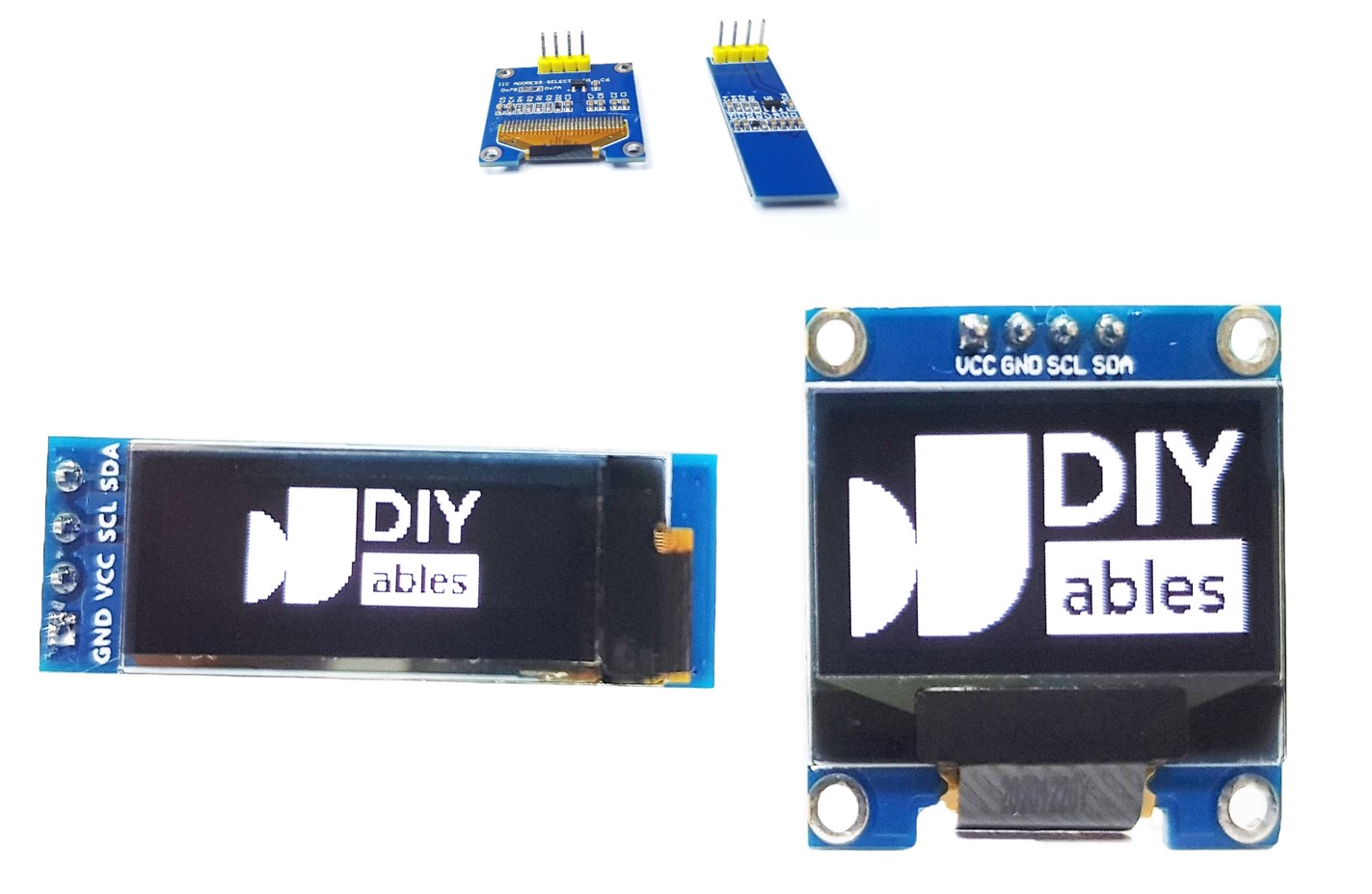
Brochage de l'OLED

  • GND — connecter à GND
  • VCC — connecter à 3,3V ou 5V
  • SCL — signal d'horloge I2C
  • SDA — signal de données I2C
Brochage de l'OLED

※ Note:

L'ordre des broches peut différer selon les fabricants. Référez-vous toujours aux étiquettes imprimées sur le module OLED lui-même. Ce tutoriel utilise un OLED basé sur SSD1306 testé avec les modules DIYables.

Schéma de Câblage
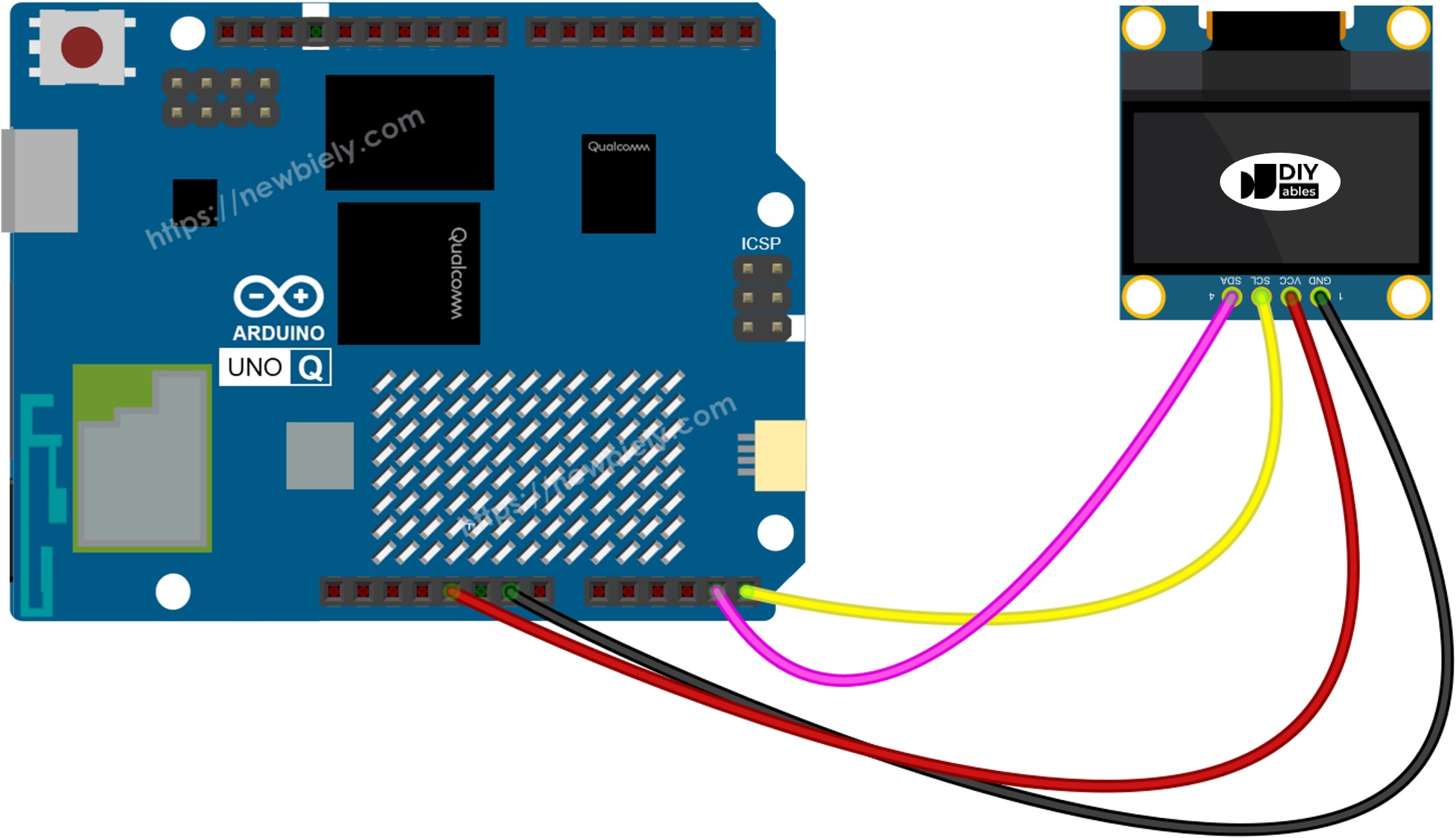
Schéma de Câblage OLED 128x64 Arduino UNO Q

Cette image a été créée avec Fritzing. Cliquez pour agrandir l'image.

Broche OLEDBroche Arduino UNO Q
GNDGND
VCC3.3V
SCLSCL
SDASDA

Comment Programmer l'OLED

La bibliothèque Adafruit SSD1306 fournit toutes les fonctions nécessaires pour piloter l'OLED.

  • Inclure les bibliothèques :
#include <Wire.h> #include <Adafruit_GFX.h> #include <Adafruit_SSD1306.h>
  • Créer l'objet OLED (128x64) :
#define SCREEN_WIDTH 128 #define SCREEN_HEIGHT 64 Adafruit_SSD1306 oled(SCREEN_WIDTH, SCREEN_HEIGHT, &Wire, -1);
  • Initialiser dans setup() :
if (!oled.begin(SSD1306_SWITCHCAPVCC, 0x3C)) { while (true); // halt if OLED not found } oled.clearDisplay();
  • Afficher du texte :
oled.setTextSize(1); // Font size (1–8) oled.setTextColor(WHITE); // Text color oled.setCursor(0, 0); // Cursor position (x, y) oled.println("Hello!"); oled.display(); // Push buffer to screen — required!

※ Note:

Appelez toujours oled.display() après les commandes de dessin pour envoyer le tampon à l'écran. Les commandes de dessin seules ne mettent pas à jour ce qui est visible.

Code Arduino UNO Q — Hello World sur OLED SSD1306

L'Arduino UNO Q dispose de deux processeurs : le STM32 MCU (gère le contrôle matériel en temps réel) et le Qualcomm MPU (exécute Debian Linux). Dans cette section, seul le STM32 MCU est programmé — le côté Linux reste inactif. Une section ultérieure montrera comment les deux processeurs fonctionnent ensemble.

Le sketch ci-dessous affiche du texte en deux tailles différentes sur l'OLED.

/* * Ce code Arduino UNO Q a été développé par newbiely.fr * Ce code Arduino UNO Q est mis à disposition du public sans aucune restriction. * Pour des instructions complètes et des schémas de câblage, veuillez visiter: * https://newbiely.fr/tutorials/arduino-uno-q/arduino-uno-q-oled-128x64 */ #include <Wire.h> #include <Adafruit_GFX.h> #include <Adafruit_SSD1306.h> #define SCREEN_WIDTH 128 #define SCREEN_HEIGHT 64 Adafruit_SSD1306 oled(SCREEN_WIDTH, SCREEN_HEIGHT, &Wire, -1); void setup() { Monitor.begin(9600); if (!oled.begin(SSD1306_SWITCHCAPVCC, 0x3C)) { Monitor.println(F("SSD1306 allocation failed")); for (;;); } delay(2000); oled.clearDisplay(); // Line 1 — size 1 oled.setTextSize(1); oled.setTextColor(WHITE); oled.setCursor(0, 0); oled.println(F("Hello, World!")); // Line 2 — size 2 oled.setTextSize(2); oled.setCursor(0, 20); oled.println(F("DIYables")); // Line 3 — size 1 oled.setTextSize(1); oled.setCursor(0, 50); oled.println(F("OLED 128x64 SSD1306")); oled.display(); } void loop() {}

Étapes Rapides

  • Première utilisation d'Arduino UNO Q ? Suivez le tutoriel Démarrer avec Arduino UNO Q pour préparer votre environnement de développement avant de continuer.
  • Câblez l'OLED : Connectez GND→GND, VCC→3,3V, SCL→SCL, SDA→SDA.
  • Connectez : Branchez l'Arduino UNO Q à votre ordinateur avec un câble USB-C.
  • Ouvrez Arduino App Lab : Lancez Arduino App Lab et attendez qu'il détecte votre Arduino UNO Q.
  • Créez une nouvelle App : Cliquez sur le bouton Create New App.
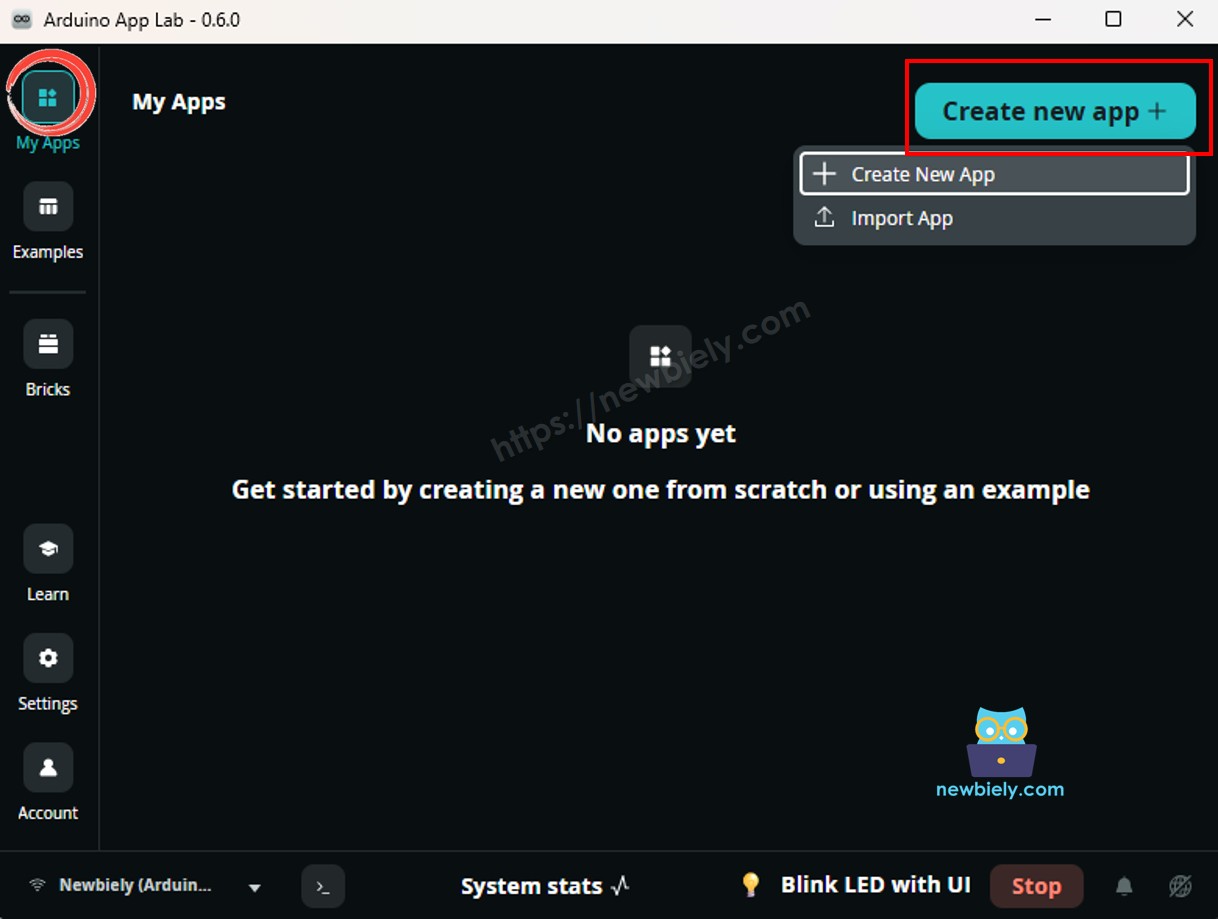
Créer une Nouvelle App dans Arduino App Lab sur Arduino UNO Q
  • Donnez un nom à l'App, par exemple : DIYables_OLED_128x64
  • Cliquez sur Create pour confirmer.
  • Vous verrez un ensemble de dossiers et de fichiers générés dans votre nouvelle App.
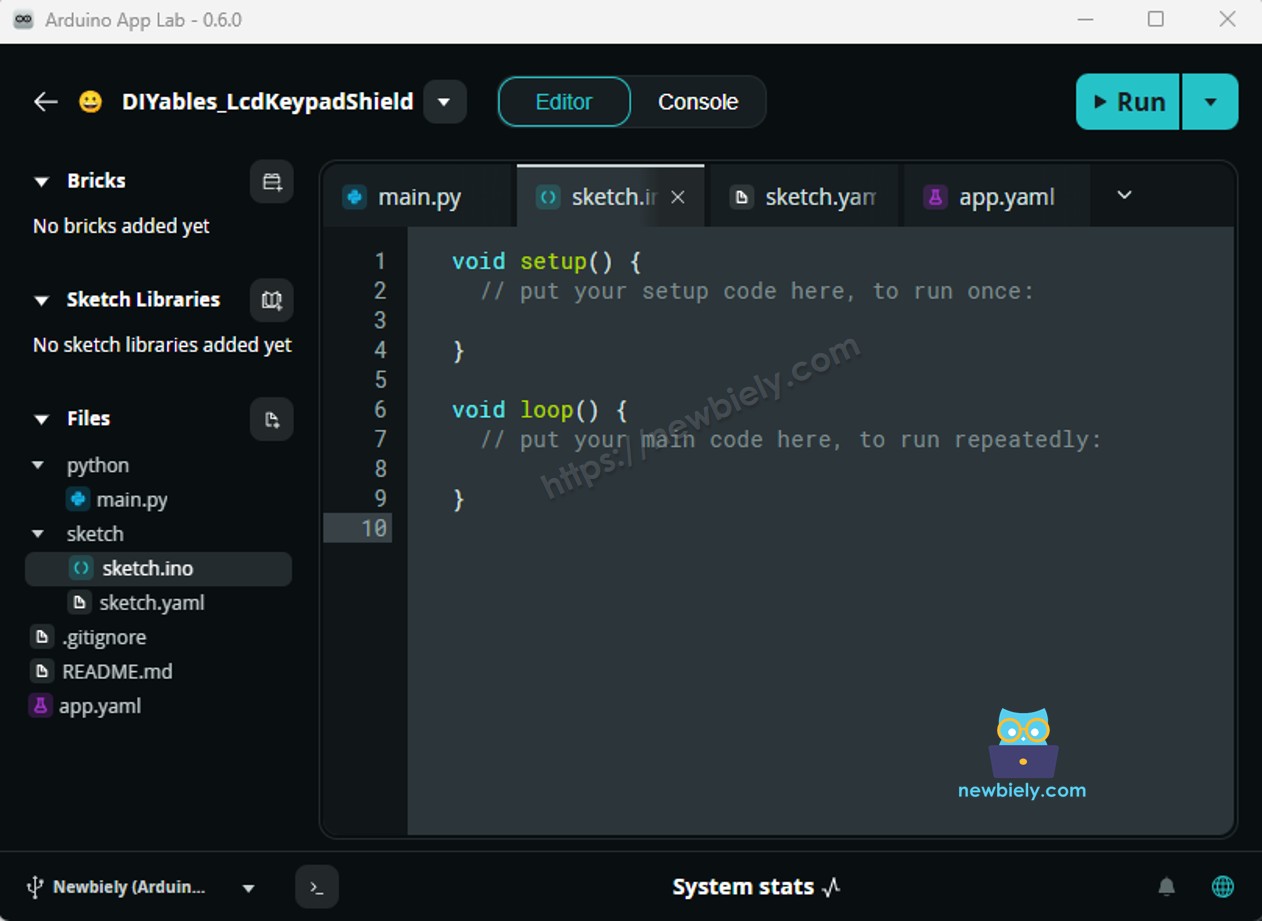
Dossiers et fichiers de l'App Arduino App Lab sur Arduino UNO Q
  • Trouvez le fichier sketch/sketch.ino — c'est là que vous collerez le sketch MCU.
  • Collez le sketch : Copiez le code MCU ci-dessus et collez-le dans le fichier sketch.
    • Install the library: Click the Add sketch library button (the open book icon with a + sign) in the left sidebar.
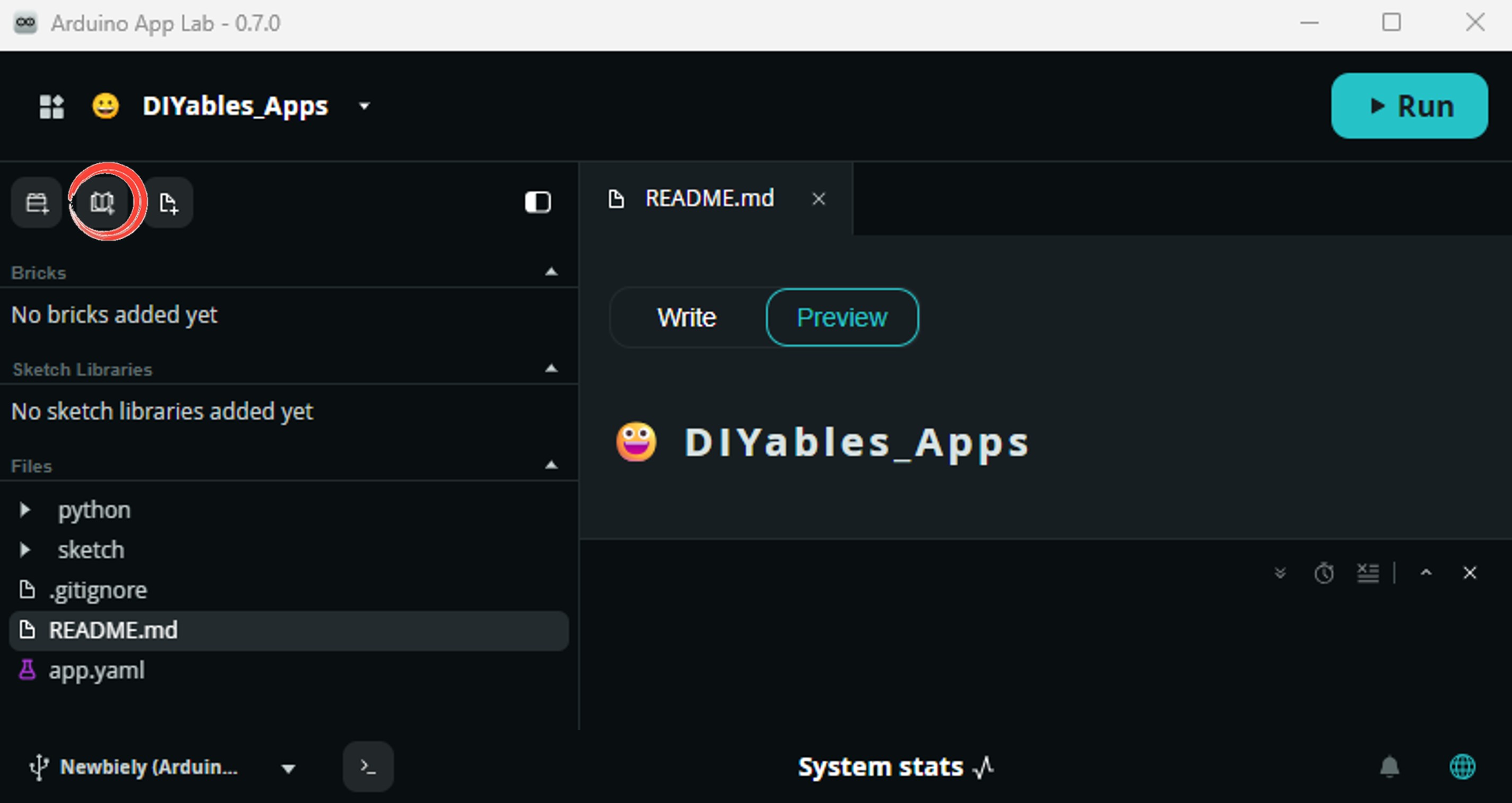
    Add sketch library in Arduino App Lab on Arduino UNO Q
    • Search for Arduino_RouterBridge created by Arduino and click the Install button.
    My Apps / DIYables Apps
    Run
    Bricks
    No bricks added...
    Sketch Libraries
    No sketch libra...
    Files
    python
    sketch
    .gitignore
    README.md
    app.yaml
    sketch.ino
    Add sketch library
    Arduino_RouterBridge Arduino

    This library provides a simple RPC bridge for Arduino UNO Q boards, allowing communication between the board and other devices using MsgPack serialization.

    0.4.1
    Install
    More Info
    • Search for Adafruit SSD1306 created by Adafruit and click the Install button.
    My Apps / DIYables Apps
    Run
    Bricks
    No bricks added...
    Sketch Libraries
    No sketch libra...
    Files
    python
    sketch
    .gitignore
    README.md
    app.yaml
    sketch.ino
    Add sketch library
    Adafruit SSD1306 Adafruit

    SSD1306 oled driver library for monochrome 128x64 and 128x32 displays

    2.5.9
    Install
    More Info
    • Téléversez : Cliquez sur le bouton Run dans Arduino App Lab pour compiler et téléverser vers le STM32.
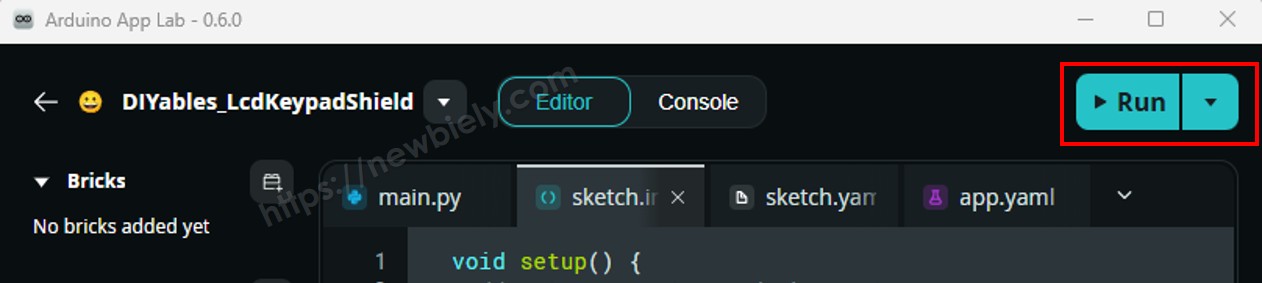
    Cliquer sur le bouton Run dans Arduino App Lab sur Arduino UNO Q

    Regardez l'OLED — il affiche "Hello, World!", "DIYables" et "OLED 128x64 SSD1306" !

    Code Arduino UNO Q — Afficher du Texte sur OLED SSD1306

    Cet exemple illustre différentes tailles de texte et comment afficher des entiers, des flottants et des nombres hexadécimaux sur l'OLED.

    /* * Ce code Arduino UNO Q a été développé par newbiely.fr * Ce code Arduino UNO Q est mis à disposition du public sans aucune restriction. * Pour des instructions complètes et des schémas de câblage, veuillez visiter: * https://newbiely.fr/tutorials/arduino-uno-q/arduino-uno-q-oled-128x64 */ #include <Wire.h> #include <Adafruit_GFX.h> #include <Adafruit_SSD1306.h> #define SCREEN_WIDTH 128 #define SCREEN_HEIGHT 64 Adafruit_SSD1306 oled(SCREEN_WIDTH, SCREEN_HEIGHT, &Wire, -1); void setup() { Monitor.begin(9600); if (!oled.begin(SSD1306_SWITCHCAPVCC, 0x3C)) { Monitor.println(F("SSD1306 allocation failed")); for (;;); } delay(2000); // ── Text size demo ── oled.clearDisplay(); oled.setTextColor(WHITE); oled.setTextSize(1); oled.setCursor(0, 0); oled.println(F("Size 1: Arduino")); oled.setTextSize(2); oled.setCursor(0, 16); oled.println(F("Size 2")); oled.setTextSize(3); oled.setCursor(0, 40); oled.println(F("S3")); oled.display(); delay(3000); // ── Integer ── oled.clearDisplay(); oled.setTextSize(2); oled.setCursor(0, 0); oled.print(F("Int: ")); oled.println(12345); oled.display(); delay(3000); // ── Float ── oled.clearDisplay(); oled.setTextSize(2); oled.setCursor(0, 0); oled.print(F("Float:")); oled.setCursor(0, 24); oled.println(3.14); oled.display(); delay(3000); // ── Hexadecimal ── oled.clearDisplay(); oled.setTextSize(2); oled.setCursor(0, 0); oled.print(F("Hex: ")); oled.println(255, HEX); oled.display(); delay(3000); } void loop() {}

    Étapes Rapides

    • Copiez le code ci-dessus et collez-le dans sketch/sketch.ino.
    • Cliquez sur le bouton Run dans Arduino App Lab.
    Cliquer sur le bouton Run dans Arduino App Lab sur Arduino UNO Q

    L'OLED alterne entre les démonstrations de taille de texte, puis affiche un entier, un flottant et un nombre hexadécimal.

    Référence des Fonctions d'Affichage Utiles

    Référence rapide des fonctions SSD1306 OLED les plus utilisées :

    • oled.clearDisplay() — efface le tampon de trame (tous les pixels éteints)
    • oled.display() — envoie le tampon à l'écran — requis après chaque appel de dessin
    • oled.drawPixel(x, y, color) — définit ou efface un seul pixel
    • oled.setTextSize(n) — met à l'échelle la police par le facteur *n* (1 = 6×8 px, 2 = 12×16 px, …)
    • oled.setCursor(x, y) — déplace le curseur de texte aux coordonnées en pixels *(x, y)*
    • oled.setTextColor(WHITE) — premier plan de texte uniquement (fond transparent)
    • oled.setTextColor(BLACK, WHITE) — texte avec fond explicite
    • oled.println("message") — imprime une chaîne et passe à la ligne suivante
    • oled.println(number) — imprime un entier en décimal
    • oled.println(number, HEX) — imprime un entier en hexadécimal
    • oled.startscrollright(start, stop) — défilement matériel vers la droite entre les pages
    • oled.startscrollleft(start, stop) — défilement matériel vers la gauche
    • oled.startscrolldiagright(start, stop) — défilement diagonal vers la droite
    • oled.startscrolldiagleft(start, stop) — défilement diagonal vers la gauche
    • oled.stopscroll() — arrête tout défilement matériel actif
    • oled.setContrast(value) — ajuste la luminosité (0 à 255)
    • oled.dim(true/false) — bascule rapide de l'atténuation
    • oled.invertDisplay(true/false) — inversion des couleurs au niveau matériel

    Code Arduino UNO Q — Dessiner des Formes sur OLED SSD1306

    La bibliothèque Adafruit SSD1306 hérite d'Adafruit_GFX, vous donnant des pixels, des lignes, des rectangles, des cercles, des triangles et des rectangles arrondis. Le sketch ci-dessous les parcourt tous.

    /* * Ce code Arduino UNO Q a été développé par newbiely.fr * Ce code Arduino UNO Q est mis à disposition du public sans aucune restriction. * Pour des instructions complètes et des schémas de câblage, veuillez visiter: * https://newbiely.fr/tutorials/arduino-uno-q/arduino-uno-q-oled-128x64 */ #include <Wire.h> #include <Adafruit_GFX.h> #include <Adafruit_SSD1306.h> #define SCREEN_WIDTH 128 #define SCREEN_HEIGHT 64 Adafruit_SSD1306 oled(SCREEN_WIDTH, SCREEN_HEIGHT, &Wire, -1); void setup() { Monitor.begin(9600); if (!oled.begin(SSD1306_SWITCHCAPVCC, 0x3C)) { Monitor.println(F("SSD1306 allocation failed")); for (;;); } delay(2000); oled.clearDisplay(); oled.display(); } void loop() { // ── Single pixel ── oled.clearDisplay(); for (int i = 0; i < SCREEN_WIDTH; i += 4) oled.drawPixel(i, SCREEN_HEIGHT / 2, WHITE); oled.display(); delay(2000); // ── Lines ── oled.clearDisplay(); oled.drawLine(0, 0, SCREEN_WIDTH - 1, SCREEN_HEIGHT - 1, WHITE); oled.drawLine(SCREEN_WIDTH - 1, 0, 0, SCREEN_HEIGHT - 1, WHITE); oled.display(); delay(2000); // ── Rectangle ── oled.clearDisplay(); oled.drawRect(10, 10, 108, 44, WHITE); oled.display(); delay(2000); // ── Filled rectangle ── oled.clearDisplay(); oled.fillRect(10, 10, 108, 44, WHITE); oled.display(); delay(2000); // ── Rounded rectangle ── oled.clearDisplay(); oled.drawRoundRect(10, 10, 108, 44, 8, WHITE); oled.display(); delay(2000); // ── Filled rounded rectangle ── oled.clearDisplay(); oled.fillRoundRect(10, 10, 108, 44, 8, WHITE); oled.display(); delay(2000); // ── Circle ── oled.clearDisplay(); oled.drawCircle(SCREEN_WIDTH / 2, SCREEN_HEIGHT / 2, 28, WHITE); oled.display(); delay(2000); // ── Filled circle ── oled.clearDisplay(); oled.fillCircle(SCREEN_WIDTH / 2, SCREEN_HEIGHT / 2, 28, WHITE); oled.display(); delay(2000); // ── Triangle ── oled.clearDisplay(); oled.drawTriangle(64, 4, 10, 60, 118, 60, WHITE); oled.display(); delay(2000); // ── Filled triangle ── oled.clearDisplay(); oled.fillTriangle(64, 4, 10, 60, 118, 60, WHITE); oled.display(); delay(2000); }

    Étapes Rapides

    • Copiez le code ci-dessus et collez-le dans sketch/sketch.ino.
    • Cliquez sur le bouton Run dans Arduino App Lab.
    Cliquer sur le bouton Run dans Arduino App Lab sur Arduino UNO Q

    Regardez l'OLED alterner entre toutes les formes — pixels, lignes, rectangles, cercles, rectangles arrondis et triangles !

    Code Arduino UNO Q — Défilement Matériel sur OLED SSD1306

    Le SSD1306 dispose d'un moteur de défilement matériel intégré qui déplace le contenu sans aucun travail du CPU. La bibliothèque offre quatre directions de défilement : droite, gauche, diagonal-droite et diagonal-gauche.

    ※ Note:

    Appelez toujours oled.display() pour transférer votre contenu vers l'OLED avant de démarrer un défilement. Appelez stopscroll() avant de dessiner un nouveau contenu.

    /* * Ce code Arduino UNO Q a été développé par newbiely.fr * Ce code Arduino UNO Q est mis à disposition du public sans aucune restriction. * Pour des instructions complètes et des schémas de câblage, veuillez visiter: * https://newbiely.fr/tutorials/arduino-uno-q/arduino-uno-q-oled-128x64 */ #include <Wire.h> #include <Adafruit_GFX.h> #include <Adafruit_SSD1306.h> #define SCREEN_WIDTH 128 #define SCREEN_HEIGHT 64 Adafruit_SSD1306 oled(SCREEN_WIDTH, SCREEN_HEIGHT, &Wire, -1); void setup() { Monitor.begin(9600); if (!oled.begin(SSD1306_SWITCHCAPVCC, 0x3C)) { Monitor.println(F("SSD1306 allocation failed")); for (;;); } delay(2000); oled.clearDisplay(); oled.setTextSize(2); oled.setTextColor(WHITE); oled.setCursor(10, 24); oled.println(F("DIYables")); oled.display(); } void loop() { // Scroll right oled.startscrollright(0x00, 0x07); delay(3000); oled.stopscroll(); delay(500); // Scroll left oled.startscrollleft(0x00, 0x07); delay(3000); oled.stopscroll(); delay(500); // Diagonal scroll right oled.startscrolldiagright(0x00, 0x07); delay(3000); oled.stopscroll(); delay(500); // Diagonal scroll left oled.startscrolldiagleft(0x00, 0x07); delay(3000); oled.stopscroll(); delay(500); }

    Étapes Rapides

    • Copiez le code ci-dessus et collez-le dans sketch/sketch.ino.
    • Cliquez sur le bouton Run dans Arduino App Lab.
    Cliquer sur le bouton Run dans Arduino App Lab sur Arduino UNO Q

    L'OLED fait défiler "DIYables" vers la droite, la gauche, diagonal-droite et diagonal-gauche, en se répétant indéfiniment.

    Code Arduino UNO Q — Afficher une Image Bitmap sur OLED SSD1306

    Pour afficher un bitmap sur l'OLED SSD1306, vous devez d'abord convertir votre image en un tableau d'octets C. Utilisez l'outil gratuit Image to Bitmap Converter :

    1. Téléchargez votre fichier image (PNG, JPG, BMP, etc.).
    2. Définissez la taille du canevas à 128×64 (ou plus petit).
    3. Sélectionnez Arduino code comme format de sortie.
    4. Copiez le tableau généré dans votre sketch.
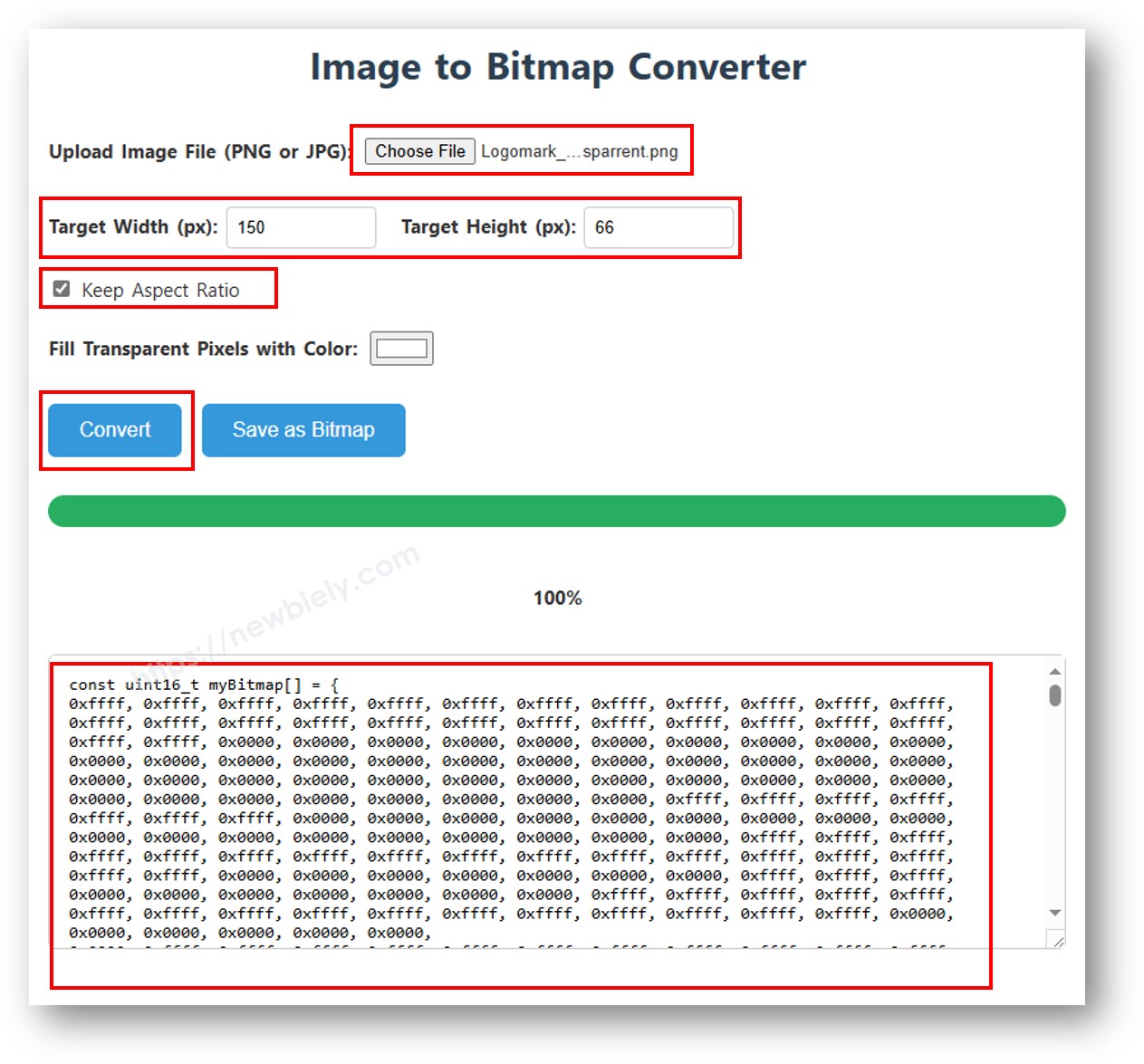
    convertisseur image en tableau bitmap

    Le sketch ci-dessous affiche une icône cœur 16×16 puis passe à l'icône Arduino complète 128×64 — toutes deux stockées sous forme de tableaux d'octets dans le code :

    /* * Ce code Arduino UNO Q a été développé par newbiely.fr * Ce code Arduino UNO Q est mis à disposition du public sans aucune restriction. * Pour des instructions complètes et des schémas de câblage, veuillez visiter: * https://newbiely.fr/tutorials/arduino-uno-q/arduino-uno-q-oled-128x64 */ #include <Wire.h> #include <Adafruit_GFX.h> #include <Adafruit_SSD1306.h> #define SCREEN_WIDTH 128 #define SCREEN_HEIGHT 64 Adafruit_SSD1306 oled(SCREEN_WIDTH, SCREEN_HEIGHT, &Wire, -1); // 16x16 heart bitmap const unsigned char heart16x16[] PROGMEM = { 0x00, 0x00, 0x03, 0xc0, 0x0f, 0xf0, 0x1f, 0xf8, 0x3f, 0xfc, 0x7f, 0xfe, 0xff, 0xff, 0xff, 0xff, 0xff, 0xff, 0xff, 0xff, 0x7f, 0xfe, 0x3f, 0xfc, 0x1f, 0xf8, 0x0f, 0xf0, 0x03, 0xc0, 0x00, 0x00 }; // 128x64 Arduino icon bitmap const unsigned char ArduinoIcon[] PROGMEM = { 0xff, 0xff, 0xff, 0xff, 0xff, 0xff, 0xff, 0xff, 0xff, 0xff, 0xff, 0xff, 0xff, 0xff, 0xff, 0xff, 0xff, 0xff, 0xff, 0xff, 0xff, 0xff, 0xff, 0xff, 0xff, 0xff, 0xff, 0xff, 0xff, 0xff, 0xff, 0xff, 0xff, 0xff, 0xfe, 0x00, 0x07, 0xff, 0xff, 0xff, 0xff, 0xff, 0xff, 0x80, 0x01, 0xff, 0xff, 0xff, 0xff, 0xff, 0xe0, 0x00, 0x00, 0xff, 0xff, 0xff, 0xff, 0xff, 0xfc, 0x00, 0x00, 0x3f, 0xff, 0xff, 0xff, 0xff, 0x80, 0x00, 0x00, 0x1f, 0xff, 0xff, 0xff, 0xff, 0xe0, 0x00, 0x00, 0x07, 0xff, 0xff, 0xff, 0xfe, 0x00, 0x00, 0x00, 0x07, 0xff, 0xff, 0xff, 0xff, 0x80, 0x00, 0x00, 0x01, 0xff, 0xff, 0xff, 0xfc, 0x00, 0x00, 0x00, 0x03, 0xff, 0xff, 0xff, 0xff, 0x00, 0x00, 0x00, 0x00, 0xff, 0xff, 0xff, 0xf0, 0x00, 0x00, 0x00, 0x00, 0xff, 0xff, 0xff, 0xfc, 0x00, 0x00, 0x00, 0x00, 0x3f, 0xff, 0xff, 0xe0, 0x00, 0x00, 0x00, 0x00, 0x3f, 0xff, 0xff, 0xf0, 0x00, 0x00, 0x00, 0x00, 0x1f, 0xff, 0xff, 0xc0, 0x00, 0x00, 0x00, 0x00, 0x1f, 0xff, 0xff, 0xe0, 0x00, 0x00, 0x00, 0x00, 0x0f, 0xff, 0xff, 0x80, 0x00, 0x00, 0x00, 0x00, 0x0f, 0xff, 0xff, 0xc0, 0x00, 0x00, 0x00, 0x00, 0x07, 0xff, 0xff, 0x00, 0x00, 0x00, 0x00, 0x00, 0x03, 0xff, 0xff, 0x80, 0x00, 0x00, 0x00, 0x00, 0x03, 0xff, 0xfe, 0x00, 0x00, 0x00, 0x00, 0x00, 0x01, 0xff, 0xfe, 0x00, 0x00, 0x00, 0x00, 0x00, 0x01, 0xff, 0xfc, 0x00, 0x00, 0xff, 0xf0, 0x00, 0x00, 0xff, 0xfc, 0x00, 0x00, 0x3f, 0xfc, 0x00, 0x00, 0xff, 0xfc, 0x00, 0x03, 0xff, 0xfc, 0x00, 0x00, 0x7f, 0xf8, 0x00, 0x00, 0xff, 0xff, 0x00, 0x00, 0xff, 0xf8, 0x00, 0x0f, 0xff, 0xff, 0x00, 0x00, 0x3f, 0xf0, 0x00, 0x03, 0xff, 0xff, 0xc0, 0x00, 0x7f, 0xf0, 0x00, 0x1f, 0xff, 0xff, 0xc0, 0x00, 0x1f, 0xe0, 0x00, 0x0f, 0xff, 0xff, 0xe0, 0x00, 0x7f, 0xf0, 0x00, 0x7f, 0xff, 0xff, 0xe0, 0x00, 0x0f, 0xc0, 0x00, 0x1f, 0xff, 0xff, 0xf8, 0x00, 0x3f, 0xe0, 0x00, 0xff, 0xff, 0xff, 0xf8, 0x00, 0x07, 0x80, 0x00, 0x7f, 0xff, 0xff, 0xfc, 0x00, 0x1f, 0xe0, 0x00, 0xff, 0xff, 0xff, 0xfc, 0x00, 0x03, 0x80, 0x00, 0xff, 0xff, 0xff, 0xfc, 0x00, 0x1f, 0xc0, 0x01, 0xff, 0xff, 0xff, 0xfe, 0x00, 0x03, 0x00, 0x01, 0xff, 0xff, 0xff, 0xfe, 0x00, 0x1f, 0xc0, 0x03, 0xff, 0xff, 0xff, 0xff, 0x00, 0x00, 0x00, 0x03, 0xff, 0xff, 0xff, 0xff, 0x00, 0x0f, 0xc0, 0x03, 0xff, 0xff, 0xff, 0xff, 0x80, 0x00, 0x00, 0x07, 0xff, 0xf0, 0x7f, 0xff, 0x00, 0x0f, 0xc0, 0x07, 0xff, 0xff, 0xff, 0xff, 0xc0, 0x00, 0x00, 0x0f, 0xff, 0xf0, 0x7f, 0xff, 0x80, 0x0f, 0x80, 0x07, 0xff, 0xff, 0xff, 0xff, 0xe0, 0x00, 0x00, 0x1f, 0xff, 0xf0, 0x7f, 0xff, 0x80, 0x07, 0x80, 0x0f, 0xff, 0xff, 0xff, 0xff, 0xf0, 0x00, 0x00, 0x3f, 0xff, 0xf0, 0x7f, 0xff, 0xc0, 0x07, 0x80, 0x0f, 0xff, 0xff, 0xff, 0xff, 0xf8, 0x00, 0x00, 0x7f, 0xff, 0xf0, 0x7f, 0xff, 0xc0, 0x07, 0x80, 0x0f, 0xfe, 0x00, 0x00, 0xff, 0xfc, 0x00, 0x00, 0xff, 0xfc, 0x00, 0x03, 0xff, 0xc0, 0x07, 0x80, 0x0f, 0xfe, 0x00, 0x00, 0xff, 0xfe, 0x00, 0x01, 0xff, 0xfc, 0x00, 0x01, 0xff, 0xc0, 0x07, 0x80, 0x0f, 0xfe, 0x00, 0x00, 0xff, 0xff, 0x00, 0x03, 0xff, 0xfc, 0x00, 0x01, 0xff, 0xc0, 0x07, 0x80, 0x0f, 0xfe, 0x00, 0x00, 0xff, 0xff, 0x00, 0x03, 0xff, 0xfc, 0x00, 0x01, 0xff, 0xc0, 0x07, 0x80, 0x0f, 0xfe, 0x00, 0x00, 0xff, 0xff, 0x00, 0x03, 0xff, 0xfc, 0x00, 0x01, 0xff, 0xc0, 0x07, 0x80, 0x0f, 0xff, 0xff, 0xff, 0xff, 0xfe, 0x00, 0x01, 0xff, 0xff, 0xe0, 0x7f, 0xff, 0xc0, 0x07, 0x80, 0x0f, 0xff, 0xff, 0xff, 0xff, 0xfc, 0x00, 0x00, 0xff, 0xff, 0xf0, 0x7f, 0xff, 0xc0, 0x07, 0x80, 0x0f, 0xff, 0xff, 0xff, 0xff, 0xfc, 0x00, 0x00, 0xff, 0xff, 0xf0, 0x7f, 0xff, 0xc0, 0x07, 0x80, 0x0f, 0xff, 0xff, 0xff, 0xff, 0xf8, 0x00, 0x00, 0x7f, 0xff, 0xf0, 0x7f, 0xff, 0xc0, 0x07, 0x80, 0x0f, 0xff, 0xff, 0xff, 0xff, 0xf0, 0x00, 0x00, 0x3f, 0xff, 0xf0, 0x7f, 0xff, 0x80, 0x07, 0x80, 0x07, 0xff, 0xff, 0xff, 0xff, 0xe0, 0x00, 0x00, 0x1f, 0xff, 0xf0, 0x7f, 0xff, 0x80, 0x07, 0xc0, 0x07, 0xff, 0xff, 0xff, 0xff, 0xc0, 0x00, 0x00, 0x0f, 0xff, 0xff, 0xff, 0xff, 0x80, 0x0f, 0xc0, 0x03, 0xff, 0xff, 0xff, 0xff, 0x80, 0x00, 0x00, 0x07, 0xff, 0xff, 0xff, 0xff, 0x00, 0x0f, 0xc0, 0x03, 0xff, 0xff, 0xff, 0xff, 0x00, 0x00, 0x00, 0x03, 0xff, 0xff, 0xff, 0xff, 0x00, 0x0f, 0xe0, 0x01, 0xff, 0xff, 0xff, 0xfe, 0x00, 0x03, 0x00, 0x01, 0xff, 0xff, 0xff, 0xfe, 0x00, 0x1f, 0xe0, 0x00, 0xff, 0xff, 0xff, 0xfc, 0x00, 0x07, 0x80, 0x00, 0xff, 0xff, 0xff, 0xfc, 0x00, 0x1f, 0xe0, 0x00, 0x7f, 0xff, 0xff, 0xf0, 0x00, 0x0f, 0xc0, 0x00, 0x3f, 0xff, 0xff, 0xf8, 0x00, 0x3f, 0xf0, 0x00, 0x3f, 0xff, 0xff, 0xe0, 0x00, 0x1f, 0xe0, 0x00, 0x1f, 0xff, 0xff, 0xf0, 0x00, 0x3f, 0xf8, 0x00, 0x1f, 0xff, 0xff, 0x80, 0x00, 0x3f, 0xe0, 0x00, 0x07, 0xff, 0xff, 0xe0, 0x00, 0x7f, 0xf8, 0x00, 0x0f, 0xff, 0xff, 0x00, 0x00, 0x7f, 0xf8, 0x00, 0x03, 0xff, 0xff, 0xc0, 0x00, 0x7f, 0xfc, 0x00, 0x03, 0xff, 0xf8, 0x00, 0x00, 0xff, 0xfc, 0x00, 0x00, 0xff, 0xff, 0x00, 0x00, 0xff, 0xfe, 0x00, 0x00, 0x7f, 0xe0, 0x00, 0x01, 0xff, 0xfe, 0x00, 0x00, 0x1f, 0xf8, 0x00, 0x01, 0xff, 0xfe, 0x00, 0x00, 0x00, 0x00, 0x00, 0x03, 0xff, 0xff, 0x00, 0x00, 0x00, 0x00, 0x00, 0x03, 0xff, 0xff, 0x00, 0x00, 0x00, 0x00, 0x00, 0x07, 0xff, 0xff, 0x80, 0x00, 0x00, 0x00, 0x00, 0x03, 0xff, 0xff, 0x80, 0x00, 0x00, 0x00, 0x00, 0x0f, 0xff, 0xff, 0xc0, 0x00, 0x00, 0x00, 0x00, 0x07, 0xff, 0xff, 0xc0, 0x00, 0x00, 0x00, 0x00, 0x1f, 0xff, 0xff, 0xe0, 0x00, 0x00, 0x00, 0x00, 0x0f, 0xff, 0xff, 0xe0, 0x00, 0x00, 0x00, 0x00, 0x7f, 0xff, 0xff, 0xf8, 0x00, 0x00, 0x00, 0x00, 0x3f, 0xff, 0xff, 0xf8, 0x00, 0x00, 0x00, 0x01, 0xff, 0xff, 0xff, 0xfe, 0x00, 0x00, 0x00, 0x00, 0x7f, 0xff, 0xff, 0xfc, 0x00, 0x00, 0x00, 0x03, 0xff, 0xff, 0xff, 0xff, 0x00, 0x00, 0x00, 0x00, 0xff, 0xff, 0xff, 0xff, 0x00, 0x00, 0x00, 0x0f, 0xff, 0xff, 0xff, 0xff, 0xc0, 0x00, 0x00, 0x03, 0xff, 0xff, 0xff, 0xff, 0xc0, 0x00, 0x00, 0x3f, 0xff, 0xff, 0xff, 0xff, 0xf0, 0x00, 0x00, 0x0f, 0xff, 0xff, 0xff, 0xff, 0xf0, 0x00, 0x01, 0xff, 0xff, 0xff, 0xff, 0xff, 0xfe, 0x00, 0x00, 0x3f, 0xff, 0xff, 0xff, 0xff, 0xff, 0x00, 0x0f, 0xff, 0xff, 0xff, 0xff, 0xff, 0xff, 0xc0, 0x03, 0xff, 0xff, 0xff, 0xff, 0xff, 0xff, 0xff, 0xff, 0xff, 0xff, 0xff, 0xff, 0xff, 0xff, 0xff, 0xff, 0xff, 0xff, 0xff, 0xff, 0xff, 0xff, 0xff, 0xff, 0xff, 0xff, 0xff, 0xff, 0xff, 0xff, 0xff, 0xff, 0xff, 0xff, 0xff, 0xff, 0xff, 0xff, 0xff, 0xff, 0xff, 0xff, 0xff, 0xff, 0xff, 0xff, 0xff, 0xff, 0xff, 0xff, 0xff, 0xff, 0xff, 0xff, 0xff, 0xff, 0xff, 0xff, 0xff, 0xff, 0xff, 0xff, 0xff, 0xff, 0xff, 0xff, 0xff }; void setup() { Monitor.begin(9600); if (!oled.begin(SSD1306_SWITCHCAPVCC, 0x3C)) { Monitor.println(F("SSD1306 allocation failed")); for (;;); } delay(2000); // Show heart icon centered oled.clearDisplay(); oled.drawBitmap( (SCREEN_WIDTH - 16) / 2, (SCREEN_HEIGHT - 16) / 2, heart16x16, 16, 16, WHITE); oled.display(); delay(3000); // Show full Arduino icon oled.clearDisplay(); oled.drawBitmap(0, 0, ArduinoIcon, SCREEN_WIDTH, SCREEN_HEIGHT, WHITE); oled.display(); } void loop() {}

    Étapes Rapides

    • Copiez le code ci-dessus et collez-le dans sketch/sketch.ino.
    • Cliquez sur le bouton Run dans Arduino App Lab.
    Cliquer sur le bouton Run dans Arduino App Lab sur Arduino UNO Q

    L'OLED affiche l'icône cœur pendant 3 secondes, puis passe à l'icône Arduino.

    ※ Note:

    Les dimensions du bitmap ne doivent pas dépasser la résolution de l'écran (128×64).

    Code Arduino UNO Q — Contraste et Atténuation sur OLED SSD1306

    Le SSD1306 supporte 256 niveaux de contraste (0 à 255). Utilisez setContrast() pour un contrôle précis et dim() pour une bascule rapide de la luminosité.

    /* * Ce code Arduino UNO Q a été développé par newbiely.fr * Ce code Arduino UNO Q est mis à disposition du public sans aucune restriction. * Pour des instructions complètes et des schémas de câblage, veuillez visiter: * https://newbiely.fr/tutorials/arduino-uno-q/arduino-uno-q-oled-128x64 */ #include <Wire.h> #include <Adafruit_GFX.h> #include <Adafruit_SSD1306.h> #define SCREEN_WIDTH 128 #define SCREEN_HEIGHT 64 Adafruit_SSD1306 oled(SCREEN_WIDTH, SCREEN_HEIGHT, &Wire, -1); void setup() { Monitor.begin(9600); if (!oled.begin(SSD1306_SWITCHCAPVCC, 0x3C)) { Monitor.println(F("SSD1306 allocation failed")); for (;;); } delay(2000); // Draw a checkerboard test pattern oled.clearDisplay(); for (int x = 0; x < SCREEN_WIDTH; x += 8) for (int y = 0; y < SCREEN_HEIGHT; y += 8) if ((x / 8 + y / 8) % 2 == 0) oled.fillRect(x, y, 8, 8, WHITE); oled.display(); delay(2000); } void loop() { // Ramp up: 0 → 255 for (int c = 0; c <= 255; c += 5) { oled.setContrast((uint8_t)c); delay(30); } delay(1000); // Ramp down: 255 → 0 for (int c = 255; c >= 0; c -= 5) { oled.setContrast((uint8_t)c); delay(30); } delay(1000); // Quick dim toggle oled.dim(true); // minimum brightness delay(2000); oled.dim(false); // restore delay(2000); }

    Étapes Rapides

    • Copiez le code ci-dessus et collez-le dans sketch/sketch.ino.
    • Cliquez sur le bouton Run dans Arduino App Lab.
    Cliquer sur le bouton Run dans Arduino App Lab sur Arduino UNO Q

    Regardez la luminosité de l'OLED augmenter puis diminuer, suivie d'un cycle d'atténuation activée/désactivée.

    Code Arduino UNO Q — Polices Externes Personnalisées sur OLED SSD1306

    La bibliothèque Adafruit GFX inclut de nombreuses polices FreeFont (Serif, Sans, Mono — en plusieurs tailles). Utilisez-les en incluant l'en-tête de police et en appelant setFont().

    ※ Note:

    Lorsqu'une police externe est active, la coordonnée Y du curseur fait référence à la ligne de base du texte, et non au coin supérieur gauche. Cela diffère de la police intégrée 5×7.

    /* * Ce code Arduino UNO Q a été développé par newbiely.fr * Ce code Arduino UNO Q est mis à disposition du public sans aucune restriction. * Pour des instructions complètes et des schémas de câblage, veuillez visiter: * https://newbiely.fr/tutorials/arduino-uno-q/arduino-uno-q-oled-128x64 */ #include <Wire.h> #include <Adafruit_GFX.h> #include <Adafruit_SSD1306.h> #include <Fonts/FreeSerif9pt7b.h> #include <Fonts/FreeSansBold12pt7b.h> #include <Fonts/FreeMono9pt7b.h> #define SCREEN_WIDTH 128 #define SCREEN_HEIGHT 64 Adafruit_SSD1306 oled(SCREEN_WIDTH, SCREEN_HEIGHT, &Wire, -1); void setup() { Monitor.begin(9600); if (!oled.begin(SSD1306_SWITCHCAPVCC, 0x3C)) { Monitor.println(F("SSD1306 allocation failed")); for (;;); } delay(2000); oled.clearDisplay(); oled.display(); } void loop() { // ── Built-in 5×7 font ── oled.clearDisplay(); oled.setFont(NULL); oled.setTextSize(1); oled.setTextColor(WHITE); oled.setCursor(0, 0); oled.println(F("Built-in 5x7 font")); oled.println(); oled.setTextSize(2); oled.println(F("DIYables")); oled.display(); delay(3000); // ── FreeSerif 9pt ── oled.clearDisplay(); oled.setFont(&FreeSerif9pt7b); oled.setTextSize(1); oled.setTextColor(WHITE); oled.setCursor(0, 14); // Y = baseline oled.println(F("FreeSerif 9pt")); oled.setCursor(0, 38); oled.println(F("DIYables OLED")); oled.setCursor(0, 58); oled.println(F("Hello World!")); oled.display(); delay(3000); // ── FreeSansBold 12pt ── oled.clearDisplay(); oled.setFont(&FreeSansBold12pt7b); oled.setTextSize(1); oled.setTextColor(WHITE); oled.setCursor(0, 20); oled.println(F("SansBold")); oled.setCursor(0, 52); oled.println(F("DIYables")); oled.display(); delay(3000); // ── FreeMono 9pt ── oled.clearDisplay(); oled.setFont(&FreeMono9pt7b); oled.setTextSize(1); oled.setTextColor(WHITE); oled.setCursor(0, 14); oled.println(F("FreeMono 9pt")); oled.setCursor(0, 34); oled.println(F("0123456789")); oled.setCursor(0, 54); oled.println(F("!@#$%^&*()")); oled.display(); delay(3000); }

    Étapes Rapides

    • Copiez le code ci-dessus et collez-le dans sketch/sketch.ino.
    • Cliquez sur le bouton Run dans Arduino App Lab.
    Cliquer sur le bouton Run dans Arduino App Lab sur Arduino UNO Q

    L'OLED alterne entre la police intégrée, FreeSerif 9pt, FreeSansBold 12pt et FreeMono 9pt.

    Programmation Bridge Linux + MCU

    L'Arduino UNO Q dispose de deux processeurs qui fonctionnent ensemble : le MPU (Qualcomm, exécute Debian Linux) et le MCU (STM32, exécute Zephyr OS avec votre sketch Arduino). Ils communiquent via RPC grâce à la bibliothèque Arduino_RouterBridge — jamais via des ports série bruts.

    • L'OLED est connecté au MCU (STM32) — via I2C (SCL/SDA). Seul le MCU peut le piloter directement.
    • Le MPU ne peut pas contrôler l'OLED directement — il appelle Bridge.call("display_text", "text") sur le MCU, qui met à jour l'afficheur et imprime le résultat dans le Monitor.
    • Le MPU dispose du Wi-Fi — parce que le MPU exécute Debian Linux complet avec Wi-Fi, il peut recevoir des commandes Telegram et afficher n'importe quel message sur l'OLED à distance.
    • Communication : Bridge.call() côté Linux invoque des fonctions Bridge.provide_safe() côté MCU (puisque les écritures d'affichage OLED sont des appels API matériels).
    • ⚠️ Réservé : /dev/ttyHS1 (Linux) et Serial1 (MCU) sont utilisés par l'Arduino Router — ne les ouvrez jamais directement.

    En bref : Le MPU envoie du texte via Bridge → le MCU met à jour l'OLED → le MCU imprime le résultat dans le Monitor.

    Sketch MCU — OLED 128x64 avec Bridge et sortie Monitor :

    /* * Ce code Arduino UNO Q a été développé par newbiely.fr * Ce code Arduino UNO Q est mis à disposition du public sans aucune restriction. * Pour des instructions complètes et des schémas de câblage, veuillez visiter: * https://newbiely.fr/tutorials/arduino-uno-q/arduino-uno-q-oled-128x64 */ #include "Arduino_RouterBridge.h" #include <Wire.h> #include <Adafruit_GFX.h> #include <Adafruit_SSD1306.h> #define SCREEN_WIDTH 128 #define SCREEN_HEIGHT 64 Adafruit_SSD1306 oled(SCREEN_WIDTH, SCREEN_HEIGHT, &Wire, -1); String current_text = ""; void display_text(String text) { current_text = text; oled.clearDisplay(); oled.setTextSize(1); oled.setTextColor(WHITE); oled.setCursor(0, 0); oled.println(text); oled.display(); Monitor.println("OLED: " + text); } void clear_oled() { current_text = ""; oled.clearDisplay(); oled.display(); Monitor.println("OLED cleared"); } void get_status() { Monitor.println("Text: " + current_text); } void setup() { Bridge.begin(); Monitor.begin(); if (!oled.begin(SSD1306_SWITCHCAPVCC, 0x3C)) { Monitor.println("OLED init failed"); while (true); } delay(1000); oled.clearDisplay(); oled.setTextSize(1); oled.setTextColor(WHITE); oled.setCursor(0, 0); oled.println("Bridge Ready"); oled.display(); Bridge.provide_safe("display_text", display_text); Bridge.provide_safe("clear_oled", clear_oled); Bridge.provide("get_status", get_status); Monitor.println("OLED 128x64 Bridge ready"); } void loop() {}

    Script Python (Arduino App Lab) — afficher du texte sur OLED depuis Linux :

    /* * Ce code Arduino UNO Q a été développé par newbiely.fr * Ce code Arduino UNO Q est mis à disposition du public sans aucune restriction. * Pour des instructions complètes et des schémas de câblage, veuillez visiter: * https://newbiely.fr/tutorials/arduino-uno-q/arduino-uno-q-oled-128x64 */ from arduino.app_utils import * import time def loop(): result = Bridge.call("display_text", "Hello UNO Q\nOLED 128x64\nPython Bridge") print(result) time.sleep(3) result = Bridge.call("clear_oled") print(result) time.sleep(1) result = Bridge.call("display_text", "DIYables.io") print(result) time.sleep(3) App.run(user_loop=loop)

    Étapes Rapides

    • Créez une nouvelle App : Ouvrez Arduino App Lab, cliquez sur Create New App, nommez-la DIYables_OLED_128x64_Bridge, et cliquez sur Create.
    • Collez le sketch MCU : Copiez le code Bridge MCU ci-dessus et collez-le dans sketch/sketch.ino.
    • Collez le script Python : Copiez le code Python ci-dessus et collez-le dans le fichier Python de l'App.
    • Exécutez l'App : Cliquez sur le bouton Run — le côté Python alterne entre les messages sur l'OLED.

    Sortie de la Console App Lab

    DIYables_Apps
    Stop
    sketch.ino
    1#include "Arduino_RouterBridge.h"
    Serial Monitor
    Python
    Message (Enter to send a message to "Newbiely" on usb(2820070321))
    New Line
    9600 baud
    OLED 128x64 Bridge ready OLED: Hello UNO Q OLED cleared OLED: DIYables.io

    Intégration Telegram

    Affichez n'importe quel texte sur votre OLED à distance depuis n'importe où via Telegram.

    Si vous n'avez pas encore de bot Telegram, consultez Arduino UNO Q - Bot Telegram pour obtenir votre token de bot avant de continuer.

    Sketch MCU : Conservez le même sketch MCU de la section Bridge précédente — aucune modification nécessaire. Assurez-vous qu'il est déjà téléversé et en cours d'exécution sur le STM32 avant de continuer.

    Script Python (Arduino App Lab) — bot Telegram pour OLED 128x64 :

    /* * Ce code Arduino UNO Q a été développé par newbiely.fr * Ce code Arduino UNO Q est mis à disposition du public sans aucune restriction. * Pour des instructions complètes et des schémas de câblage, veuillez visiter: * https://newbiely.fr/tutorials/arduino-uno-q/arduino-uno-q-oled-128x64 */ from arduino.app_utils import * import requests import time BOT_TOKEN = "YOUR_BOT_TOKEN" API_URL = f"https://api.telegram.org/bot{BOT_TOKEN}" last_update_id = 0 def send_message(chat_id, text): requests.post(f"{API_URL}/sendMessage", json={"chat_id": chat_id, "text": text}) def get_updates(): global last_update_id resp = requests.get(f"{API_URL}/getUpdates", params={"offset": last_update_id + 1, "timeout": 5}) return resp.json().get("result", []) def loop(): global last_update_id updates = get_updates() for update in updates: last_update_id = update["update_id"] msg = update.get("message", {}) chat_id = msg.get("chat", {}).get("id") text = msg.get("text", "").strip() if text.startswith("/display "): content = text[9:] result = Bridge.call("display_text", content) print(f"[Telegram] /display: {content}") send_message(chat_id, result) elif text == "/clear": result = Bridge.call("clear_oled") print(f"[Telegram] /clear") send_message(chat_id, result) elif text == "/status": result = Bridge.call("get_status") print(f"[Telegram] /status: {result}") send_message(chat_id, result) else: send_message(chat_id, "Commands:\n/display <text> — show text on OLED\n/clear — clear the OLED\n/status — show current OLED content") App.run(user_loop=loop)
    • Remarque : Remplacez YOUR_BOT_TOKEN par le token obtenu depuis @BotFather sur Telegram.
    • Envoyez /display Hello World — le texte apparaît sur l'OLED.
    • Envoyez /clear — l'écran OLED est effacé.
    • Envoyez /status — le bot répond avec le contenu actuel de l'OLED.

    Étapes Rapides

    • Téléversez le sketch MCU : Utilisez le sketch Bridge MCU de la section précédente.
    • Collez le script Telegram : Copiez le code Python ci-dessus dans l'onglet Python.
    • Définissez votre token : Remplacez YOUR_BOT_TOKEN par votre token de bot réel.
    • Exécutez l'App : Cliquez sur Run — le bot commence à écouter les commandes Telegram.
    • Testez : Envoyez /display Arduino UNO Q — le texte devrait apparaître sur l'OLED.

    Sortie de la Console App Lab

    DIYables_Apps
    Stop
    sketch.ino
    1#include "Arduino_RouterBridge.h"
    Serial Monitor
    Python
    [2026-04-29 12:00:01] Telegram: /display Arduino UNO Q [2026-04-29 12:00:01] OLED: Arduino UNO Q [2026-04-29 12:05:10] Telegram: /status [2026-04-29 12:05:10] Text: Arduino UNO Q [2026-04-29 12:10:20] Telegram: /clear [2026-04-29 12:10:20] OLED cleared
    Telegram
    Telegram 12:45
    Welcome to Telegram!
    ArduinoBot 10:19
    Chatting with Arduino...
    telegram-botfather
    BotFather Yesterday
    Your bot has been created.

    ArduinoBot

    bot
    Today
    /display Arduino UNO Q
    10:15 AM ✓✓
    OLED: Arduino UNO Q
    10:16 AM
    /status
    10:17 AM ✓✓
    Text: Arduino UNO Q
    10:18 AM
    /clear
    10:19 AM ✓✓
    OLED cleared
    10:20 AM

    Intégration d'OpenClaw

    Vous pouvez adapter OpenClaw à ce tutoriel en vous référant aux instructions du tutoriel Arduino UNO Q - OpenClaw.

    Idées d'Applications/Projets

    • Affichage compact de capteurs : Montrez les mesures de température, d'humidité ou de distance dans un petit espace pour des projets portables ou embarqués
    • Tableau de statut à distance : Poussez des messages d'alerte vers l'OLED via Telegram lorsqu'un seuil de capteur est dépassé
    • Indicateur de signal Wi-Fi : Affichez la puissance du signal Wi-Fi du MPU et le nom du réseau connecté sur l'OLED
    • Chronomètre / minuterie : Utilisez l'OLED pour afficher une minuterie précise à la milliseconde contrôlée via des commandes Telegram de démarrage/arrêt
    • Affichage d'icône personnalisée : Dessinez une icône de batterie ou des barres de signal sur l'OLED en utilisant drawRect, fillRect et drawBitmap

    Défiez-vous

    • Facile : Modifiez le bot Telegram pour prendre en charge /big <texte> qui affiche le texte à la taille de police 2 (caractères plus grands)
    • Moyen : Ajoutez l'alignement centré : calculez (SCREEN_WIDTH - textWidth) / 2 et utilisez-le comme position x du curseur
    • Avancé : Affichez une horloge en temps réel sur l'OLED — récupérez l'heure actuelle depuis l'horloge Linux du MPU via Bridge et mettez à jour chaque seconde

    ※ NOS MESSAGES

    • N'hésitez pas à partager le lien de ce tutoriel. Cependant, veuillez ne pas utiliser notre contenu sur d'autres sites web. Nous avons investi beaucoup d'efforts et de temps pour créer ce contenu, veuillez respecter notre travail !